How to Fix Gmail “Something Went Wrong, Try Again Later” Error
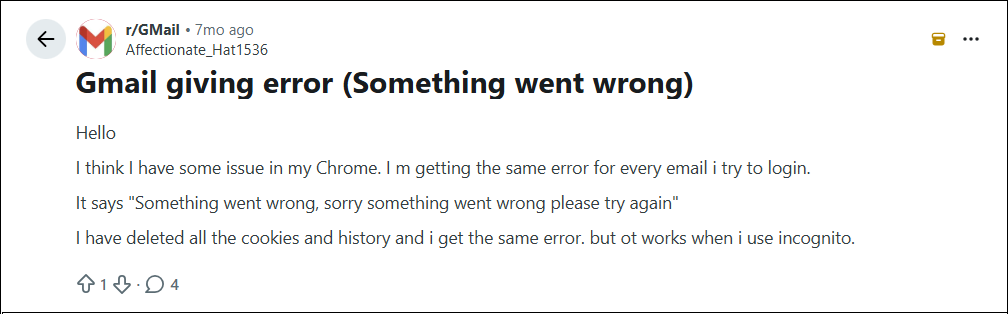
A message like “Something went wrong there. try again later.“ often appears without any clear explanation and leaves users in confusion. It feels more frustrating when you’re trying to send an important email, access your inbox and many more. The lack of detail of this error makes the situation even more annoying, leaving you uncertain about the troubleshooting measures.
Usually, the problem is temporary and can be resolved by implementing some quick fixes such as clearing browser cache, resolving Google account sync issues. However, it’s not necessary that the issue is always with your device; sometimes it can be a temporary outage on Google’s servers also.
In this guide, you will learn the most common causes of this issue and step-by-step instructions to fix it.
Table of Contents
- What Does Gmail “Something Went Wrong” Mean?
- Why Does Gmail Keep Showing “Something Went Wrong”?
- How to Fix Gmail “Something Went Wrong, Try Again Later” Error
- Watch Video Tutorial to Solve Gmail Something Went Wrong Issue
- Tips to Prevent Gmail Errors in Future
- Final Words
- Frequently Asked Questions (FAQs)
What Does Gmail “Something Went Wrong” Mean?
“Something went wrong. “try again later” message is a generic error by Gmail services when it is unable to complete a request successfully. This message does not indicate the exact problem like some other Gmail error codes, so it is difficult to know what needs to be fixed.
You can get this error sometimes when
- Sign in to your Gmail or Google account
- Opening your mailbox
- Sending or receiving email
- Upload Attachments
- Refresh Gmail account
- Switching between multiple Gmail accounts
- Accessing Gmail on Chrome, Edge, Firefox or Safar
- Using Gmail in Android or iPhone
Sometimes the error fixes after refreshing the page and sometimes it continues until the real problem is fixed.
Fortunately, this error doesn’t necessarily mean that your Gmail account is affected or your emails are deleted. Most of the time this is related to your browser, internet connection, account synchronisation or a temporary issue with Google’s servers.
Why Does My Gmail Keep Saying Something Went Wrong?
This error can appear while loading Gmail, signing in, sending emails, or performing any activity inside Gmail.
Here are some reasons for sorry, something went wrong there & try again Gmail error:
- Unstable internet connection
- Corrupted browse cache & cookies
- Server outage from Google
- Outdated browser
- Login or account sync issues
- Conflicting browser extensions
After we have read the reasons behind this error, let’s quickly get into the ways to solve this error.
How to Fix Gmail Something Went Wrong Try Again Later Error?
The error message means there is a problem and you might wonder why does my Gmail automatically sign out of my account when you try to sign in. Thus, it could be your fault or Google’s fault if you see this error on all your devices.
Check if Gmail Is Down Before Trying Any Fixes
Before you start implementing various outside methods to fix this error, it’s worth verifying that the problem is really on Google’s side.
Sometimes Gmail experiences temporary service disruptions, maintenance, or server outages affecting thousands of users around the world. You may receive messages like at these times:
- Something went wrong. Try again later.
- Sorry, something went wrong there. Try again.
- Couldn’t connect to Gmail
- Temporary Error
- Sync Failed
If there’s a problem with Gmail servers, changing your browser settings or clearing the cache won’t help. In this case, the best thing to do is wait for Google to restore the service.
Check the status of Gmail on the following sites;
#1. Check the Google Workspace Status Dashboard
#2. Check Downdetector
#3. Test Gmail on Another Device
#4. Check Other Google Services
Also, you can try to check whether Gmail is hacked or not as sometimes if your Gmail account is hacked or compromised you might see these types of issues in your Gmail account.
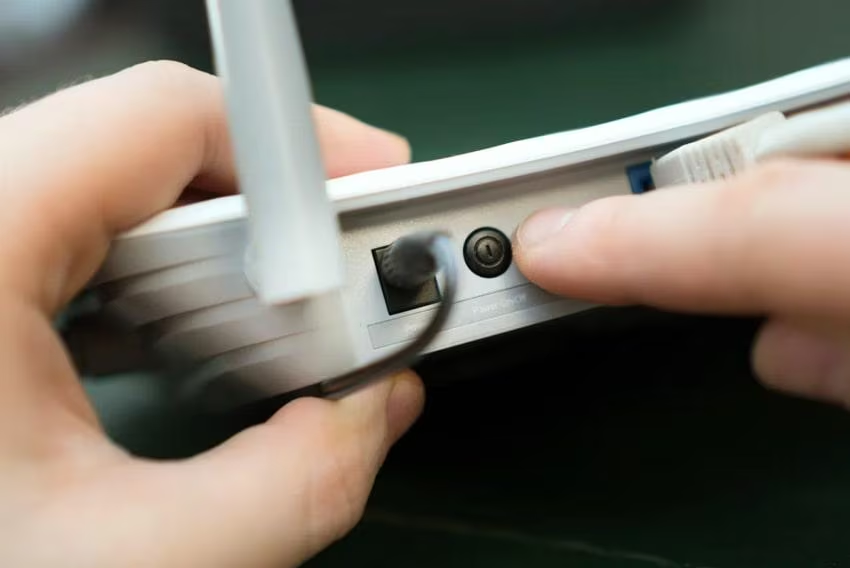
#1. Check Your Internet Connection
Gmail requires an internet connection to work, so the last step is to check for connectivity issues for Gmail users. A weak or unstable internet connection can lead to various Gmail errors including something went wrong. Ensure that you are connected to a stable network and try to refresh your Gmail page.
#2. Refresh Gmail and Restart Browser
Sometimes Gmail doesn’t load due to a temporary glitch in the browser or an incomplete connection to Google’s servers, so try to refresh the Gmail page first to check if it works.
- Press Ctrl + R (Windows) or Cmd + R (Mac) and refresh your Gmail.
- If the error continues, then close your browser completely.
- Open it again after a few seconds.
- Sign back in to your Gmail account.
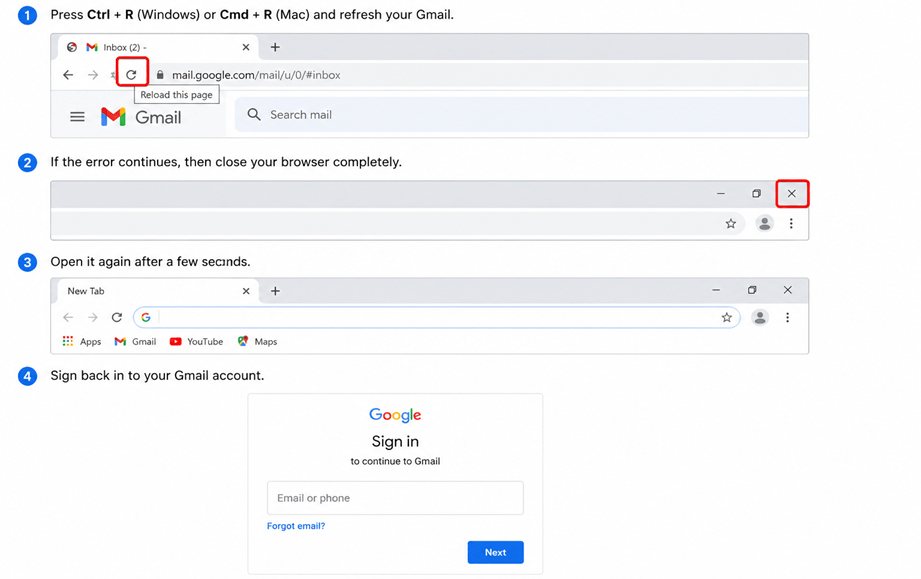
If Gmail works as it was working previously after restarting the browser, the problem was probably a temporary one.
#3. Sign in Gmail in Incognito Mode
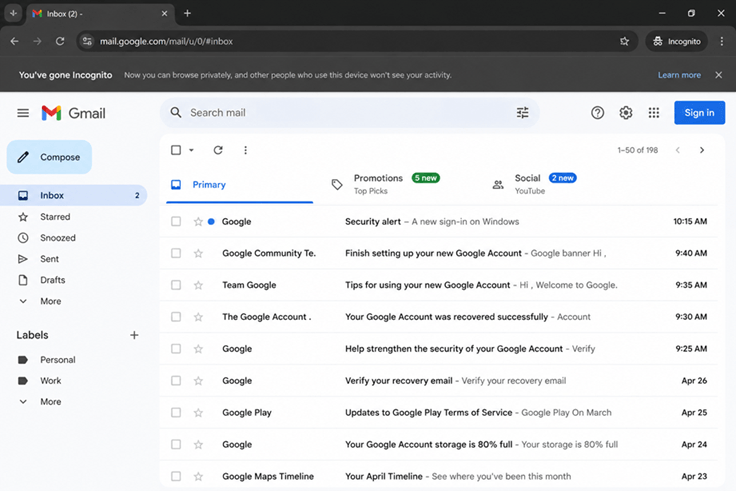
One of the simplest ways to test whether an issue is browser-related is to use Incognito (Private) mode.
Incognito mode is another window tab that disables most extensions and opens a new session in browser. If Gmail works here then the problem is probably with the cached data or an extension.
Chrome
- Tap the three-dot menu
- Choose New Incognito Window.
- Log into your Gmail account.
Microsoft Edge
Open a new InPrivate window.
Firefox
Select New private window.
Safari
Go to File > New Private Window.
If Gmail works in Incognito Mode, try the next methods to clear cache or disable extensions.
#4. For Desktop Users:
These tips and tricks will be helpful if you are trying to access your Gmail account through the browser and if you are using the Gmail app then proceed with the next section.
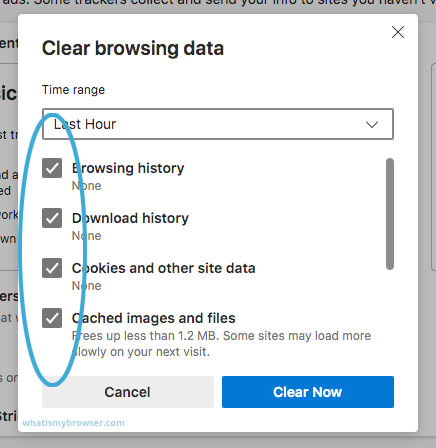
Clear Browser Cache and Cookies: An outdated browser cache and cookies can sometimes interfere with Gmail’s functionality and cause this error. Try to clear the cache and cookies in your default browser in which you are trying to access your Gmail account.
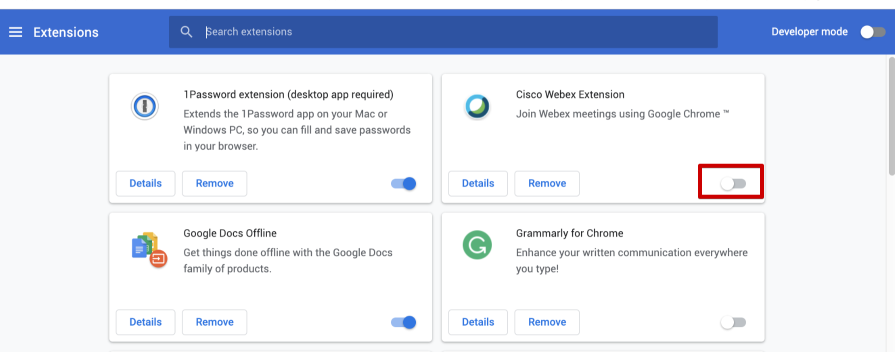
Disable Browser Extensions: Sometimes browser extensions or add-ons can conflict with Gmail and this error might appear. Try to disable all the irrelevant browser extensions that stop Gmail from working well.
#5. For Mobile Users:
If you are accessing your Gmail account through an application on your mobile device then follow the below solutions to fix something went Gmail error.
Clear Gmail App Cache: First of all, the reason behind something went wrong Gmail error could be the low storage on your phone. In this situation, you should try removing the cache data of the Gmail application that causing this problem.
To do this;
- Open settings and click on Storage.
- Then, choose Manage apps and look for the Gmail app.
- Now, select Clear Cache and tap on Clear Data.
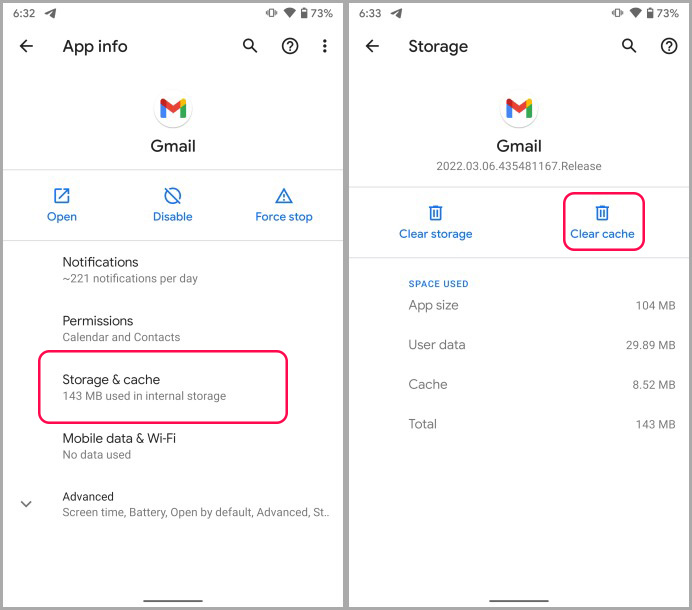
By following the above steps, you will easily erase all the unuseful data from your Gmail application.
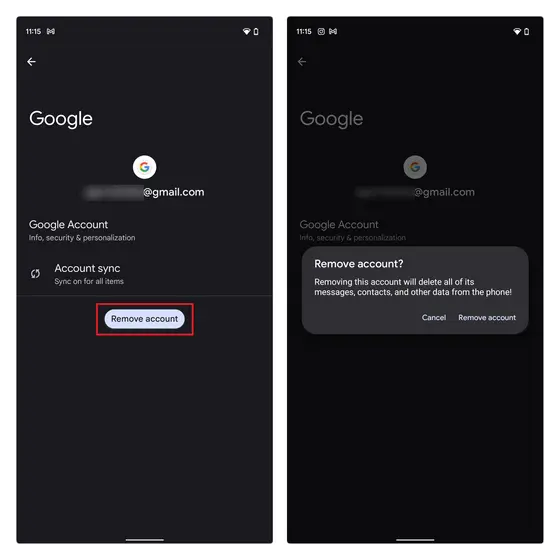
Remove Google Account: If clearing Gmail’s cache doesn’t fix this problem then don’t worry as you may fix this problem by removing the account from the app and logging in again.
To do this, follow the below steps;
- Go to settings on your device.
- Look for passwords and accounts and click users & accounts.
- Now, “under accounts” choose the account that you wish to remove and click on Remove account.
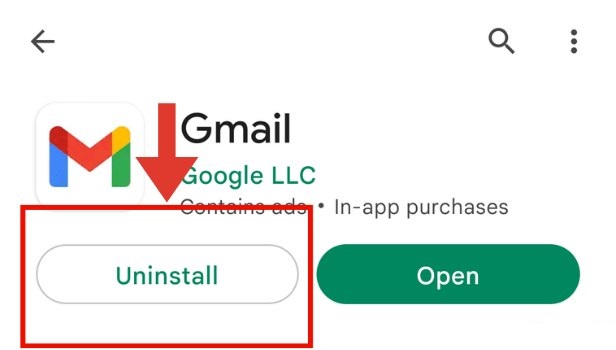
Uninstall Gmail App Updates: If removing the account also doesn’t work then try to uninstall the Gmail app from your device and again log in to see if the error resolves or not.
#6. Turn Off VPN or Proxy Services
Some VPN servers and proxy networks are for additional security checks by Google.
To see if they are the cause of the problem:
- Temporarily disconnect the VPN.
- Close and re-open your browser.
- Open Gmail once more.
For Android:

For iPhone:

PC:

If Gmail is then working normally, you might want to try a different VPN server, or turn your VPN off while using Gmail.
Watch How to Solve Gmail Something Went Wrong Try Again Later Issue
Tips to Prevent Gmail Errors in Future
Gmail errors such as “Something went wrong, try again later” can occur due to any reason and may interfere with your daily email activities. These issues are often caused by old browser data, a weak internet connection, browser conflicts or temporary problems with account your Gmail account syncing issues. But by following some precautions you can reduce the chances of facing this Gmail error again in the future.
Below are some useful tips that will help you to avoid this problem in future;
- Update your browser and Gmail app with the latest version.
- Regularly clear your browser cache and cookies to avoid gathering of corrupted or temporary files.
- Don’t install unnecessary browser extensions or add-ons that may cause issues with your Gmail account.
- Make sure to have a stable and secure internet connection whenever accessing Gmail account.
- Update your recovery email address and phone number to recover your account in emergency.
- Don’t sign into your Gmail account on too many devices at the same time.
- Restart your browser or device frequently to refresh background services.
Another important precaution is to make a backup Gmail emails with attachments regularly. Sometimes users are unable to access important mails due to Gmail errors, accidental deletion, account problems or temporary server problems. You can download Gmail emails to PC or hard drive so your important mailbox data is always secure and accessible.
If you want a simple solution, you can use tools like Advik Gmail Backup Tool to save your important email data to computer or external hard drive without complicated configuration.
Final Words
We hope you have understood what Gmail something went wrong error is and how to fix this error using above mentioned tips and tricks. We understand that facing this type of error makes you feel frustrated as you might not be able to access your Gmail emails but relax it’s easy to solve this. First analyze the real cause of this error and then apply a reliable method concerned with it.
Frequently Asked Questions
1. Why do I am getting “Something went wrong, try again later” error in my Gmail account?
It might happen if your Gmail is not loading properly due to some temporary problems. Such as poor internet connection, browser cache problems, outdated browser version or even a temporary server issues from Google’s side.
2. Is this Gmail error permanent or temporary?
Most of the time it is temporary. solves after refreshing Gmail, clearing browser cache, restarting the browser or fixing internet issues.
3. How to check if Gmail is down for everyone or just me?
You can check the status of Gmail on the Google Workspace Status Dashboard or sites like Downdetector. If a lot of people are reporting the same thing at the same time it’s probably a global outage and not a problem with your device.
4. When I try to send emails or attach files in Gmail i get this error. Why?
This error is appearing when you try to send emails or attach files if Gmail is having trouble in processing its functions.
5. Do browser extensions cause this Gmail error?
Yup. Some extensions in particular ad blockers or security tools may interfere with Gmail’s scripts and cause errors when loading or sending.
6. Does deleting cache delete my emails?
No. Clearing cache and cookies in browser won’t delete your Gmail emails. It only clears out temporary files stored in your browser which can actually help Gmail load without any issues.
7. Why is Gmail working on mobile but not my browser?
Most of the time this means there is a problem with your browser not with your account. Corrupted cache, outdated browser versions or conflict with extensions are the most common causes.
8. I am worried as this error keeps appearing?
If the error continues after trying all fixes then it could be a fault in browser, unstable network or account sync problem. If this happens i recommend you to try another browser or another device.
9. When to contact Google support for this issue?
You should contact Google support, if:
- Gmail not working on multiple devices
- You can’t log into your account at all.
- The error continues after trying all the mentioned measures.
- You notice suspicious activity on your account