How to Fix PDF Preview Handler Not Working in Outlook? 7 Tried Methods
If you were trying to view a preview of PDF file in Outlook reading pane and received the message “There was an error previewing this file. Previewing using the PDF Preview Handler:” This common Outlook error appears when PDF preview handler doesn’t show a preview of PDF attachment inside reading pane.
This blog explains the major reasons behind PDF preview handler not working in Outlook, tried and tested solutions to fix it and best practices to troubleshoot this issue.
Real World Outlook PDF Preview Issue
When researching solutions to the Outlook PDF preview issue, I came across a Microsoft community forum where an Outlook user stated that they suddenly received the following error message when trying to open PDF attachments:
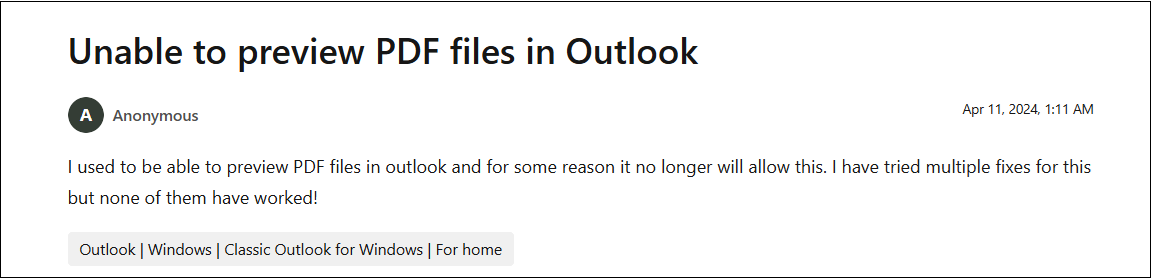
The user is explaining that the PDF files would open normally outside of Outlook but previews no longer worked in the Reading Pane. They’d upgraded Adobe Reader and reopened Outlook but the error still appeared.
I did some more research and discovered that the actual problem was with the PDF preview in outlook and not the pdfs. In many cases i saw similar cases after Office updates or Adobe Reader updates or add-in installations or changes to Windows preview-handler registrations.
This is an example of a point to keep in mind . Usually , the problem is not with the PDF attachment . Rather, it is most often associated with Outlook settings, preview-handler registration or many issues between Outlook and the PDF software you have installed.
If you are getting the same error then you can use the solutions below to identify and fix the root cause.
What is Outlook PDF Preview Handler Error?
Outlook displays the contents of files inside the Reading Pane by using Windows Preview Handlers, so you don’t have to open the file separately.
If Outlook cannot communicate with the registered PDF preview handler, errors such as the following might be displayed:
- Sorry, there was an error with the following previewer so this file can’t be previewed: PDF Preview Handler.
- No previewer for this file.
- Preview unavailable.
This is usually caused by the preview handler missing, being corrupted, being disabled, or being incompatible with the installation of Outlook.
Why is PDF Preview not working in Outlook?
This problem is not due to a single reason but there are many factors that are responsible for this error. Go through each of them, know your real cause;
1. Missing or Faulty PDF Preview Handler: In case the preview component of the PDF application is corrupt or not registered properly, Outlook will not be able to create preview of data.
2. Wrong Outlook Preview Settings: You might have accidentally disabled the Attachment Preview settings for Outlook.
3. Third-Party Add-ons Issues: Many Outlook add-ons may also create issues with the attachment preview feature.
4. Corrupted Outlook Temp Files: The corrupted temporary files of the attachments can also cause Outlook not to show previews well.
5. Corrupted Outlook Account Settings: If the settings of your Outlook account are corrupted, it can also affect the handling of attachments.
6. Office and PDF Software Compatibility Problems: A frequent and very real cause is the fact that Outlook is not compatible with the PDF software you have loaded. It’s creating issues post Office updates and PDF reader recent updates.
7. Incorrect Preview Handler Registration: An invalid or incomplete preview handler registration in Windows can prevent Outlook from loading PDF previews.
How to Fix PDF Preview Handler Not Working in Outlook?
In this section, we will explain how to fix Outlook PDF preview handler error by using some manual tricks. Go through each them one by one and see which works best for you.
1. Use the Latest Version of Adobe Reader
Errors can occur if Adobe Reader is outdated. To fix this, update to the latest version:
Install from the Web:
- Visit the Adobe Reader download page.
- Click Install Now.
Check for Updates:
Open Adobe Reader or Acrobat.
Go to Help >> Check for Updates.
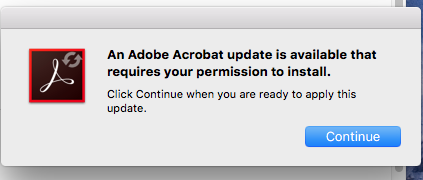
Follow the instructions to install any available updates.
After updating make sure Adobe Reader is set as the default PDF viewer. Restart Outlook to see if the issue is resolved.
2. Set Adobe Acrobat Reader as Default PDF Previewer
Outlook may struggle to choose a preview handler which can cause issues. Make Adobe Acrobat Reader the default.
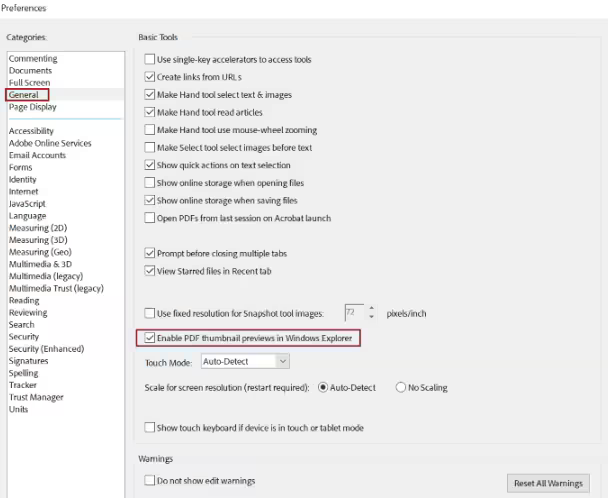
1. Open Adobe Acrobat Reader.
2. Click on the Menu and select Preferences.
3. Next, choose General under categories and check Enable PDF thumbnail previews.
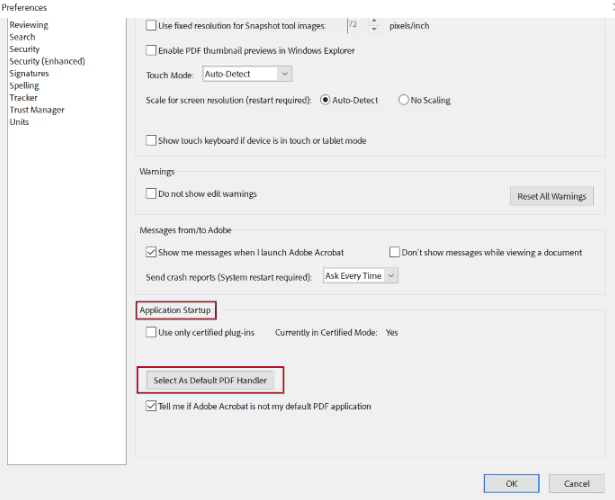
4. Click Application Startup and click Select As Default PDF Handler.
5. Choose Adobe Acrobat as the default PDF opener.
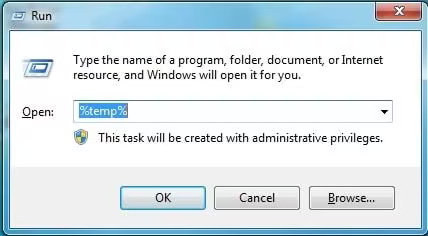
3. Delete Temporary Files
Corrupt temporary files can cause the preview handler error. To get rid of this issue, delete these files.
- Run Outlook and press Windows Key + R.
- Enter the following paths one by one and delete all files in these folders:
%temp%
%userprofile%\AppData\Local\Microsoft\Windows\Temporary Internet Files\Content.Outlook\
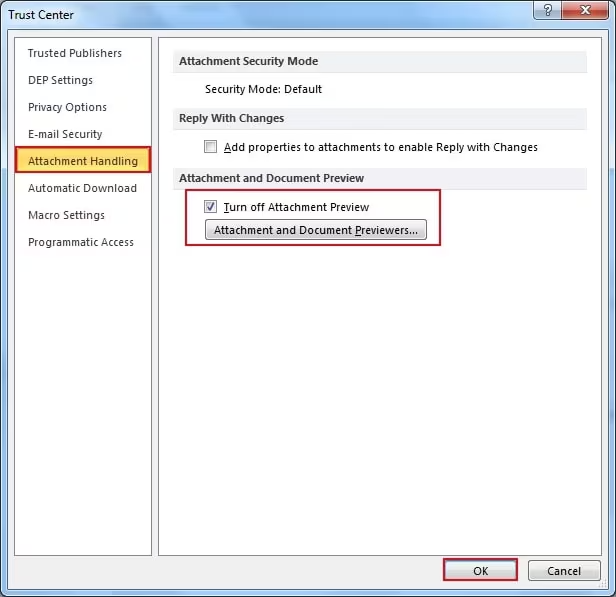
4. Ensure PDF Preview Handler is Enabled
- Open Outlook.
- Go to File >> Options >> Trust Center >> Trust Center Settings > Attachment Handling.
- Next, deselect the turn-off Attachment Preview.
- Click Attachment and Document Previewers and check the PDF Preview Handler.
5. Disable Third-party Extensions
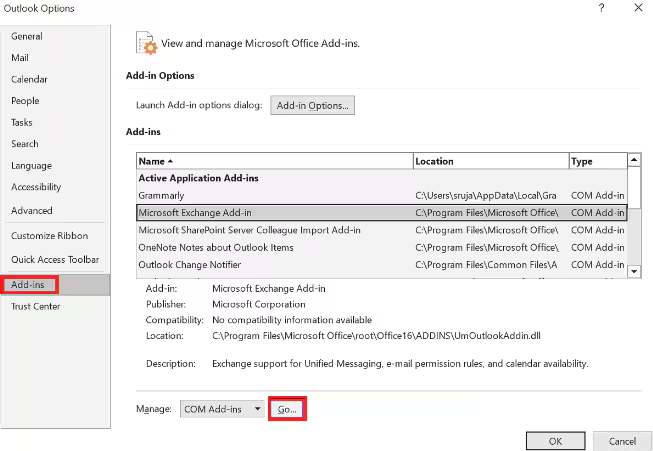
Third-party add-ons might cause issues. Disable them to find the problematic one.
- Open Outlook.
- Go to File > Options > Add-ins.
- Click Go next to Manage COM Add-ins.
- Uncheck each add-on one by one and click OK to disable them.
6. Repair Your Outlook Profile
If your Outlook profile is corrupted, it can cause various issues, including problems with PDF previews. Repairing the Outlook profile can fix this.
Steps to repair your Outlook profile:
- Open Control Panel > Mail.
- Click on Show Profiles.
- Select your Outlook profile and click Repair.
- Follow the instructions to repair the profile.
Once the repair is complete, restart Outlook and check if the issue is resolved.
By following these methods, you should be able to fix the PDF Preview Handler issue in Outlook.
Conclusion
If the above situations occur, Outlook may encounter PDF handler error. In this article, we have explained the reasons that cause this problem and how to fix Outlook PDF preview handler not working issues. We recommend that you first understand the cause and then select the appropriate method that you think is best for your situation.
Frequently Asked Questions
Q1. How do I change the PDF preview handler in Outlook?
Ans. Outlook typically uses Adobe Acrobat Reader as the default PDF preview handler. If you’d like to change the PDF preview handler, you may need to configure the default PDF viewer on your system.
To change it, go to Settings > Apps > Default Apps, and set your preferred PDF viewer as the default for .pdf files.
Q2. Why is my PDF preview not working in Outlook?
Ans. The PDF preview in Outlook may not work due to an outdated or corrupted Adobe Acrobat Reader, disabled preview settings, or conflicts with third-party add-ins.
Q3. Can I use another PDF viewer for the Outlook preview handler?
Ans. Outlook generally uses Adobe Acrobat Reader as the default PDF handler, and it doesn’t support using another PDF viewer for the preview feature.

Related Articles