How to Convert PST to Maildir – Free & Automated Methods
Outlook stores it’s email content in a PST file while many Linux based email systems use Maildir for file to store message. To convert Outlook PST file to Maildir, there are several ways to achieve this task. If you are comfortable with command line tools, you can use free Linux utilities like readpst and mb2md. Alternatively, users who want to transfer PST emails to Maildir without going through multiple conversion steps manually, an automated PST converter is also provided for a more easy and understanding process.
In this guide, we will explain both approaches along with their pros and cons so that you will understand how to choose the right PST to Maildir conversion method for your requirements.
Quick Answer: To convert PST to Maildir on Linux for free, extract the PST into a repeated mbox structure with readpst. Then, use mb2md to convert MBOX files into Maildir. Ans, if you are a Windows OS based user, then also try automated PST converter to export PST emails to Maildir without using command line utilities.
Table of Contents
- What Are PST and Maildir?
- Why Convert PST to Maildir?
- Which PST to Maildir Method Should You Choose?
- Free Method: Convert PST to Maildir Using readpst and mb2md
- Automated Method: Convert PST to Maildir Using a Converter
- Thunderbird as an Alternative
- Maildir vs Maildir++
- How to Prepare Maildir for Dovecot
- Common PST to Maildir Conversion Problems
- Frequently Asked Questions
- Final Words
What Are PST and Maildir?
Before moving ahead, it is important to understand both file formats.
PST File Format
PST file format stands for Personal Storage Table.It is known as an Outlook data file that contains all items like email messages, contacts, calendars entries, notes and much more. This file is stored locally on computer and are well-known for backup and archiving emails. There are mainly two types of PST files:
- ANSI: Outlook 2002 and earlier versions create ANSI PST files. This file has 2GB size limitation and does not support multiple character sets.
- Unicode: Outlook 2003 and later versions create Unicode PST files. It has a limit of 20GB for Outlook 2003 and 2007, and also increased for later editions. It supports multiple character sets.
Maildir File Format
Maildir format is a common way of storing email messages on a file system, rather than in a database. Each message is assigned a file with a unique name, and each folder of Maildir is called a directory. It stores all its mailbox data in different subdirectories.
A Maildir directory usually has three subdirectories named tmp, new, and cur.
- The tmp subdirectory temporarily stores email messages that are in the process of being delivered. It may also store other kinds of temporary files.
- The new subdirectories store messages that have been delivered but have not yet been seen by any mail application.
- The cur subdirectory stores messages that mail applications have already seen.
Why Do Users Convert PST to Maildir Format?
There are several advantages of exporting Outlook PST emails. Some of them are:
- Maildir stores each email message as an individual file, which makes it easy to manage, backup, and restore each email as compared to PST.
- In PST, the corruption risk is higher if one file gets corrupted, multiple emails can be lost. Whereas, in Maildir only a single file will get affected.
- PST file is only supported by MS Outlook. While Maildir is a modern format, compatible with Linux systems and their mail servers, such as Thunderbird, Dovecot, Postfix, etc.
- When an organization moves from Windows Outlook to Linux Mail server. Exporting Outlook PST file to Maildir allows for migrating their data.
Free Method: Convert PST to Maildir Using readpst and mb2md
Linux users can convert PST data to Maildir without Microsoft Outlook by using two different utilities:
readpst: extract email data from Outlook PST file.
mb2md: converts mbox mailboxes into Maildir format.
This method is particularly useful for Linux users and system admins who are comfortable with using this.
Prerequisites
Before starting, make sure you have the following things;
- A Linux computer or server.
- The PST file you want to convert.
- Sufficient disk space
- installation of pst-utils & mb2md
- Permission to read the source PST file and write to the destination directories.
Step 1. Install the pst-utils package on Debian or Ubuntu based systems
Step 2. After installation, verify that readpst is available.
Step 3. Create a directory to hold the extracted mailbox data:
mkdir -p ~/pst-output
Step 4. Then run readpst with the repeated option:
readpst -r -o ~/pst-output /path/to/file.pst
Step 5. Change /path/to/file.pst to the actual location of your PST file.
Step 6. The -r option tells readpst to recreate the folders in the PST over and over again. Resulting folder structure will contain extracted mailboxes that will be named as mbox files.
Step 7. The exact folder names and structure may differ depending on the contents of the PST.
Step 8. Before you convert the data, check the output readpst produces.
Step 9. Check that your expected mailboxes that you created are there, and the important folders are present.
Step 10. On systems where mb2md is available via the package manager install the relevant package. Then you can check the command:
mb2md –help
Step 11. If your distribution uses a different implementation of mb2md, or a different command syntax, please consult the documentation for that package.
mb2md – convert mbox mailboxes to Maildir format.
Step 12. The exact command will depend on the organization of the readpst output and which mb2md implementation you have installed.
Important Note:
- Check the utility help output before you run the conversion.
- Do not delete the original PST or extracted mbox files immediately after the conversion.
- If the Maildir will be imported into Dovecot or another mail server, also verify the destination’s expected mailbox layout and file permissions.
- Although readpst + mb2md is free, it requires more technical knowledge than a graphical converter.
How to Convert Outlook PST Emails to Maildir File Format Automatically?
The manual method is lengthy and takes a lot of time to complete the conversion process. To make the process easier and faster, users can use a professional tool. Try the Advik PST Converter that will enable you to directly convert PST to Maildir file format. Just add your PST file, choose Maildir, and start the conversion in a few clicks.
The software maintains all email attributes and structure while converting. It allows you to choose multiple PST files at once. With this PST to Maildir converter, you can convert both ANSI and Unicode PST files.
Now, click on the below free download button to try it for free.


Steps Export PST to Maildir Without Outlook
Step 1. Launch the tool on your system.
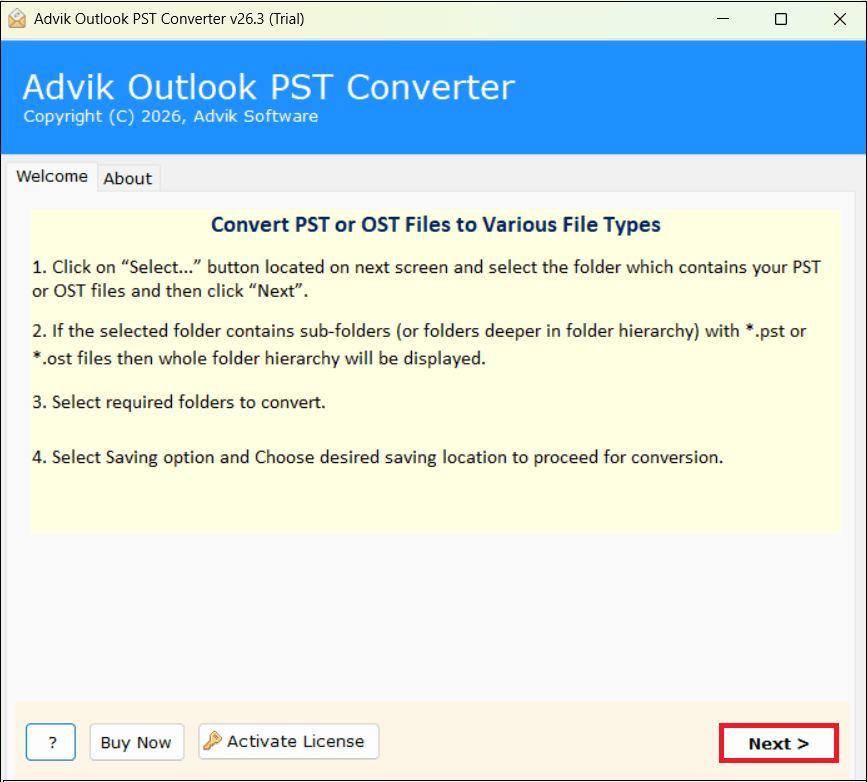
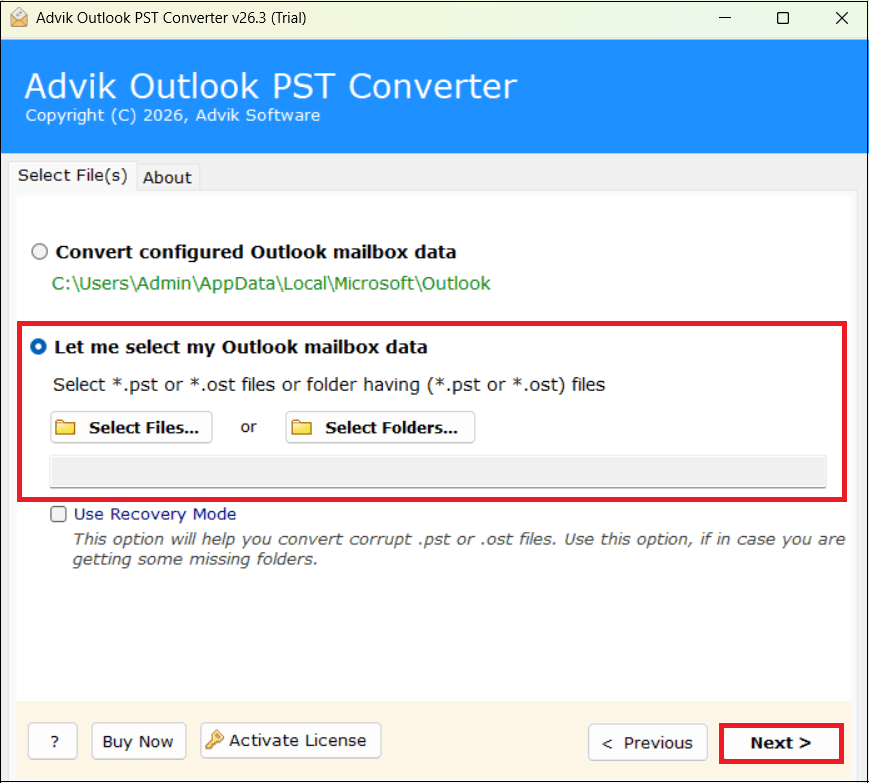
Step 2. Add PST file to the software panel and press Next.
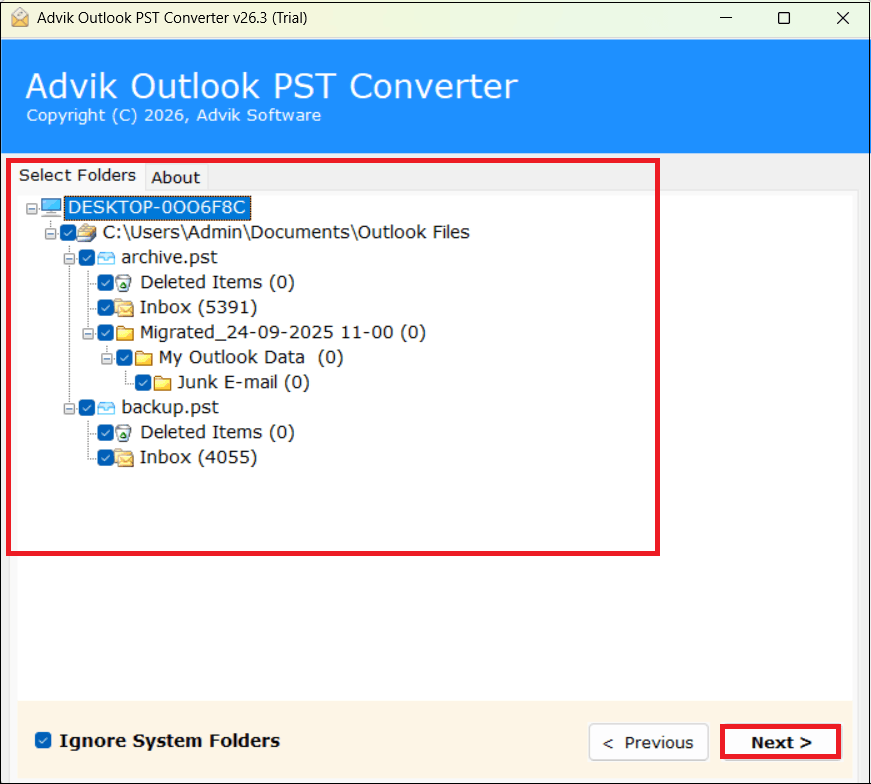
Step 3. Choose the required folders and subfolders and hit on Next.
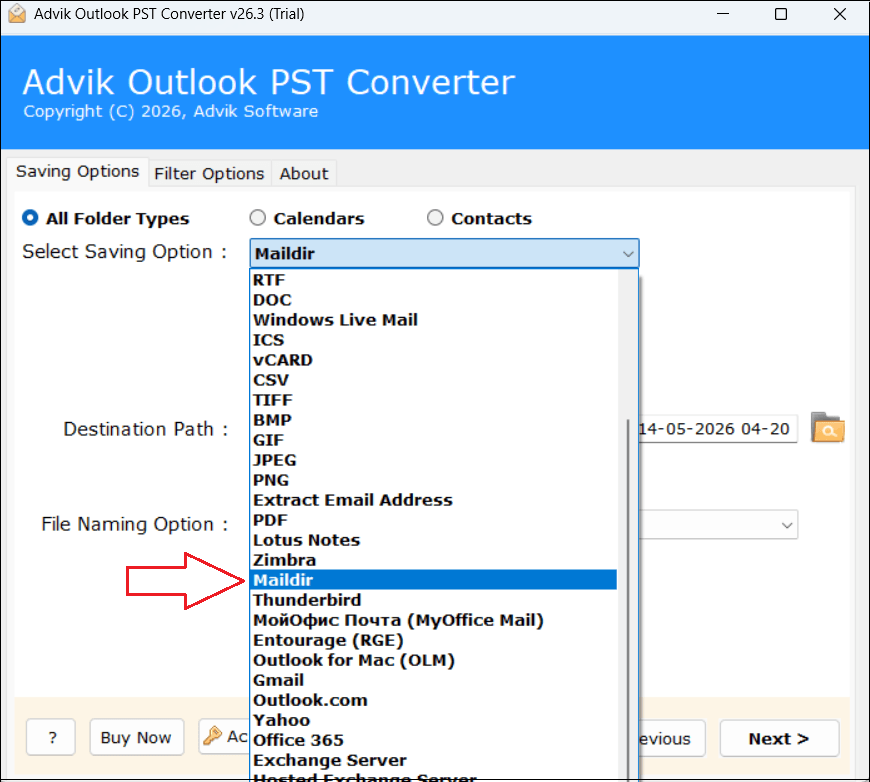
Step 4. Pick Maildir in the select saving option, as shown in the screenshot.
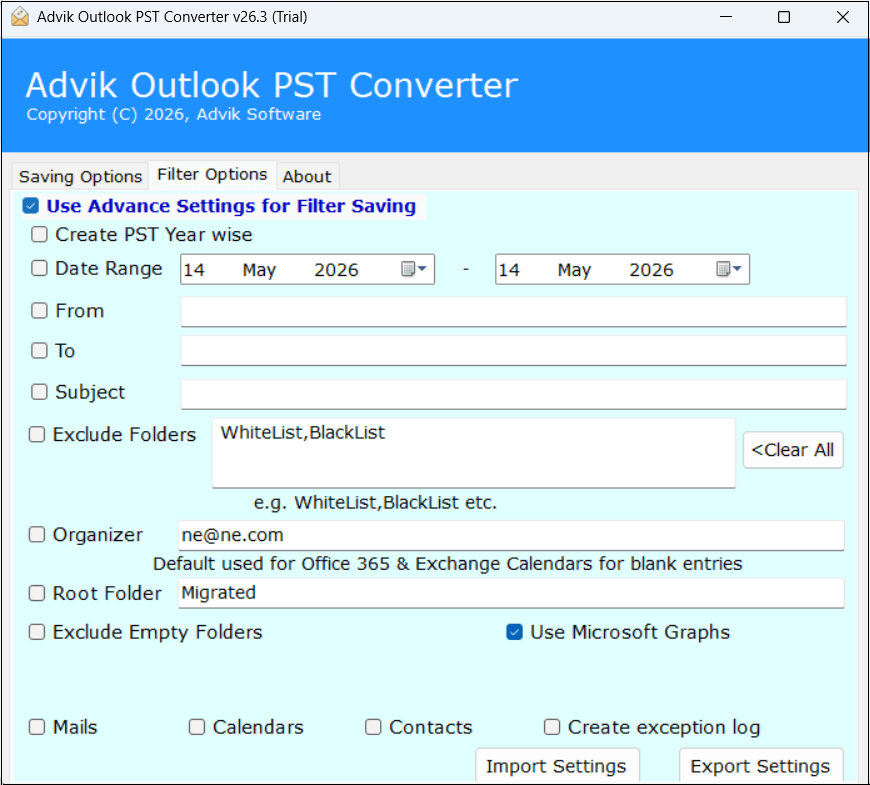
Step 5. If you need to convert selected emails then apply filter options.
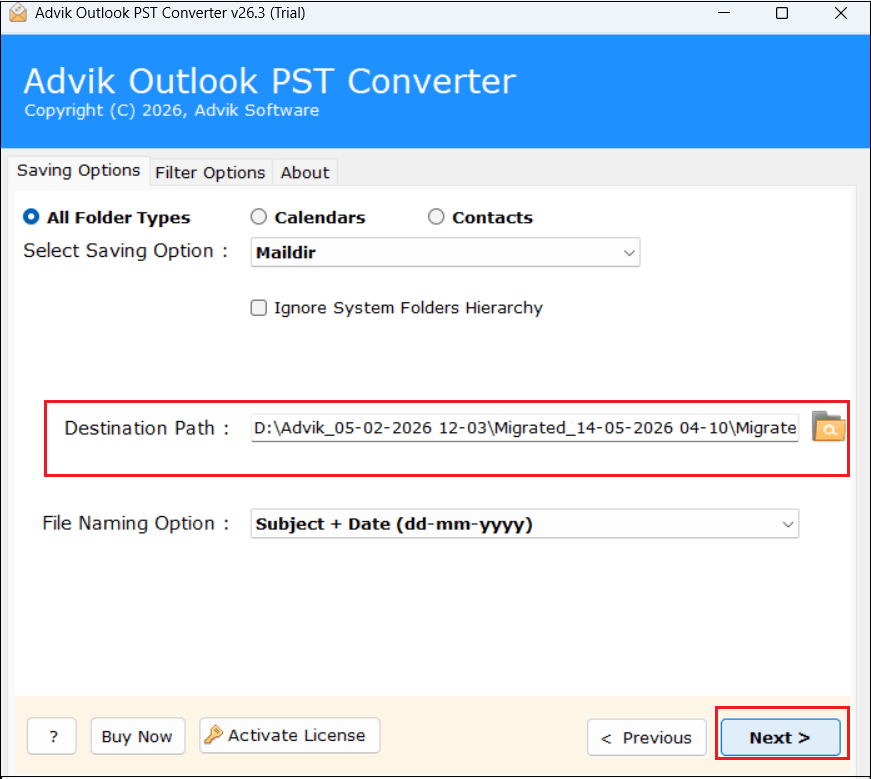
Step 6. Then, give the saving location and press Next button.
The software will start converting PST emails to Maildir format. When process comes to an end, a complete conversion report appears on your screen.
Benefits of Using the Professional Tool
- Bulk Conversion: The tool is capable of handling multiple Outlook data files, meaning the user can convert multiple PST files using the select folder option. Additionally is there is no size restriction to the PST files that need to be imported.
- Advance Filter option: The tool has an advanced filter, which helps users segregate a specific type of data or individual files. This helps users target only the required data.
- Faster Solution: The tool’s automated approach and capabilities help the user save time and effort and provide accurate results.
- Easy-to-understand GUI: The tool’s User interface is easy to understand and doesn’t require going through a guide. Additionally, this reduces human errors.
- Export Emails with Attachment: The data converted will have all the attachments, like photos and documents, attached to the conversion. Additionally, the metadata, like CC, sender’s name, etc., is also maintained.
- Export Corrupted PST Files: The software is able to convert orphaned and corrupted PST files data without any hassle.
Final Words
Converting PST to Maildir is possible through both free Linux utilities and automated conversion software. The readpst + mb2md method is a suitable choice for technically experienced Linux users who want a free approach, while an automated converter provides a simple graphical interface which requires less manual work.
The free method requires command line knowledge and additional steps to extract PST data and convert it as Maildir. An automated solution can be more convenient when working with large PST files, multiple mailboxes or when you need some extra features.
Choose the method that match best to your technical experience and migration requirements, and always verify the converted Maildir data before using it in your target mail server or email application.
Qestions and Answers
Q1. Can I convert multiple PST files to Maildir at once?
Ans. Yes, this tool supports batch conversion, allowing you to export multiple PST files to Maildir in one go.
Q2. Can I convert Outlook PST file to Maildir on Windows without Linux?
Ans. Yes, the software allows you to complete the conversion process on Windows system without needing Linux installation.
Q3. Do I need Outlook installed to convert PST to Maildir?
Ans. No, the tool works without Outlook and can directly convert PST files to Maildir format.
Q4. Is it possible to convert Outlook 2016 PST files to Maildir format?
Ans. Yes, you can export PST files from Outlook 2016 to Maildir format.