How to Move Outlook Folders From One Account to Another?
Christopher Plummer | April 11th, 2026 | Email Migration, Outlook
Microsoft Outlook is a popular email client developed by MS Corporation. It is widely used by businesses and professionals to send & receive emails, and manage calendars, contacts, tasks, and notes. It allows users to manage multiple email accounts. Sometimes, users need to move Outlook folders from one account to another for various reasons.
However, transferring Outlook emails to another Outlook account can be hectic. But it’s simple with the right methods. In this blog, we will show you all the possible methods, from manual to professional to migrate email folders without data loss.
Table of Contents
Reasons to Move Outlook Folders from One Account to Another
Here are some reasons why users need to migrate emails from one Outlook to another:
- For merge accounts into one for easier management.
- To backup emails for safety and long-term access.
- Transferring emails from personal Outlook account to business.
- Move large folders to another Outlook account to reduce mailbox size.
- Migrate folders before deleting old Outlook profile.
Now that you understand why moving Outlook folders to another Outlook account is important. Let’s move into the different ways to accomplish this task.
How to Transfer Outlook Folders to Another Outlook Account?
Here, we’ll discuss three different ways to move Outlook emails to another account. You can choose to use Outlook’s built-in Import/Export features or utilize reliable software to move emails. First, we’ll discuss the manual method and then proceed with the professional solutions.
Method 1. Migrate Emails from One Outlook to Another Manually
To manually move Outlook folders from one account to another, first export the folders from one account, then import them into another account via the Import/Export feature. So, this method works in two phases.
Step 1. Export Emails from One Outlook Account
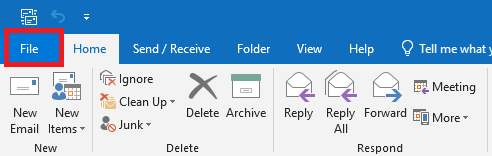
1. Open the Outlook application from which you want to move folders and go to File tab.
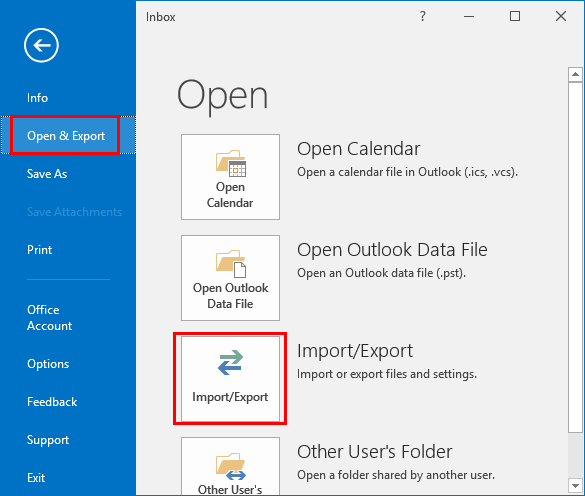
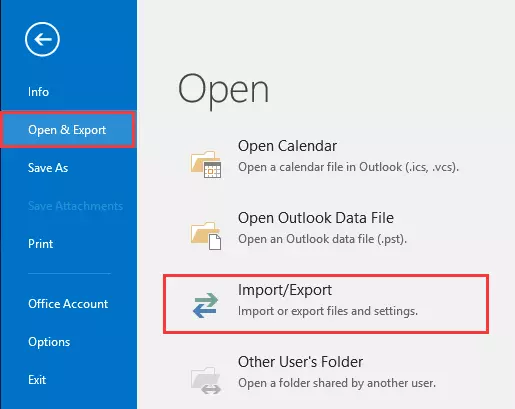
2. Click on Open & Export and select Import/Export.
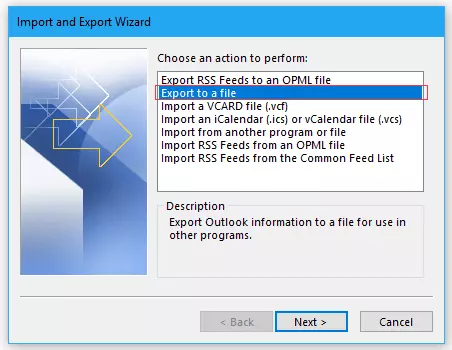
3. Choose Export to a File and click Next.
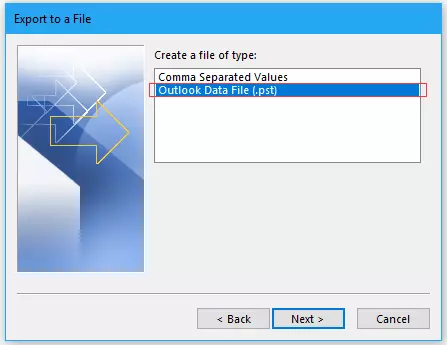
4. Select Outlook Data File (.pst) and press Next.
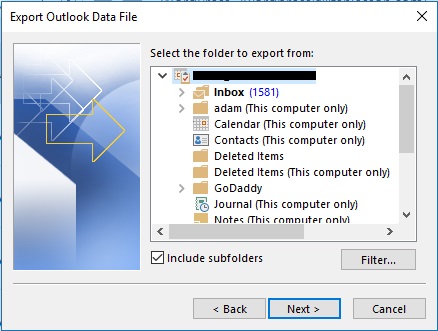
5. Now, choose the Outlook folders that you want to move and hit Next.
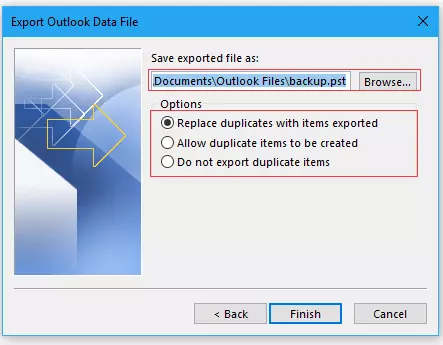
6. Browse the destination location and click Finish.
Step 2. Import Emails to Another Outlook Account
1. Open the Outlook application in which you want to transfer email folders.
2. Navigate to File >> Open & Export >> Import/Export.
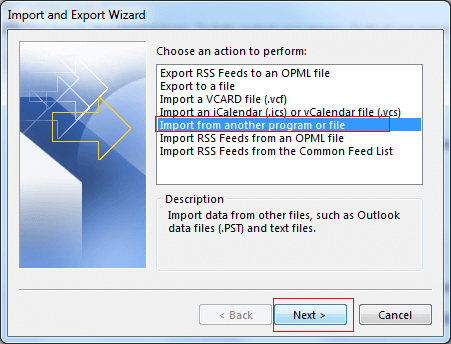
3. Choose Import from another program or file and click Next.
4. Select Outlook Data file (.pst) and press Next.
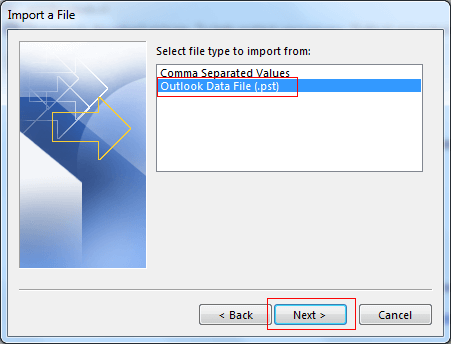
5. Choose the above exported files from saved location.
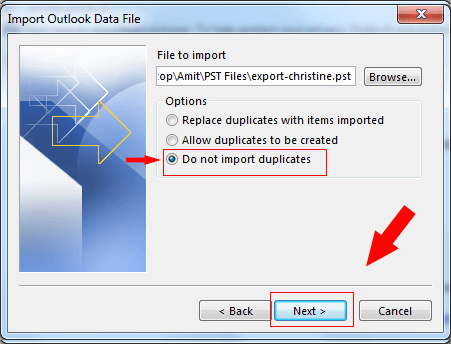
6. Next, select your Outlook account and click the Finish button.
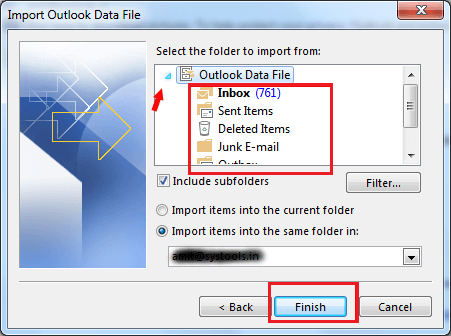
This is how you can transfer folders from one Outlook account to another Outlook account. However, with this approach, you can move folders in bulk and it also doesn’t maintain the folder structure while migrating.
Method 2. Move Email Folders from One Outlook Account to Another
If you face any issues in the manual solution, you can use a professional tool like Advik Outlook PST Converter. With this tool, you can directly export emails from a configured Outlook profile into .pst and then import it into another Outlook profile. It preserves data integrity and mailbox folder hierarchy during the migration. The software can move emails from one Outlook to another in bulk. Additionally, it also offers advanced email filter options to transfer selected emails based on date range, to, from, subject, etc.
Tap on the below link to try it for Free and analyze its working procedure.


1. Run the tool and choose your Outlook profile.
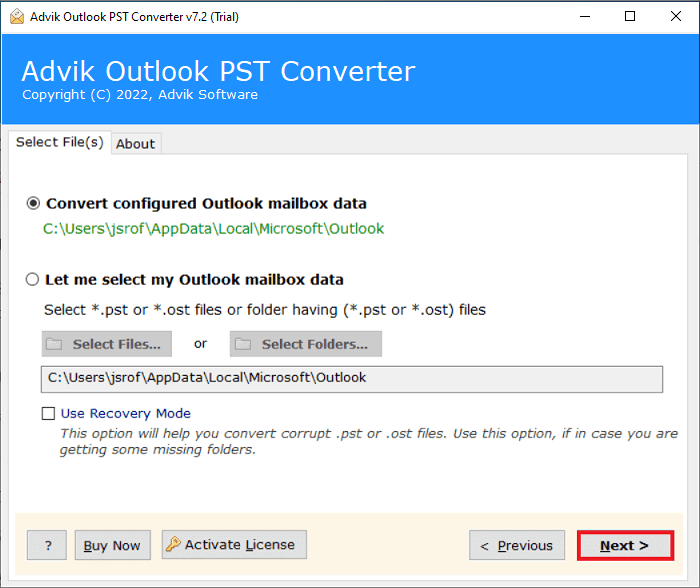
2. Choose the mailbox folders that you want to move.
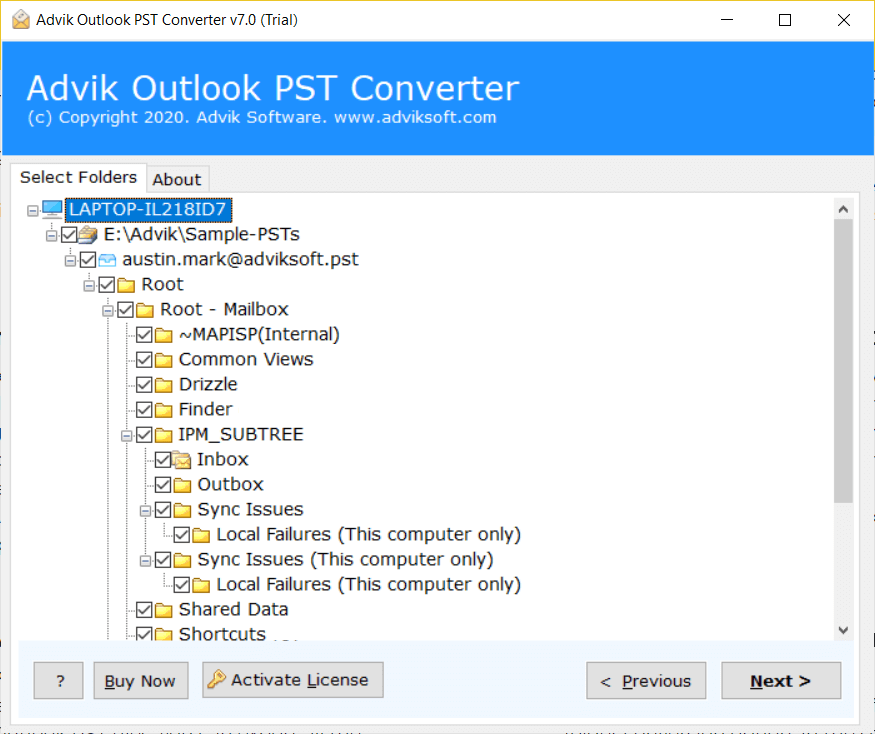
3. Select PST as a saving option.’
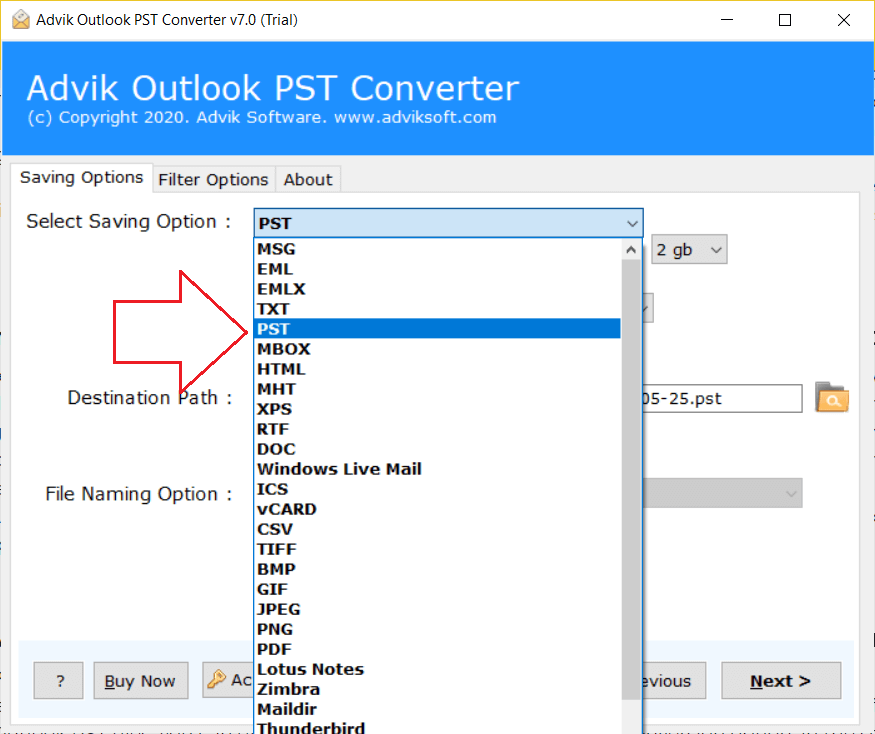
4. Browse target location and click Next.
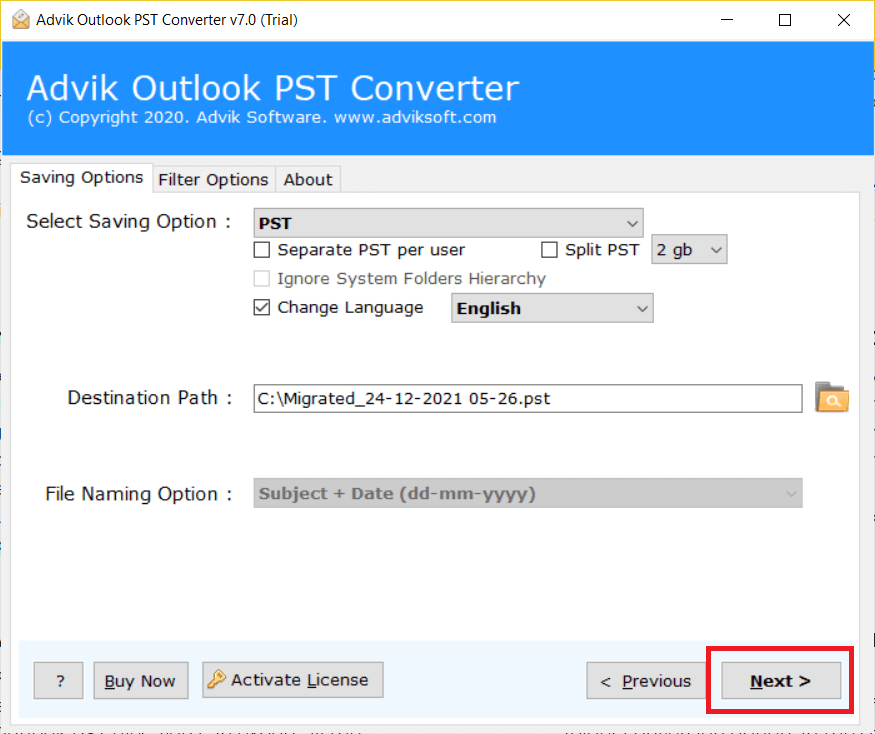
The software will start exporting Outlook mailbox data to PST format. Once the process is complete, open another Outlook account and import this file via Import/Export feature.
Method 3. Transfer Outlook Emails to Another Outlook Account
Although the above mentioned methods work well but they involve multiple steps like exporting and importing PST files. To avoid this complexity, you can use the Advik Email Migration Tool and easily move Outlook folders from one account to another. It allows you to migrate email folders from email account that is configured with your Outlook to another Outlook account with ease. You can even select specific Outlook folders of your choice for transfer. Additionally, the tool guarantees to maintain the folder hierarchy of your Outlook mailbox throughout the process, ensuring no data loss.
Download the software for free and give it a try.


Step 1. Run the software and choose your email account from 90+ options.
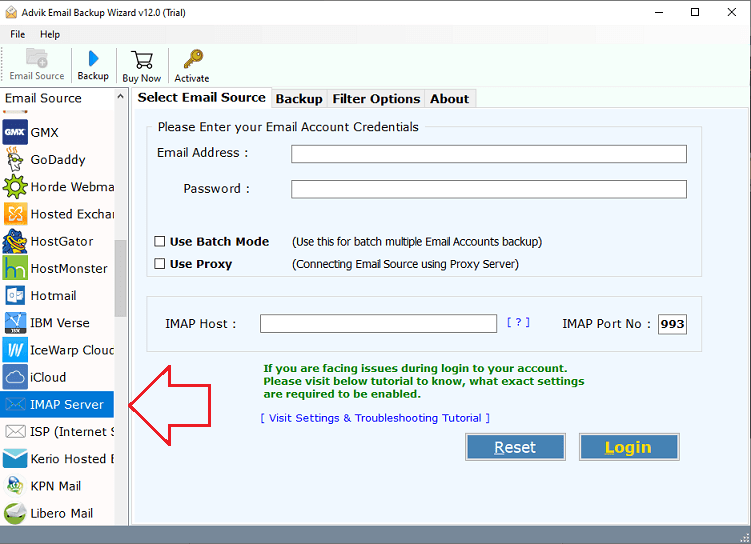
Step 2. Next, sign in with your email account details.
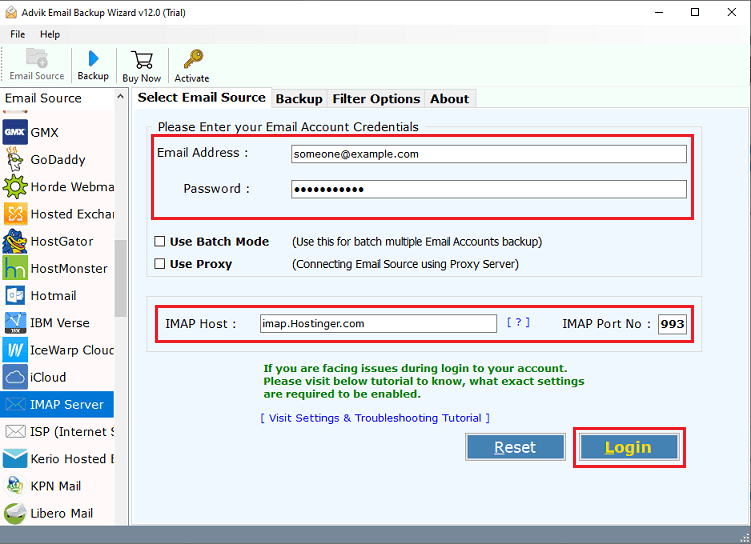
Step 3. Select the required Outlook email folders of your choice.
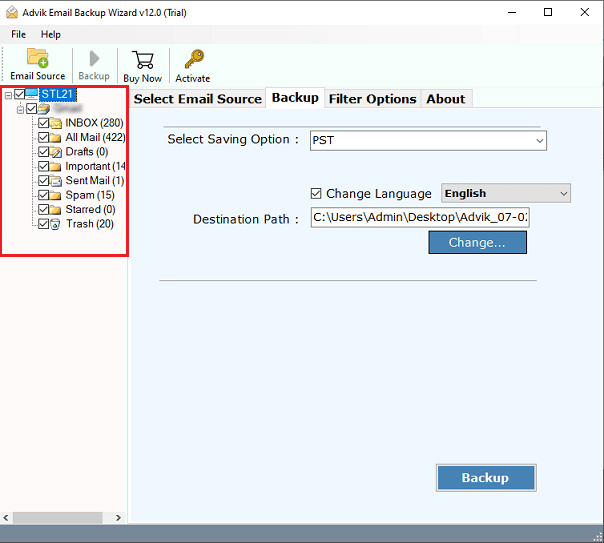
Step 4. Choose IMAP as a saving option from the list.
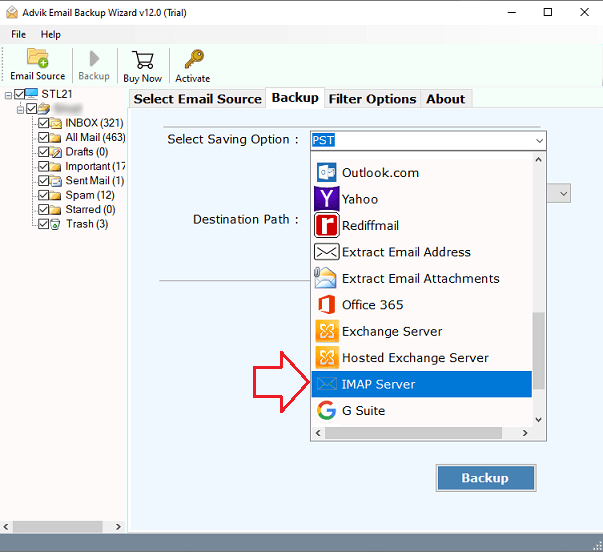
Step 5. Enter your destination account details and click Backup.
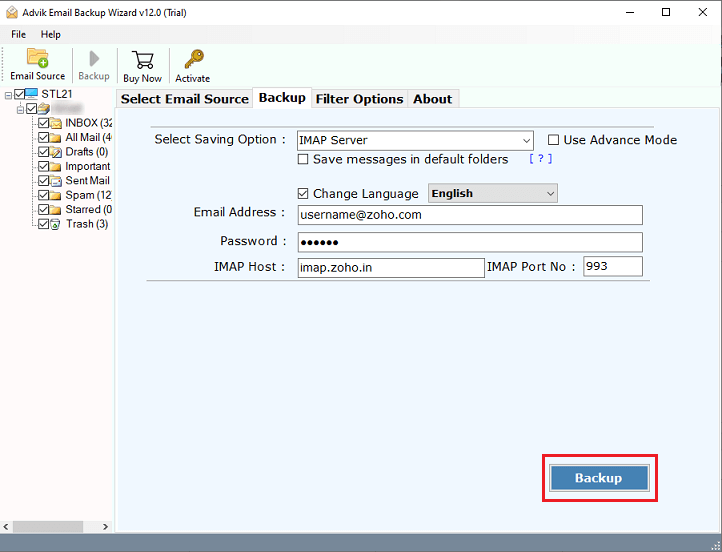
This will now begin transferring Outlook email folders from one account to another in just a few simple steps.
Afterward, you will receive a log report with detailed information about the entire process.
Once completed, you can log in to your destination account to check all the transferred Outlook mail folders from the previous email account.
Watch How to Move Email Folders from One Outlook to Another
Why Choose Automated Solution Over Manual Methods?
- Offers a simple GUI, making it accessible for both tech-savvy users and beginners.
- Data formatting is preserved during the migration process from one Outlook account to another.
- You can export Outlook emails to PDF, EML, MSG, DOC, TXT, HTML, and many useful file formats.
- The tool is designed with the necessary technical integrations to ensure smooth email migration.
- With this tool, you can move Outlook folders to Gmail, Office 365, Yahoo Mail, Exchange Server, etc.
- It is compatible with all versions of Windows and Mac, providing ease of use and smooth operation.
- You can transfer unlimited data from one Outlook account to another using this effective solution.
Conclusion
Till now, we have found three easy methods to move Outlook folders from one account to another. The above solutions have been tested with the latest Outlook versions and are workable in previous versions as well. Method 1 contains a drawback but the same has been ruled out in Method 2. To simplify this process, we introduced an alternate way that will directly transfer folders from eamil account configured with Outlook to another Outlook account. You can try its demo version first which will let you move the first 25 emails from each Outlook folder from one account to another for Free.
Therefore, read all the methods and choose the solutions as per your requirements.
Frequently Asked Questions
Q1. Can I transfer only selected Outlook folders from one account to another?
Ans. Yes, manual and professional methods allow you to choose specific folders but tools provides more advanced filtering options.
Q2. Will attachments and email properties be preserved while moving?
Ans. Yes, the professional tools preserve attachments, metadata, and formatting during migration?
Q3. Is it necessary to create a PST file for migration?
Ans. No, it is not alwsys required. The Advik Email Migration Tool allows direct account-to-account transfer without PST.
