Legacy Outlook for Mac Is Ending! What to Do?
Jenny Lowrence | February 6th, 2026 | Data Backup
Do you know Legacy Outlook for Mac is ending? Microsoft has officially announced no more support for Outlook for Mac (Legacy version), which is the end of an era for many long-time Mac users. The company is moving forward with its modern email ecosystem, which means the Outlook for Mac support shutdown is now part of Microsoft’s long-term plan to retire outdated technologies and promote the new Outlook experience.
If you are still using Legacy Outlook for Mac for managing your emails, calendars, and appointments, now is the time to take action to ensure uninterrupted access to your emails. On this blog, we will discuss why this change is happening, when it takes effect, and what you should know about it.
Why is Legacy Outlook for Mac Ending?
Legacy Outlook for Mac refers to the older version of Outlook designed for macOS. It has been widely used for many years, but it is based on outdated technology that does not align with Microsoft’s modern interface. Microsoft is transitioning to a new Outlook for Mac, which offers better performance, improved security, and better integration with cloud features. As a result, Legacy for Outlook is end of life, so that all users get benefits from a more unified experience.
No More Support for Outlook for Mac After 2026
Microsoft has confirmed that Legacy Outlook for Mac is ending in October 2026.
After that time;
- No new feature updates will be released
- Security updates may stop
- Technical support will be limited
- Compatibility issues with new macOS versions may increase
This indicates the Outlook for Mac shutdown for users who continue using the legacy client.
Legacy Outlook for Mac is Ending – What to Do Next?
If you are still using Legacy Outlook, here’s how to prepare:
1. Switch to New Outlook for Mac
Microsoft already offers a new, modern Outlook for macOS. This is the recommended solution for all users.
Follow the steps to switch from Legacy to New Outlook Mac:
- Open Legacy Outlook on your Mac.
- Look for the New Outlook toggle at the top of the window.
- Turn it on to switch to the new version.
- Follow the setup instructions to sign in and configure your accounts.
Once you switch, your emails, calendars, and contact data will remain intact.
2. Switch from Mac Outlook to Windows Outlook
You migrate from Mac Outlook to Windows Outlook to ensure continued support, updates, and full compatibility with Microsoft 365 services. If you plan to move to Outlook for Windows, you can use the Advik OLM Converter. With this tool, you can convert OLM to PST and access your Mac Outlook data in Outlook for Windows without data loss. The tool preserves all email attributes and mailbox folder hierarchy during the process.
You can download its free demo version to analyze its working procedure.


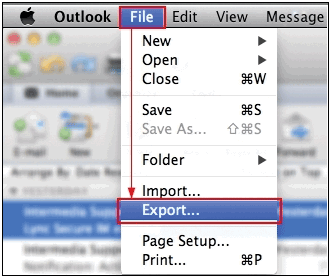
Step 1. Export .olm file from Outlook for Mac.
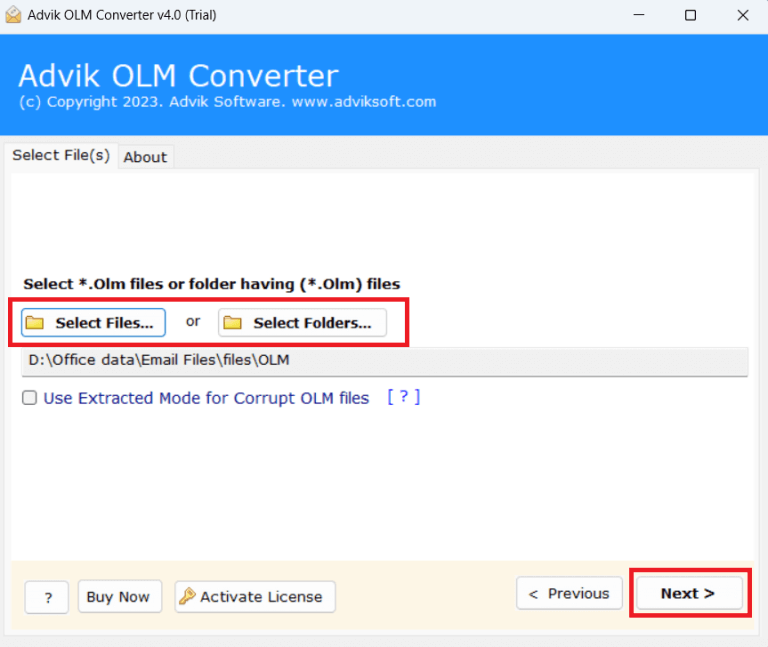
Step 2. Run the tool and add OLM files into software.
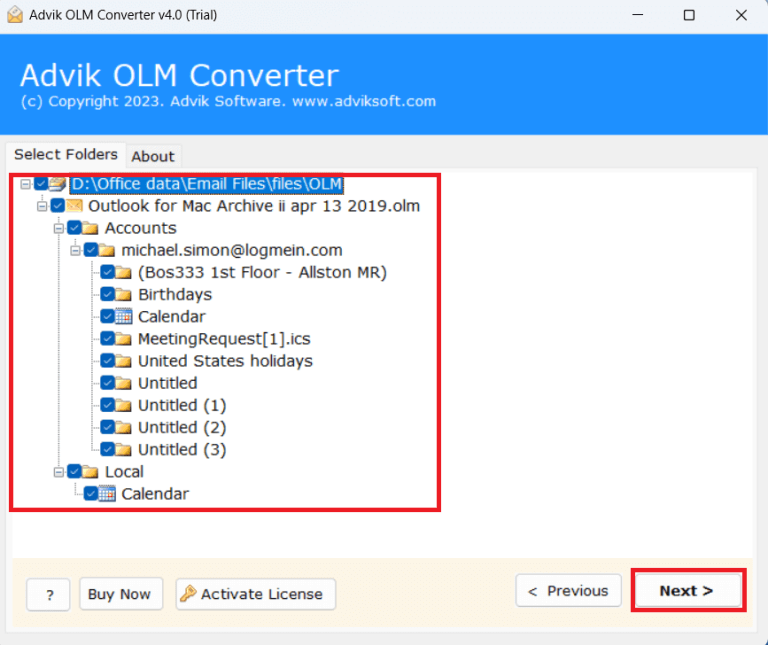
Step 3. Choose the mailbox folders & subfolders.
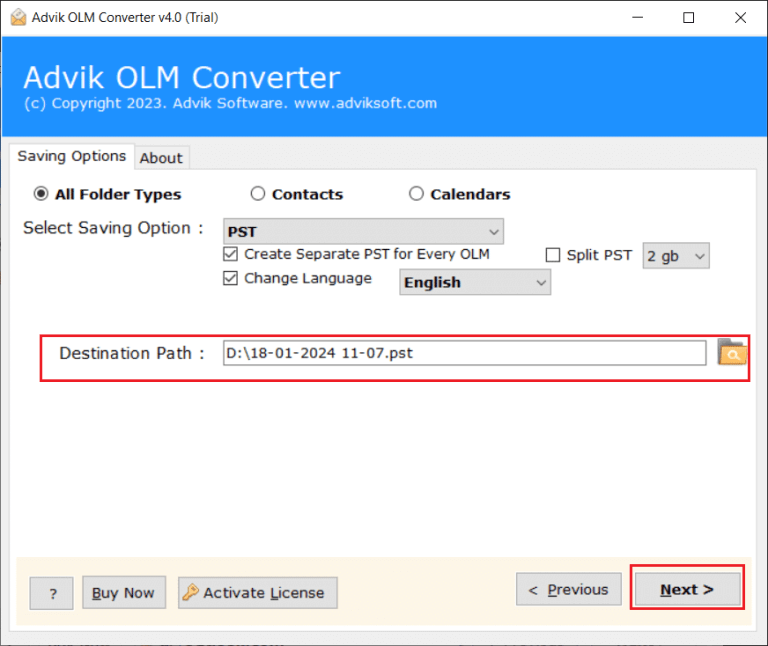
Step 4. Choose PST as a saving option.
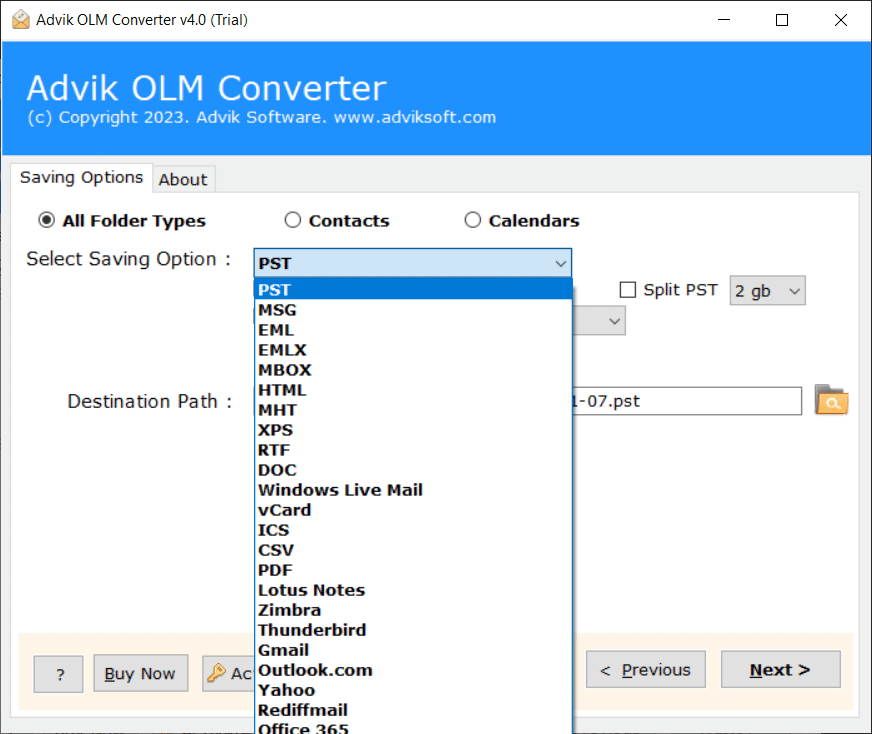
Step 5. Browse target location and click Next to begin the conversion.
Step 6. After that, open Outlook for Windows and import the exported .pst file.
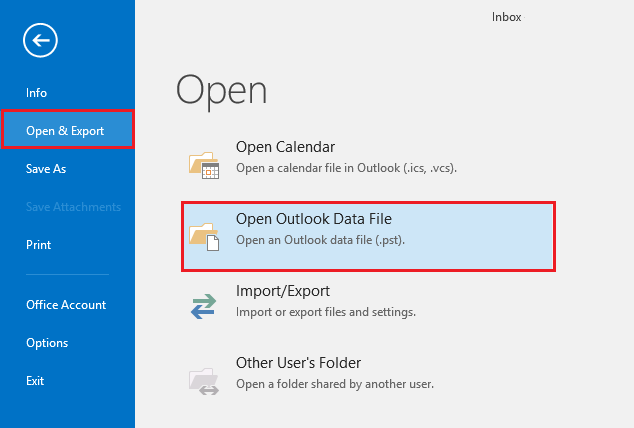
That’s how you can transfer emails from Mac Outlook to Windows Outlook.
3. Backup Important Email Data
Although switching should not delete your data, taking backup Outlook for mac emails is a smart way. You can export your mailbox using Outlook’s export feature or a professional tool as a backup.
Conclusion
Microsoft has announced that support for Legacy Outlook will end in October 2026. The retirement of Legacy Outlook for Mac isn’t just an end, it’s an opportunity to move to a better, faster, and more secure email experience. By switching early, you’ll avoid future interruptions.
