How to Migrate Emails from one G Suite Account to Another?
Summary: Here in this post we will discuss the efficient and easy way to migrate emails from one G Suite account to another with complete data. Read the article and transfer G Suite account to another G Suite mailbox.
Email migration has become a common process nowadays. One such scenario is where users transfer G Suite emails to another G Suite account. Depending on our needs, there can be various reasons for the G Suite to G Suite migration. It can be personal, or business needs or due to some security bases. In this post, we will discuss manual and automated ways to migrate emails from G Suite account to another with complete data.
Before you start transferring emails from one G Suite account to another, consider these points –
- Verify that you have all the necessary permissions for migration.
- Make your other G Suite account have enough storage to store the transferred emails.
- Ready for the potential downtime during the G Suite to G Suite migration. (if you are using a manual approach)
Without any further delay, let’s move ahead and complete the transfer.
How to Transfer G Suite Account to Another G Suite Manually?
Can G Suite move emails to another account? Yes, G Suite has an option to migrate emails to another account. Follow the steps and transfer G Suite data to another account –
1. Login to your G Suite Admin Console using admin credentials.
2. Under the Admin Console, click on the Data Migration option.
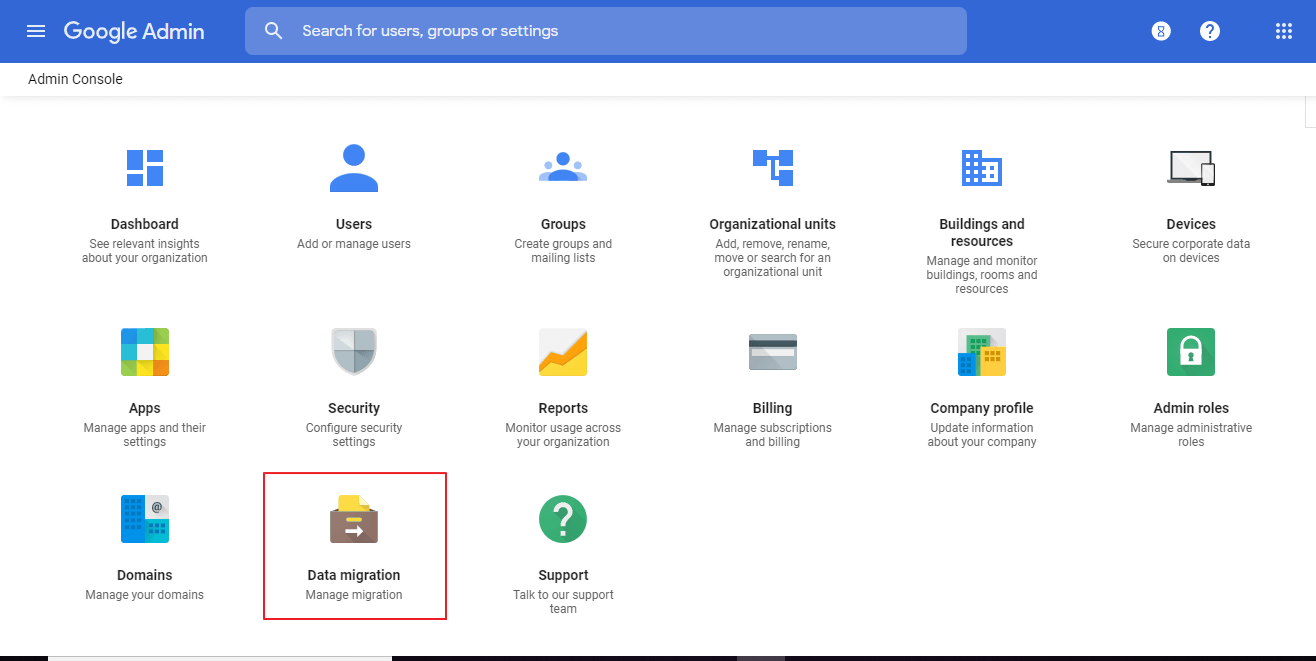
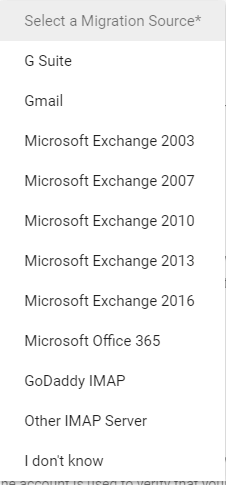
3. After that, select G Suite as a migration source.
4. Now enter your G Suite account from which you want to transfer emails.
5. Then, enter your other G Suite login credentials.
6. Choose what data you want to migrate (emails, contacts, calendars, etc.).
7. At last, click Start Migration to start the process.
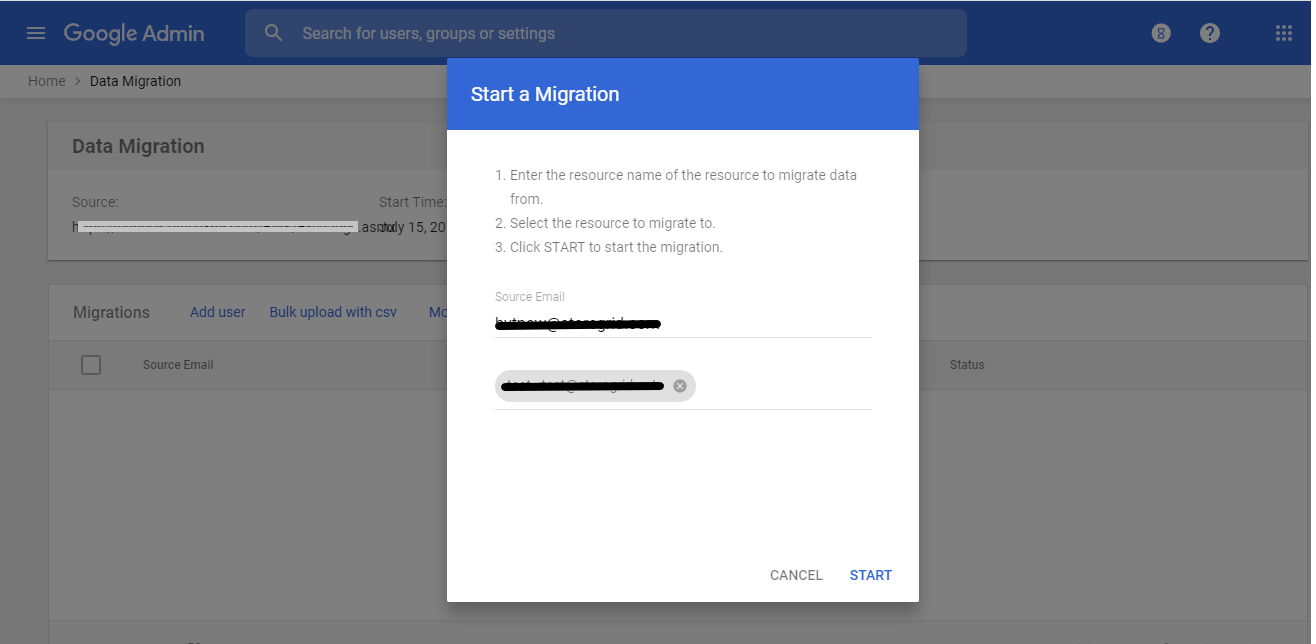
Done! Here start the process. Depending on your mailbox data, it will take a few days to complete the migration. If you want hassle-free and automated migration, then you can use the migration tool for that.
How to Transfer Emails from One User to Another in G Suite?
Try out the Advik G Suite Migration Tool on your Windows. The tool will transfer emails directly from your G Suite account to another. With its simple and user-friendly interface, it is easy to complete the migration process without facing any technical procedures. It will also allow you to transfer all or selective emails from your G Suite account to another one.
Just run the tool and enter your G Suite credentials. After that, choose the email folder and select G Suite as a saving option. Then, enter login details of the destination G Suite account. The tool will start migrating your emails without any data loss.
Download the demo version of the software to analyse its working.


Steps to Migrate Emails from one G Suite Account to Another
1. Run the migration tool on your system.
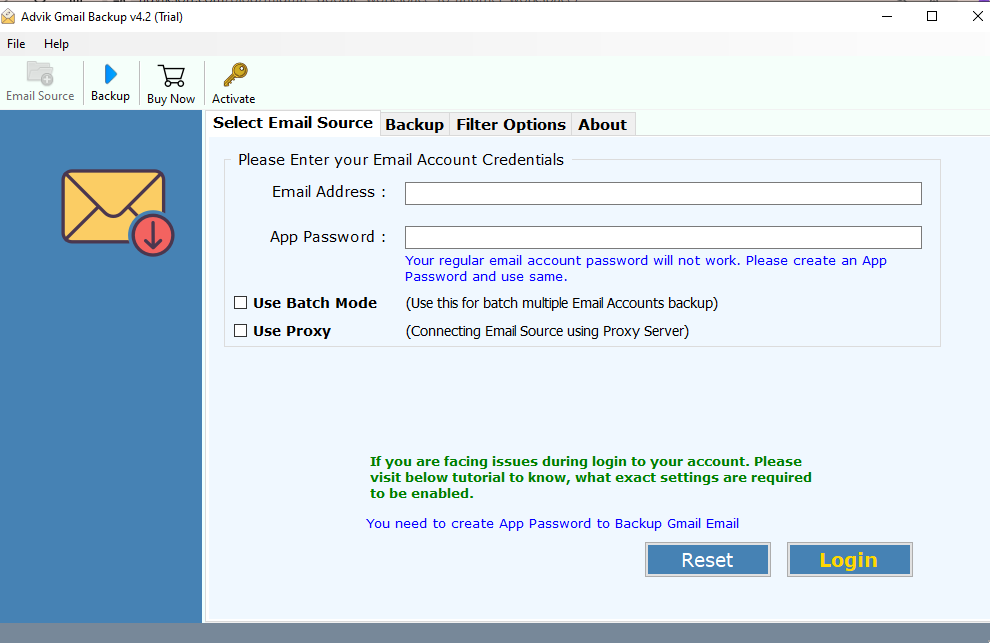
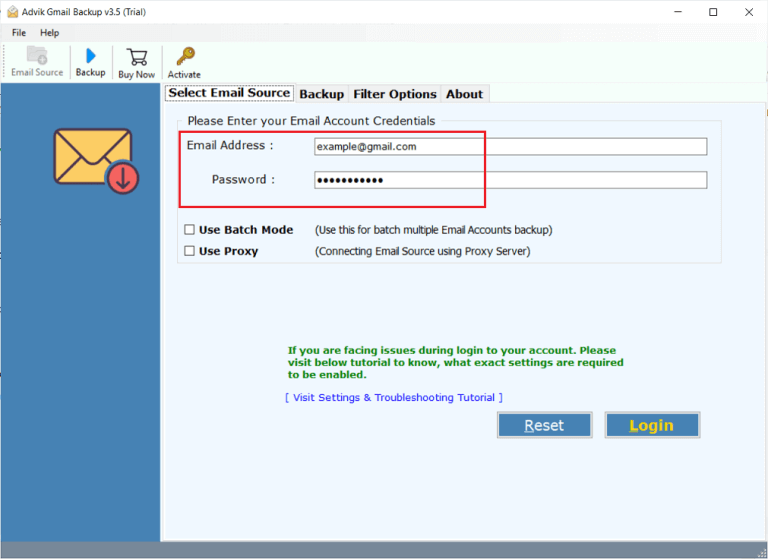
2. Enter your G Suite details from which you want to transfer emails.
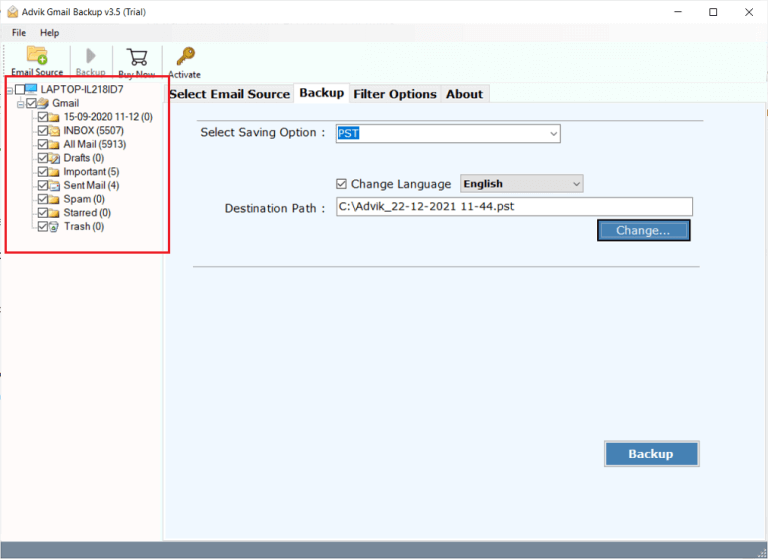
3. Select the email folder you want to migrate.
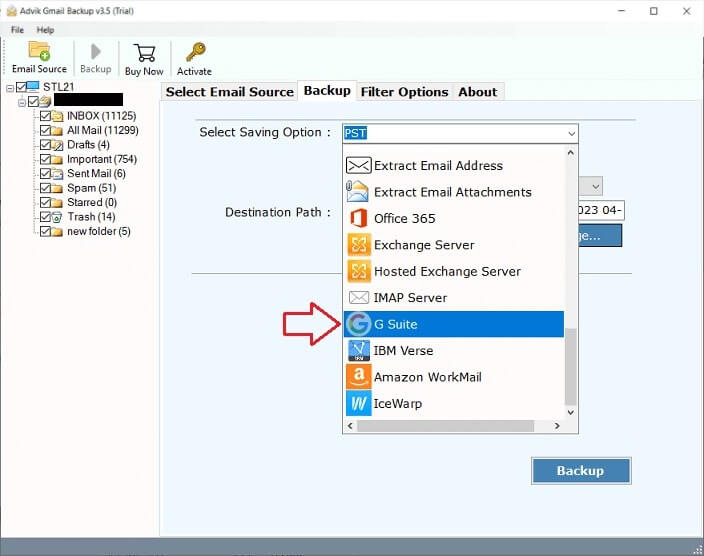
4. Choose G Suite and a saving option.
5. Enter your destination G Suite credentials and hit the Backup button.
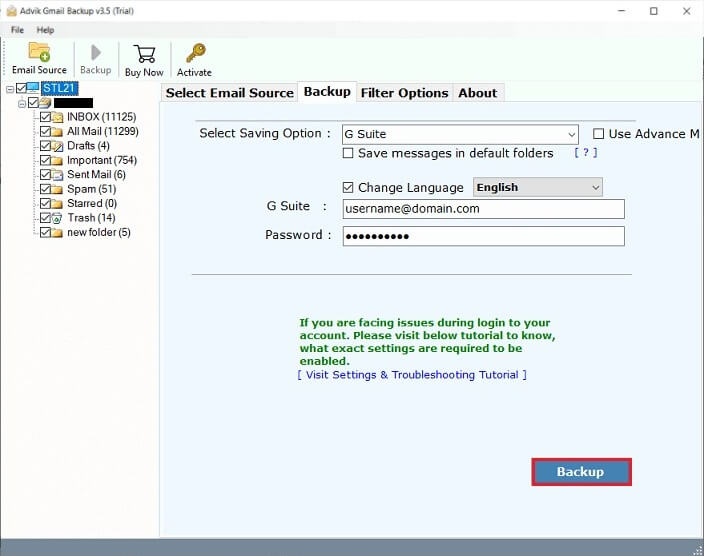
Done! Here complete the G Suite to G Suite migration process. Additionally, in the same way, you can also migrate G Suite emails to Gmail account using the exact tool. With this tool, there are various other benefits, some of them are –
- Maintain email folder and sub-folder hierarchy and structure.
- This tool will preserve email key elements when transfer G Suite account to another G Suite.
- Allows to migrate G Suite emails to Zoho Mail and other email accounts as well.
- Advanced filter options to migrate emails from any particular person, date, subject, etc.
- Options to export G Suite emails to PDF, CSV and many other file formats.
- One can also migrate only selected email folders that are important.
Watch How to Migrate G-Suite to G-Suite
Conclusion
Here in this post we explain the two workable solutions to transfer G Suite account to another G Suite mailbox. The manual approach required a complete knowledge about the migration process. Moreover it will take lost of time to migrate emails from one G Suite account to another. On the other hand, the automated tool will effortlessly complete the migration is a few clicks without much efforts. Now its up to you which method you find best for you to complete the G Suite to G Suite migration.