How to Convert PST to CSV With or Without Outlook?
Nowadays, there are many email platforms, and each one of them supports a different file format. So, to keep data organized when switching platforms, it is essential to change the file formats as well. One such case is when the user needs to convert PST to CSV format for various reasons.
This article explores the 2 best methods i.e. Manual and Professional ways for complete the conversion process. If you are facing problems in exporting PST file into CSV format, then don’t worry and start reading this blog till the end.
PST vs CSV: Detailed Comparison
PST is a Microsoft Outlook application file extension. It is used to store emails, contacts, calendars, tasks, notes, journals, and all associated attributes and components. When users set up an email account in Outlook using POP3 settings, then Outlook creates a PST file to store whole data at the default destination path. However, the main problem is that users cannot open PST file without Outlook.
CSV is a file format used for database purposes and spreadsheet programs. It stores the data as plain text, organized in a tabular form. Commas and newlines separate records in a CSV file. It is supported by many applications.
| Features | PST File Format | File Format |
|---|---|---|
| Full Form | Personal Storage Table | Comma Separated Value |
| Data Type | Emails, Contacts, Calendars, etc. | Structured tabular data |
| Supported Application | Requires Outlook | Excel, Google Sheets |
| Attachment Support | Yes | No |
| Device Support | Desktop | Desktop & Mobile |
| Use Case | Email backup & archiving | Data analysis & contact storage |
Why do Users Convert PST File to CSV?
There are many reasons a user might consider exporting emails from a PST file to CSV and look for a solution. So, below we have described some common reasons:
- CSV files are accessible across different platforms such as Excel or Google Sheets.
- CSV file is suitable for storing long term in human readable format.
- Being lightweight and small size, sharing these files are easy.
- Sometimes users want to export email data like sender, subject, and data into a spreadsheet for sorting and analysis.
How to Export PST to CSV With Outlook?
Using MS Outlook, you can convert PST file to CSV for free. In this approach, first you need to import your .pst file into Outlook, and then you can perform the conversion process.
- Open Outlook email client on your system.
- Go to navigation pane and click on File tab.
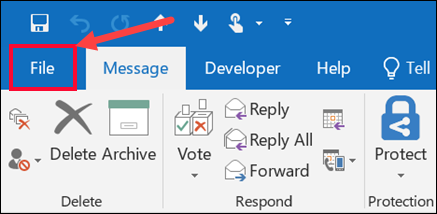
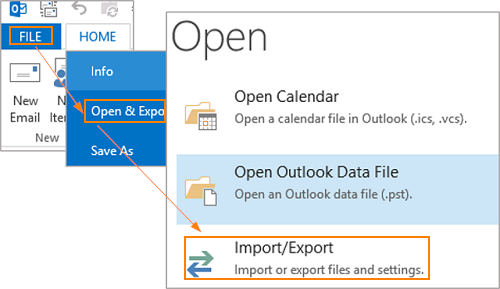
- Click on Open & Export and choose Import/Export.
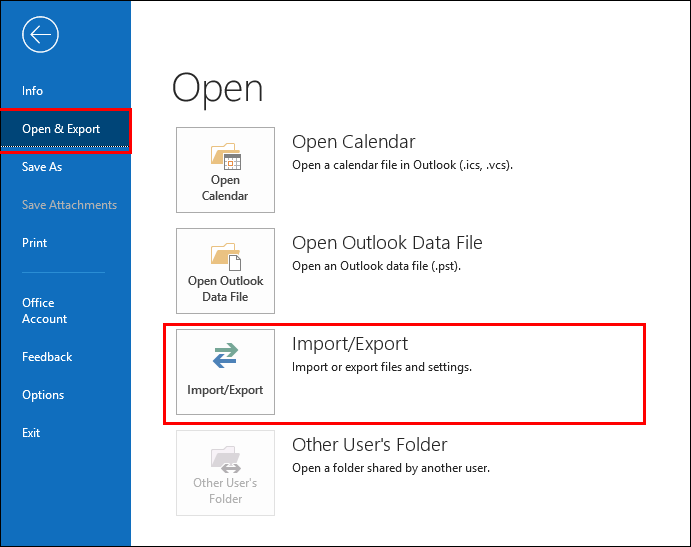
- In Import/Export Wizard, select Import from another program or file option and click Next.
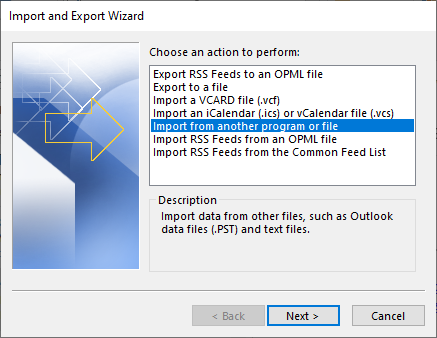
- After that, choose Outlook Data File (.pst) from Import a File and press Next.
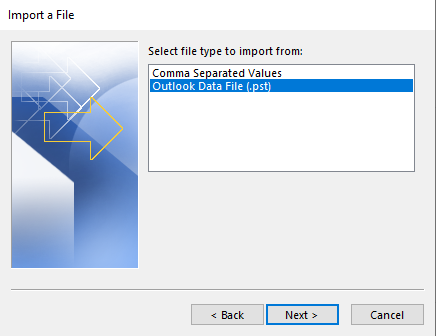
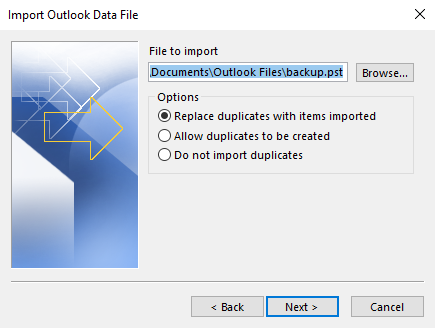
- Click on Browse to select .pst file that you want to convert.
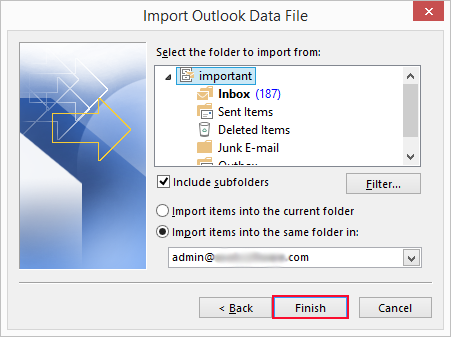
- Choose a folder to import file and click the Finish button.
- Now, go to the File menu, click on Open & Export, and choose Import/Export.
- Select Export to a file and then click Next.
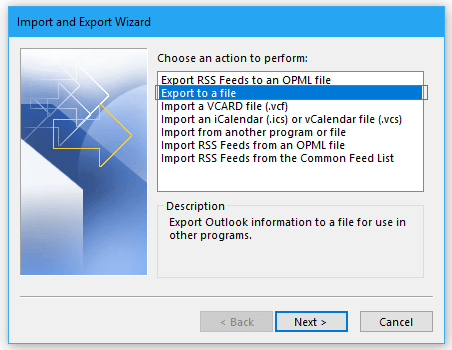
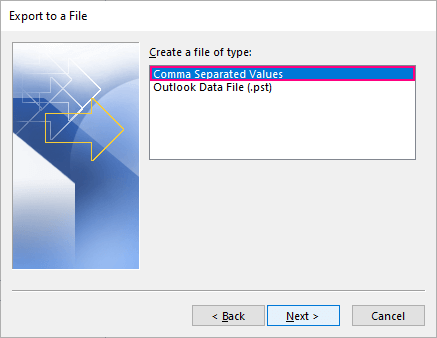
- Choose Comma Separated Value and press Next button.
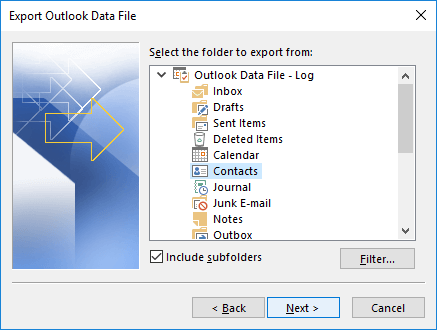
- After that, select the folders that you want to convert.
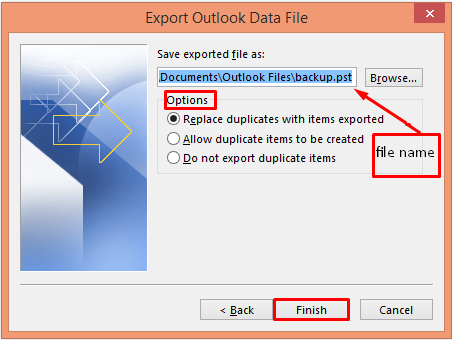
- Click on Browse to choose the destination location and click the Finish button.
How to Convert PST to CSV Without Outlook?
If the above-described manual method doesn’t work well and give you a desired result. In such case, you can use the Advik PST Converter Wizard on your system. This is the ultimate solution to export PST file to CSV format along with all the properties. It preserves the integrity of your data and provides you with a secure conversion. With the help of this application, you can import PST to Excel CSV in bulk. Additionally, it allows you to convert selective folders from PST file.
Before knowing about the step-by-step process to export PST emails into CSV file, we have something exciting to share.
Do You Know Something?
Now, you can use the PST to CSV conversion tool without any charges. It means to take a test drive without any pay. Go and download the free edition of the software on your Windows machine and use it. But, there is a certain limitation. You can only migrate the first 25 items from each PST folder. To convert all data, upgrade to License edition.
Now, why are you waiting? Click on the free download button and check its working process.


Steps to Convert PST File to CSV
Step 1. Run the PST to CSV Converter on your system.
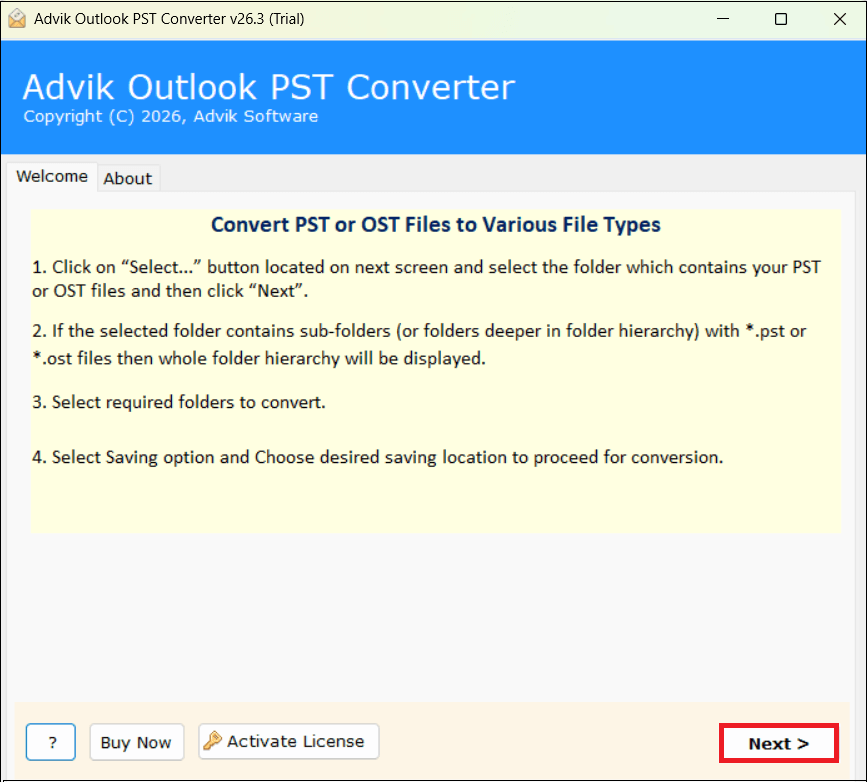
Step 2. Click on Select Files or Select Folders to add PST file and click Next.
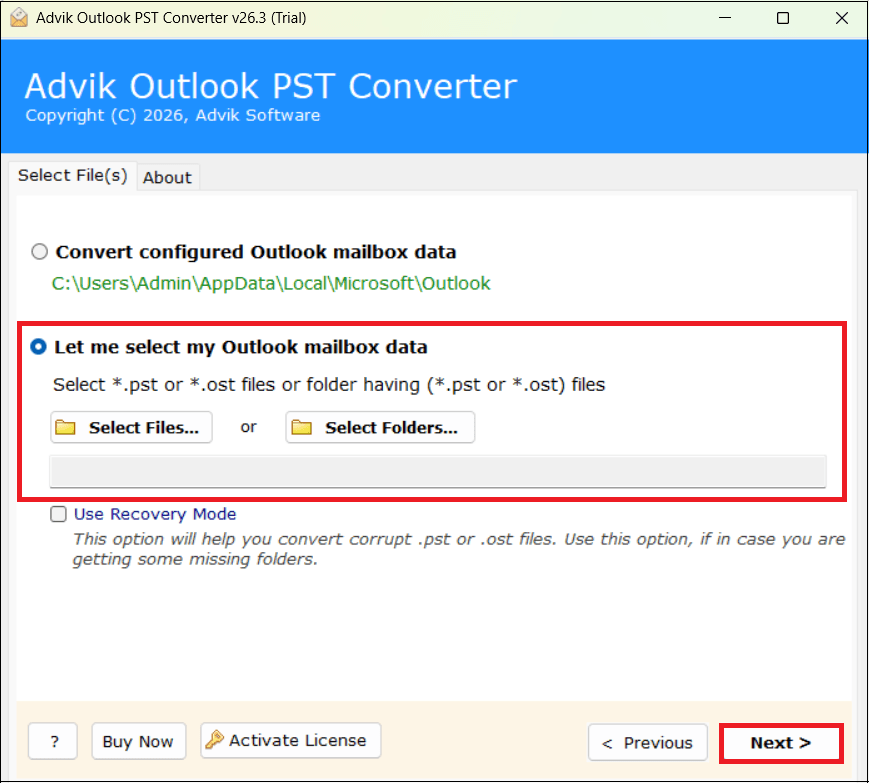
Step 3. Choose the required folders from PST file and press Next.
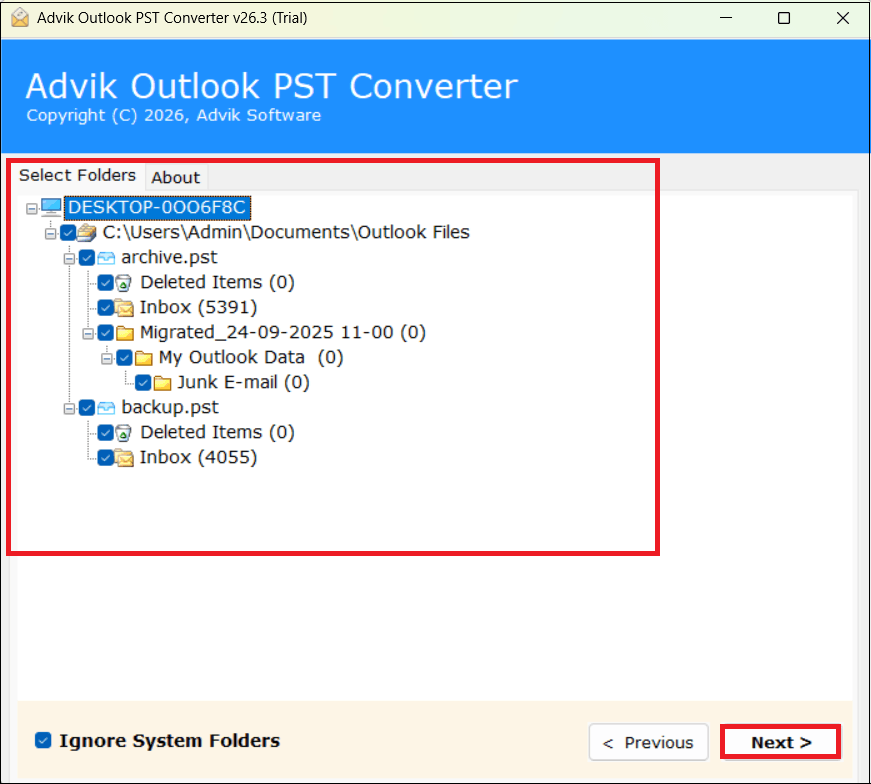
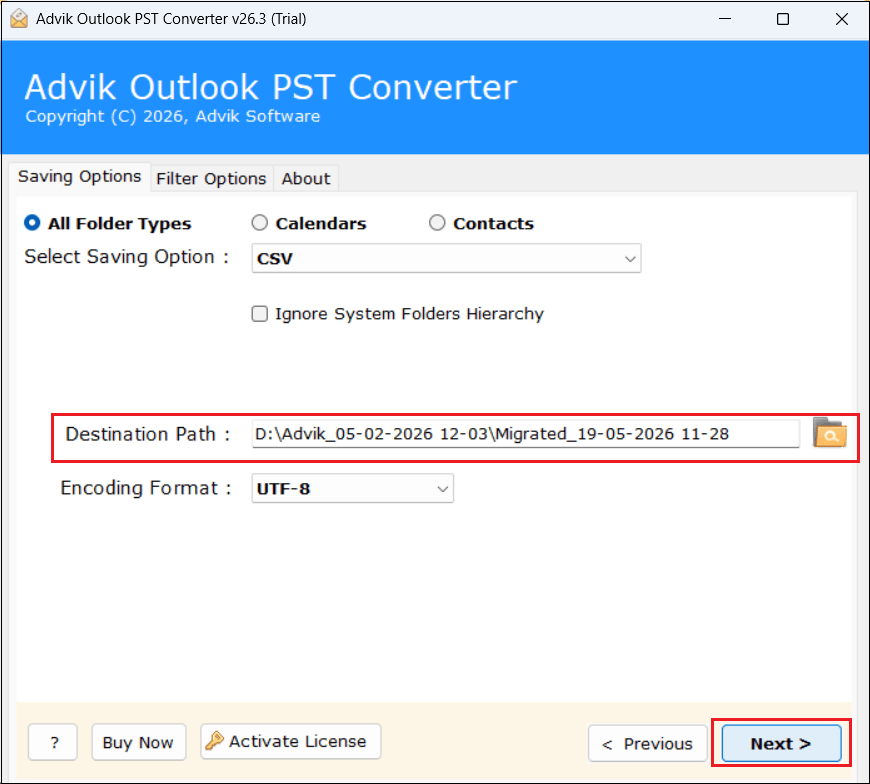
Step 4. Next, select CSV as a saving option.
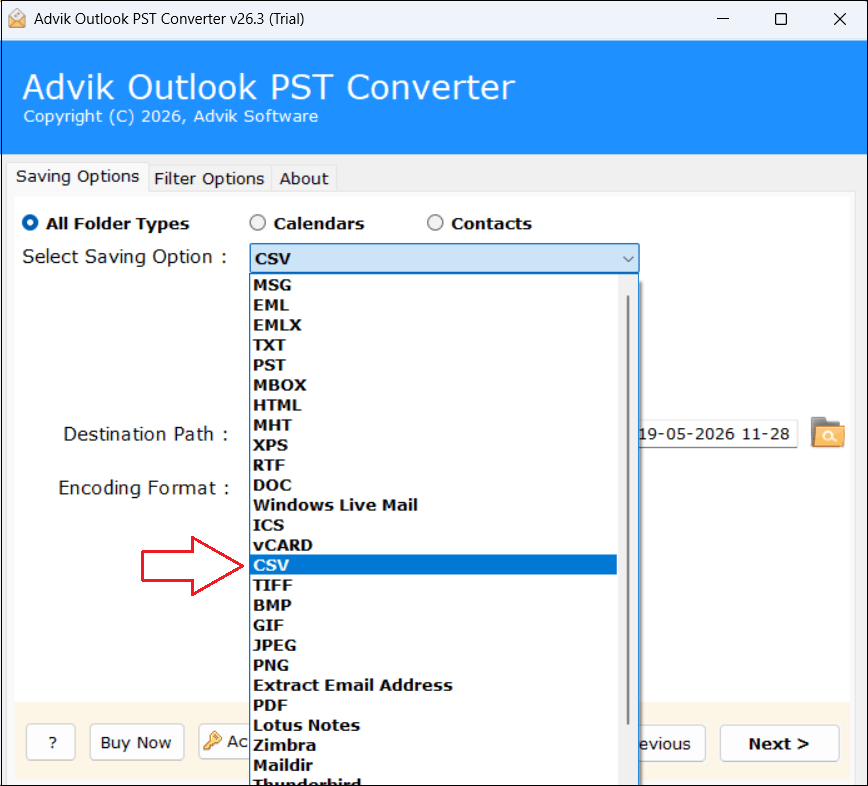
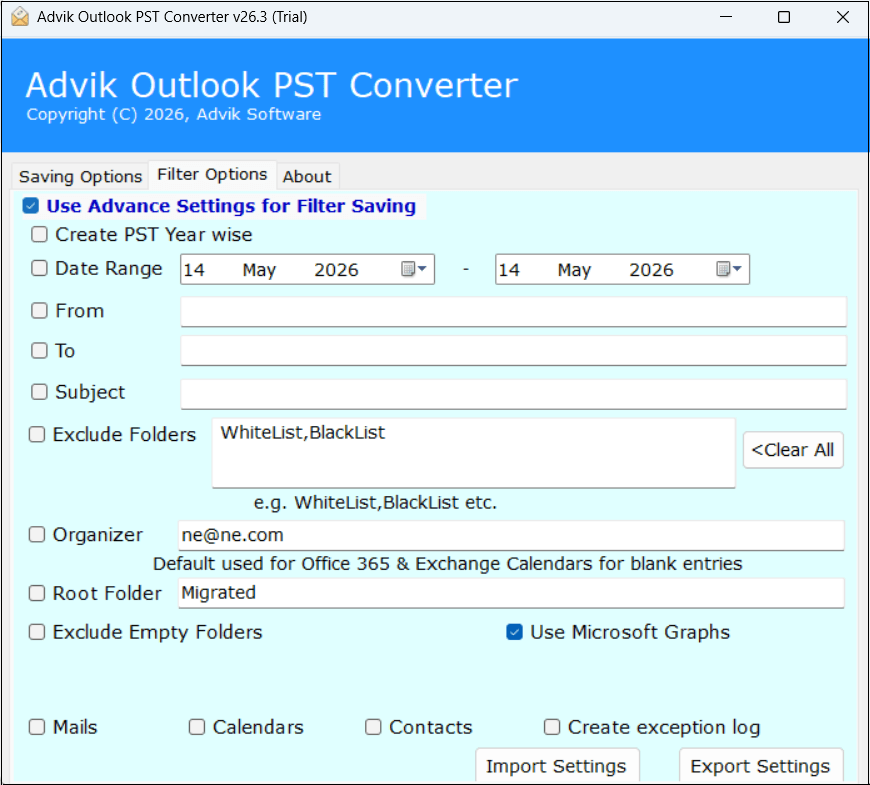
Step 5. Click on Filter options to export selected emails. (Optional)
Step 6. Click on Browse to choose destination path and then click Next button.
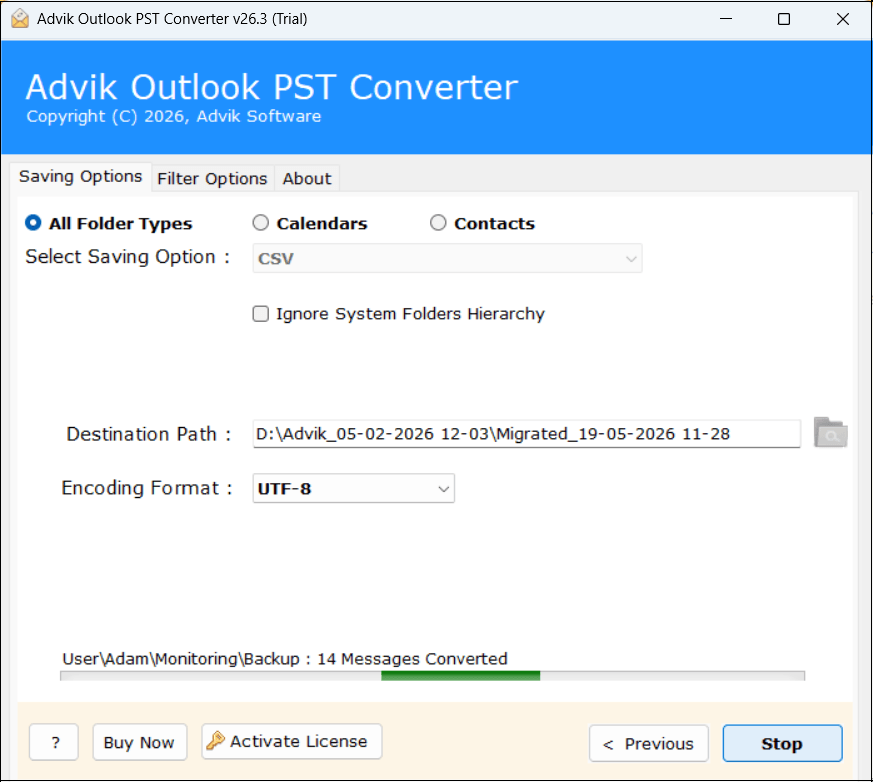
Step 7. Now, the software will start converting PST data to CSV format. Once it complete, it will notify you with a pop-up message.
Done! This is how you can convert PST to CSV without Outlook. Now, you have a CSV file you can open in Excel or import elsewhere.
Watch Video Tutorial
Benefits of Using the PST to CSV Converter Tool
- Batch Conversion: The software has a dual mode to add single or multiple .pst files. It allows you to convert PST to CSV in bulk. It saves your time and effort to export multiple files.
- Choose Specific Folders: Once you add the Outlook data file into the software panel, it shows all mailbox folders in a tree. Here, you can select the required folders for conversion.
- 30+ Export Options: There are various saving options. In addition to PST emails to CSV conversion, it enables you to convert PST to VCF, MSG, MBOX, EML, PDF and many more formats. It also enables you to directly import Outlook data file to a cloud based platform.
- Advanced Email Filters: Sometimes, users need to export some specific PST emails into CSV file. This utility offers various advanced filter options that enable you to convert emails based on date range, to, from, subject, etc.
- Option to Select Destination Path: The program gives an option to choose any destination path on your system to save output files. Once you convert PST file to CSV, the output files will be stored at the chosen location.
- Preserve Data Integrity: This is a safe and secure solution that makes sure that your emails look exactly the same after conversion as they did before. This is especially useful if your PST emails contain important designs, business communication, etc.
Conclusion
Above we have explained 2 best workable techniques to convert PST to CSV file. Both techniques work perfectly. You can easily export PST emails and contacts to CSV file using Outlook. If you face any issues with it like large PST file then you can prefer an automated tool. It enables you to convert PST file to CSV without Outlook.
Frequently Asked Questions
Q 1. Can I export all PST folders to one CSV file?
Ans. Yes, using a professional solution you can convert all folders into one CSV file.
Q 2. How do I extract contacts from PST to CSV for free?
Ans. Using the Outlook application and choosing the contacts folder from PST file, you can export it into CSV file.
Q 3. How to Convert PST to CSV Without Outlook?
Ans. With the professional solution, you can export PST to CSV without Outlook.
Q 3. Can I try this tool before purchasing it?
Ans. Yes, the software offers a free trial version to check its working procedure. The demo version allows you to export 25 items from each folder for free.

Related Articles