How to Export PST from Office 365 Admin Center: 4 Proven Methods
Quick Answer: Microsoft administrators usually export PST files using Microsoft Purview Content Search or eDiscovery feature. Some Outlook on the Web accounts also have an Export Mailbox option, but this depends on your Microsoft 365 plan and account settings.
In this article, you will understand four proven methods to export Office 365 mailboxes to PST along with Microsoft approved solutions, their usage and the best way to export multiple mailboxes in Office 365.
Table of Contents
- Test Environment
- Why Do Users Export Office 365 Mailboxes to PST?
- Methods to Export PST from Office 365 Admin Center
- Security and Compliance Considerations Before Exporting Mailboxes
- Method 1: Export Office 365 Mailbox to PST Using Microsoft Purview
- Method 2: Backup Office 365 Mailbox to PST Using Outlook Import/Export
- Method 3: Export Office 365 Mailbox to PST Using eDiscovery
- Method 4: Export PST from Office 365 Admin Center Using Automated Software
- Watch Video Tutorial
- Key Features and Benefits
- Manual vs Automated Methods: Comparison Table
- Conclusion
- Frequently Asked Questions
Test Environment
The procedures in this article were validated by:
Microsoft 365 Admin Center, Microsoft Purview Portal, Microsoft Outlook 2021 and Outlook for Microsoft 365 Windows 11 Pro Microsoft 365 Business Standard and Enterprise accounts
The procedures and screenshots should be similar for most Microsoft 365 tenants, although Microsoft changes portal layouts and menu locations from time to time.
Why Do Users Export PST from Office 365 Admin Center?
Microsoft keeps mailbox data secure in the cloud, but there are a couple of times when exporting PST files is a must:
- Create Offline mailbox backup
- Archive old mail data
- Migrate users to other email platform
- Fulfil legal or compliance requirements
- Before deleting the account, backup the employee mailbox.
- Keep business correspondence local
- Minimise reliance on cloud access
PST (Personal Storage Table) files are the default format used by Microsoft to store Outlook mailbox data, including e-mail messages, contacts, calendars, notes and tasks.
Methods to Download PST File from Office 365 Admin
Method 1. Use Microsoft Purview (formerly Security & Compliance Center) to export mailboxes via Content Search (admin access required).
Method 2. Use the Outlook desktop app to export mailbox to PST file (user level).
Method 3. Use eDiscovery PST Export Tool for compliance needs.
Method 4. Automated Tool for bulk export.
In this guide, we’ll explore the step-by-step process to backup Office 365 mailbox to PST using different methods. Keep reading and understand the ways in detail.
Security and compliance Needs
Things you need to know before exporting Office 365 mailboxes:
- Data Privacy: You PST files may contain sensitive data. So, it is important to store exported files in a secure locations with required control.
- Legal Hold: If your mailbox is under a Litigation Hold or Retention Policies, please be sure to review your organisational policies before exporting or deleting data.
- Privacy Policy & GDPR Compliance: Organisations under privacy regulations should ensure that mailbox which they are exported is processed according with the internal compliance needs.
- Encryption: Try to store your exported PST files on encrypted storage devices or secure servers.
Method 1. How to Export Office 365 Mailboxes to PST (via Microsoft Purview)
Microsoft no longer provides direct export options in the Admin Center. Instead, admins need to use Microsoft Purview (formerly Office 365 Security & Compliance Center). Here’s how:
Steps:
- Log in to the Microsoft Purview Portal.
- Go to Content Search (under “Solutions” > “Content Search”).
- Click +New Search > Add a name.
- Define the mailbox(es) under Locations > choose specific users.
- You can apply filters or click Next to search the entire mailbox content.
- After the search is complete, select it and click Export results.
- Choose Export all items, then Generate export key.
- Use the eDiscovery Export Tool to download PST using the export key and link.
Notes:
- You need eDiscovery Manager role to use this feature.
- PST files are downloaded securely through Microsoft’s Export Tool.
Method 2. How to Backup Office 365 Mailbox to PST Using Import/Export Feature?
If you have Outlook installed and the Office 365 mailbox configured:
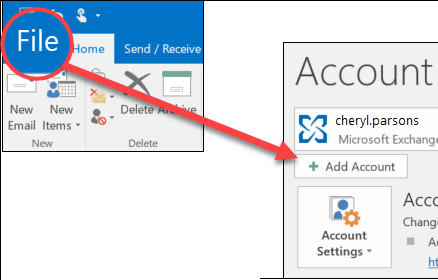
- Run the MS Outlook application on your Windows machine.
- Navigate to the menu and click the “Add Account” option.
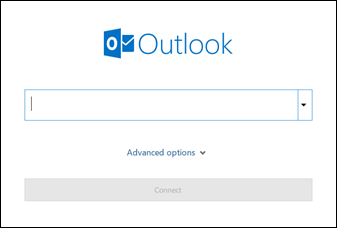
- Enter your email login credentials and password to connect.
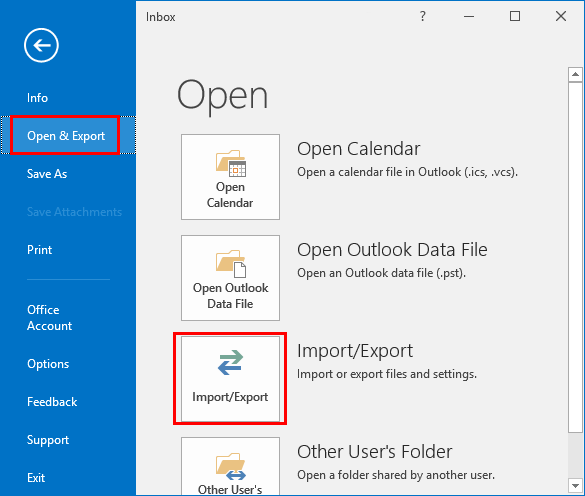
- After configuration, go to the file menu and click the Import/Export menu.
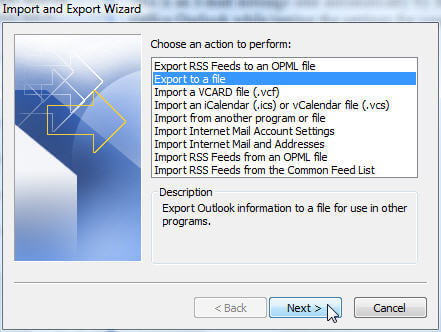
- A pop-up window will appear to click Export to a file and click Next.
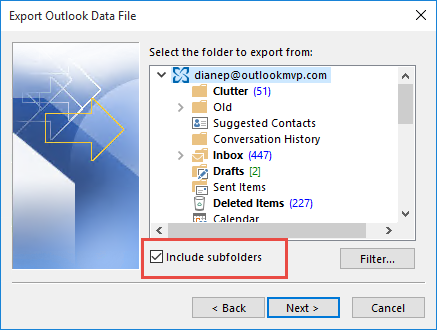
- Select your account and click the Next button.
- Choose or select a location where you want to save the resultant PST file.
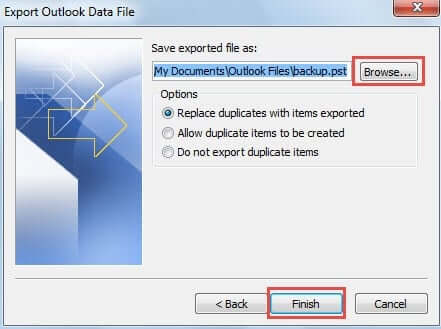
- Click the Finish button.
In this way, Office 365 export mailbox to PST from portal
Limitations
- No option to select multiple folders
- Outlook import export option may be greyed out
- Requires Microsoft Outlook installation
- Not suitable for bulk export
- Manual process only
- Time-consuming for large mailboxes
Method 3. How to Export Office 365 Mailbox to PST Using eDiscovery?
This is a more advanced version of Method 1 and is suitable for organizations with compliance requirements.
- Assign the eDiscovery Manager role in Microsoft Purview.
- Go to eDiscovery (Standard) > create a new case.
- Now, inside a case, perform a Content Search.
- Export search results by using the eDiscovery Export Tool.
This is the preferred method recommended by Microsoft for large scale PST export needs. By using this solution, you can also audit logs and compliance chains.
While the above manual methods are effective, there are some following points you need to consider;
- Takes time to complete
- Requires technical steps
- Need admin permissions
- Not suggested for large bulk exports
Alternatively, you can use the automated solution to export PST from the Office 365 Admin Center to avoid these issues.
Method 4. How to Export PST from Office 365 Admin Center Professionally?
Advik Office 365 Backup Tool is specially designed to export Office 365 mailbox to PST file. It will export folders to .pst file in the same folder hierarchy. Take help from this software to export PST from Microsoft 365 Admin Center. The software preserves email attributes and headers like cc, bcc, date, time, signature, hyperlinks, etc.
Just login using your Office 365 admin credentials, select the required mailboxes or folders and the tool will start exporting your data into PST file format. It even bulk exports multiple mailboxes and also maintains original folder structure and data integrity.
Click below to download and try the software for free.


Note: The TRIAL version will export 25 emails from each mailbox for free.
Steps to Download PST from Office 365 Admin Center
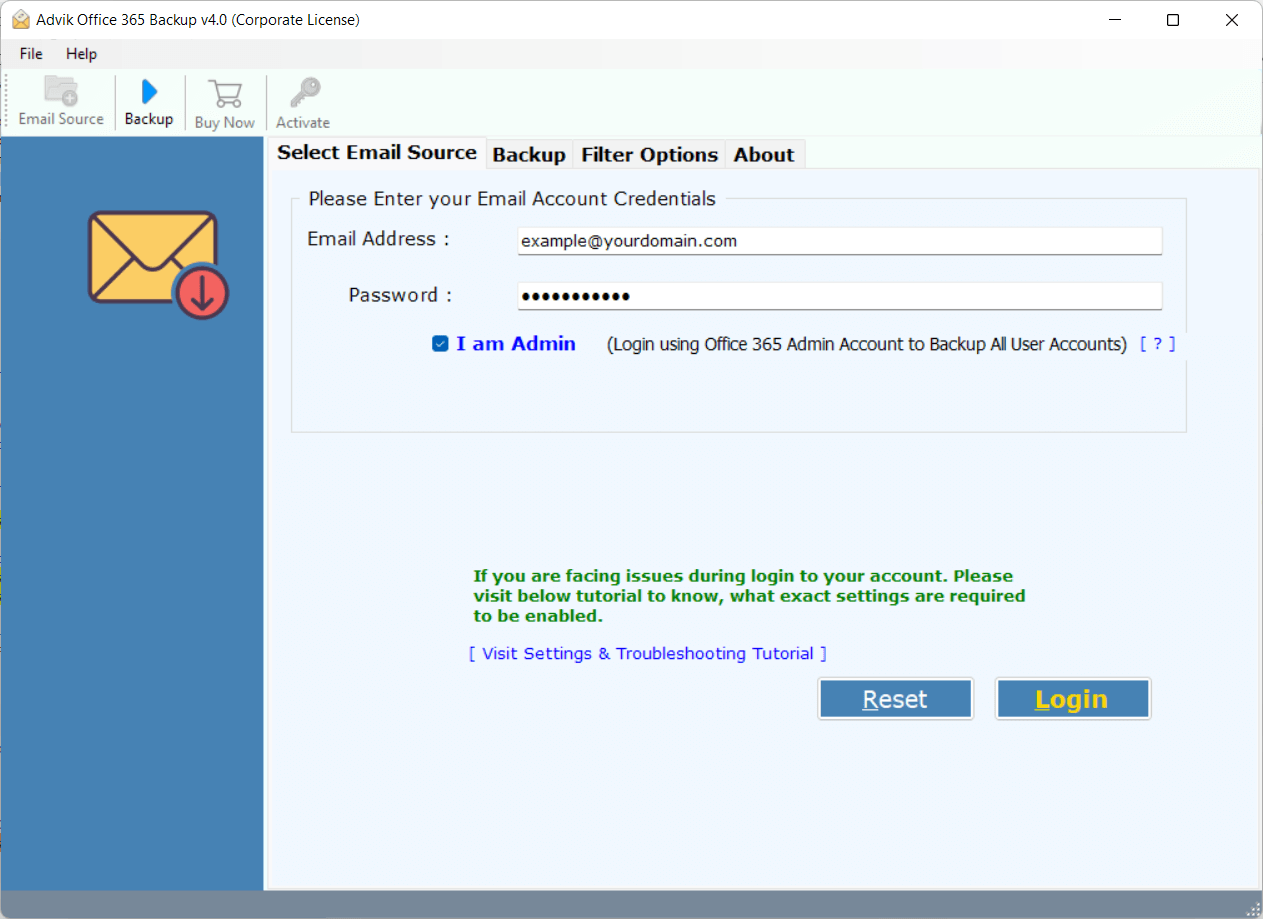
1. Run the Software and enter your Office 365 credentials. (Select I am Admin)
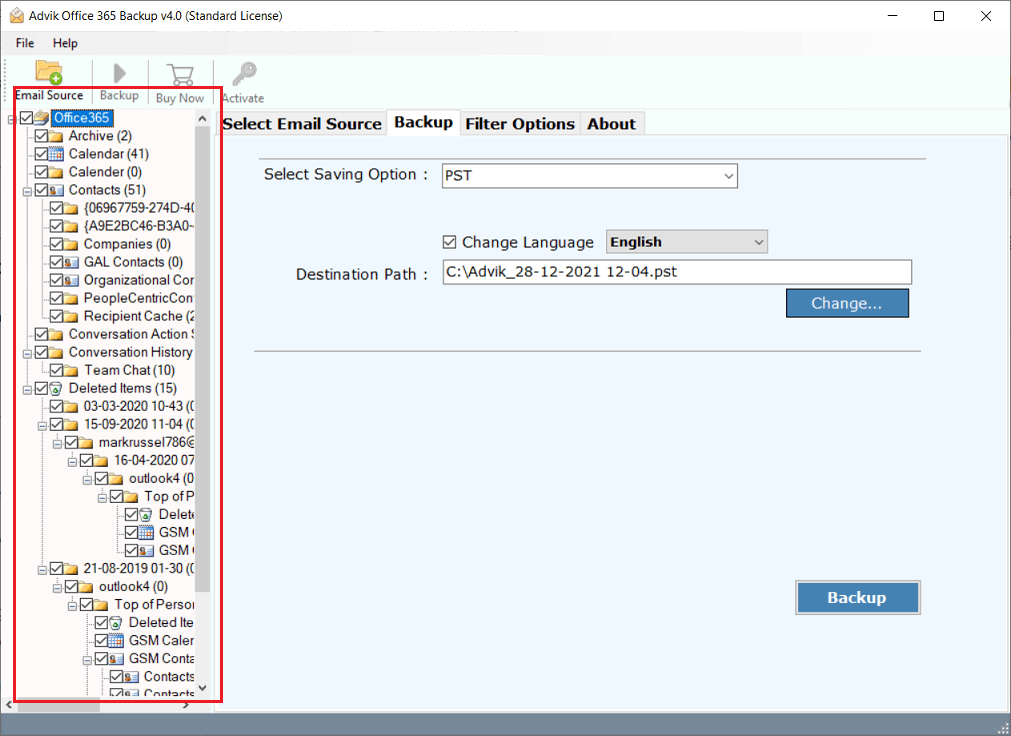
2. Select mailbox folders to convert into .pst file.
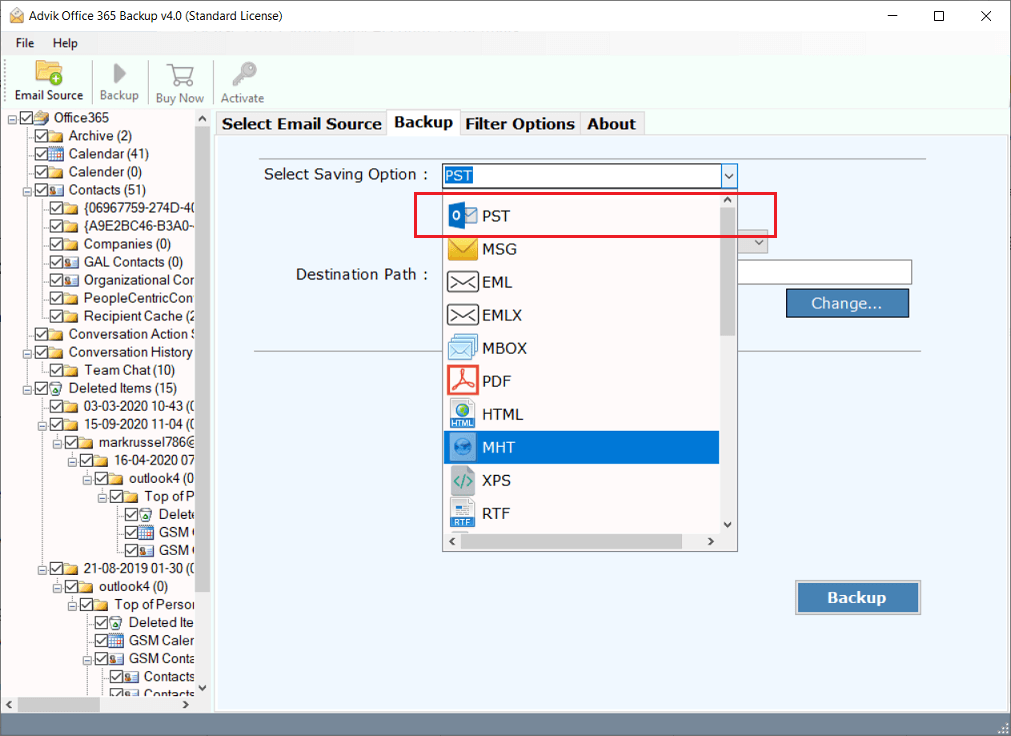
3. Choose PST as a saving option from the software.
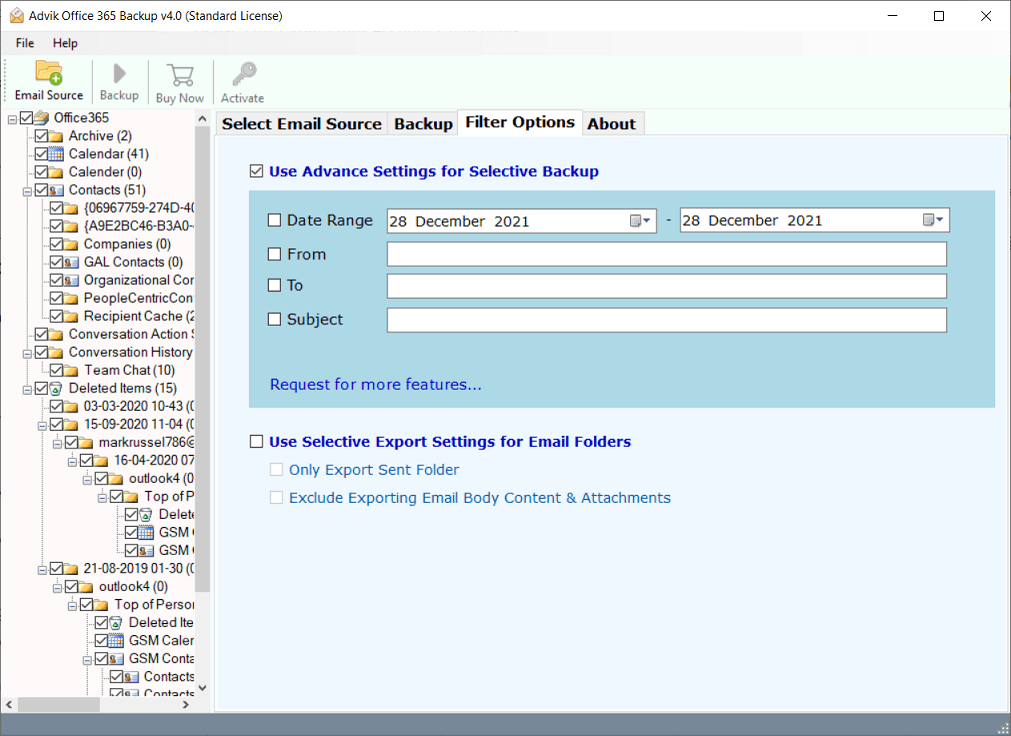
4. Apply an email filter to export only specific emails.
5. Choose Destination Path and click Backup button.
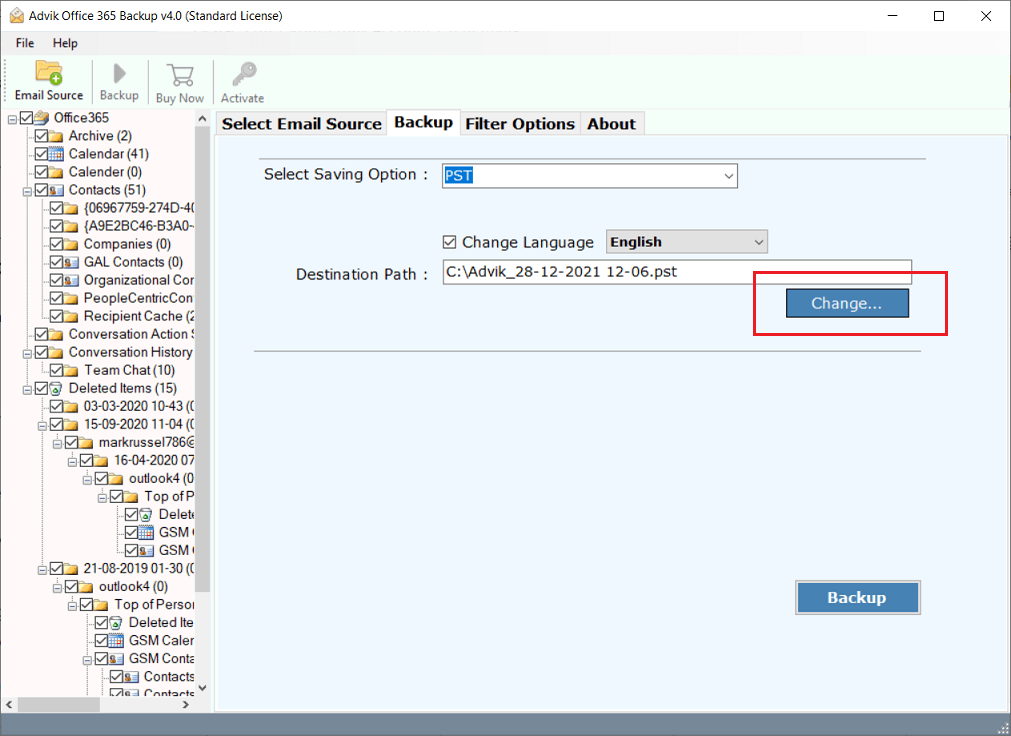
6. The software will start exporting Office 365 emails to PST file.
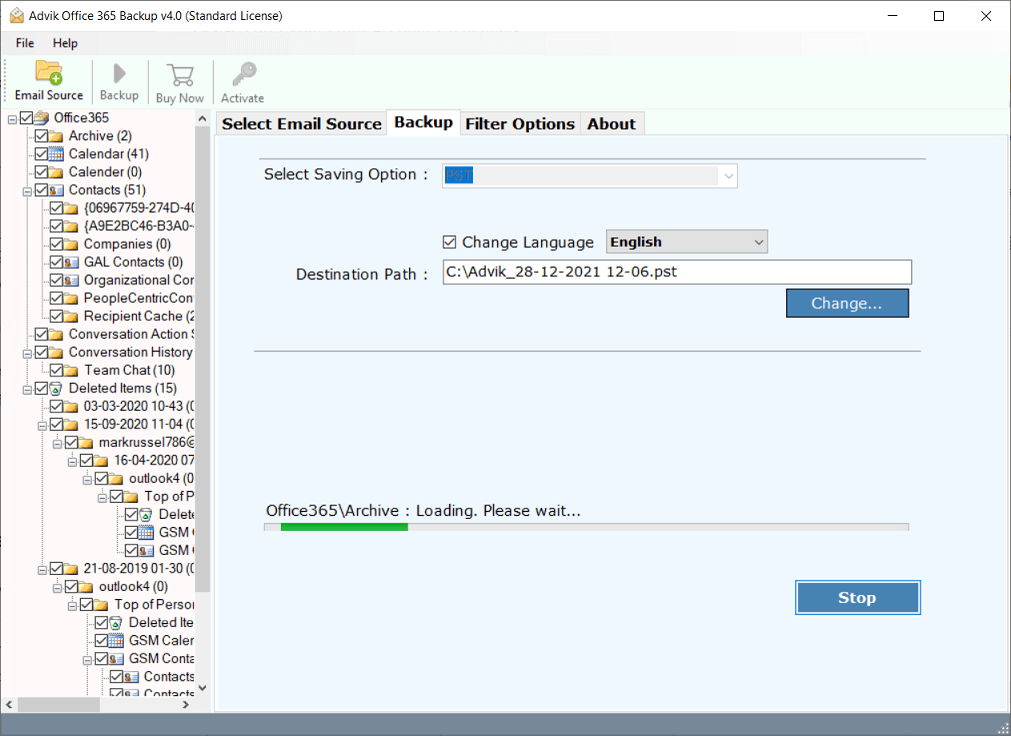
Once the process is completed, a pop-up window will appear where you can find PST file saved at your target place.
Watch How to Download PST from Office 365 Admin Portal
Key Features and Benefits
Here are the benefits you will get while using the best Office 365 to PST Export Tool.
- Choose single or multiple email folders to create a PST file in Office 365 admin center.
- Take email backup from Office 365 admin portal along with 15+ file formats
- Advanced email filter option to export selected emails from Office 365 to PST file.
- Backup Office 365 mailbox to PST file without Outlook client.
- Also, export user PST from Microsoft 365 admin portal with complete folders.
- Export emails from Office 365 admin center with multiple accounts in a single attempt using Batch Mode.
- Migrate emails from Office 365 tenant to tenant account, Gmail, Yahoo Mail, or any other cloud server.
- Save PST files at a desired location with full control over storage.
- Maintain original folder hierarchy and metadata, including email attributes
- No file size limitations; Export large Office 365 mailboxes to PST without restrictions.
- 24/7 customer support is available to assist users with any queries or issues.
Manual vs Automated Method Comparison: Which Method Should You Choose?
| Feature | Purview | Outlook | eDiscovery | Automated Tool |
|---|---|---|---|---|
| Admin Rights Required | Yes | No | Yes | Optional |
| Outlook Required | No | Yes | No | No |
| Bulk Export Support | Yes | Limited | Yes | Yes |
| Technical Skill Needed | High | Medium | High | Low |
| Multiple Mailboxes | Yes | No | Yes | Yes |
| Compliance Support | Yes | No | Yes | Limited |
| Suitable for Beginners | No | Yes | No | Yes |
| Time Required | Medium | High | High | Low |
Conclusion
Which one is the right one for you? It is a simple question that can help you decide: Do you have Outlook and a mailbox less than 5GB? Then the Outlook export method is a free and practical alternative for smaller mailbox. If not and you need to export large mailboxes, multiple accounts or want it for regular export needs without technical complexity then an automated solution is better for you.
Before exporting any mailbox data check your organization security, privacy, retention and compliance requirements. Based on your mailbox size, technical skills, and business needs and requirements you can export Office 365 mailboxes to PST in a safe and efficient manner.
Frequently Asked Questions
1. How do I export emails from Office 365 admin to PST format?
Ans. Microsoft admin users often export PST files from Microsoft Purview Content Search or eDiscovery. The Export Mailbox option is also available for some Outlook on the Web accounts but whether you have it depends on your Microsoft 365 subscription and account settings.
2. Is it possible to convert multiple Microsoft 365 mailbox folders into .pst format?
Ans. Yes, the software allows you to choose any folder that you want to convert.
3. What is the best way to export Office 365 mailbox to PST file?
Ans. We had discussed top 3 ways to convert emails from Office 365 to PST. However, using professional software for this task is a risk free and effortless job. No manual configuration or technical knowledge is required. You can easily export PST from Office 365 admin or user account with this tool.
4. Does Office 365 export mailbox to PST?
Ans. There are various ways to export from mailbox in Microsoft 365. Administrators usually use Microsoft Purview Content Search or eDiscovery. It totally depends on your Microsoft 365 subscription and how your account is set up, some Outlook on the Web accounts may also have an Export Mailbox option.
5. How is the demo version different from the licensed version?
Ans. The demo version is a limited version of the licensed one. It lets you process only the first 25 items in each folder. In the licensed version, there are no such limits. Apart from this restriction, both versions work in the same way.

Related Articles