Google Says I Am Out of Storage! What to Do?
Jim Backus | January 12th, 2026 | Data Backup
Have you suddenly stopped receiving emails and seen a message “Google Says I am Out of Storage”? It can be confusing and frustrating, but running out of Google storage is a common problem faced by many Gmail and Google Drive users. In this write-up, we will discuss why Google says you’re out of storage and the best ways to fix it quickly.
Why is Google Telling Me I’m Out of Storage?
Google provides 15 GB of free space, which is used by Gmail, Google Drive, and Google Photos together. When your account has reached this limit, then Google says I am out of storage.
Here are some common reasons why your Gmail running out of storage space.
- Emails with large attachments consume more storage.
- If Google Drive and Google Photos hold many files, photos, and videos, then it will directly affect your Google storage.
- Deleted emails go to the Spam and Trash folder, where they also occupy space until they are deleted permanently.
How to Fix “Google Says I Am Out of Storage” Issue?
If your Gmail storage full not receiving emails, which means you have reached its 15 GB storage limit. You need to clear space to solve Google says you’re out of storage problem. Here are some manual tricks that will help you to solve the Google running out of storage space issue.
#1. Delete Large Emails or Attachments
Emails with large attachments occupy more space in your Gmail account. So, find emails that have large attachments and delete them. By doing this, you can increase Gmail storage space free and fix Gmail running out of storage issue.
1. Open Gmail and go to Search bar.
2. Type has: attachments larger: 10M.
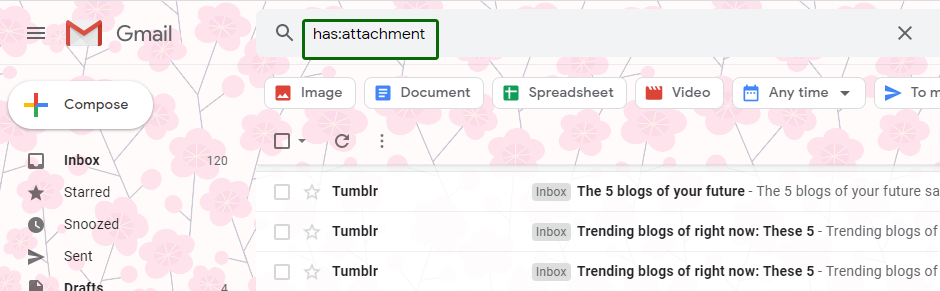
3. Choose emails that you don’t need and click on Delete icon.

#2. Empty Spam ad Tarsh Folders
When you delete emails then they move to the Trash folder where they remain for 30 days or until do not delete them permanently. That’s why sometimes, Gmail storage showing full even after deleting emails. You need to clear these folders manually to solve Google out of storage issue.
1. Open the Spam folder and click on Delete all spam messages now.

2. After that, go to Trash folder and click Empty Trash Now.

#3. Check Google Photos and Drive Storage
Google Photos and Google Drive storage are also counted in the 15 GB space. Removing large files, videos, or photos that are no longer needed will help you to fix the issue when Google says I am out of storage.
Go to phostos.google.com. Find unnecessary photos. select them and delete them.
Visit Google Drive and click on Storage. Search the files according to sneededind the files that are no longer nedded and delete them.

After deleting files, photos, videos, etc. empty the Trash folder.
#4. Use Google Storage Management Tool
Google provides a built-in Storage manager that will help you to identify and delete unwanted files.
1. Visit Google One on your system and click on Storage.
2. Click on Free up account storage.

3. Select the files that yiiu want to remove and click on Delete button.

4. Check the box to confirm deletion and click on Permanently delete.

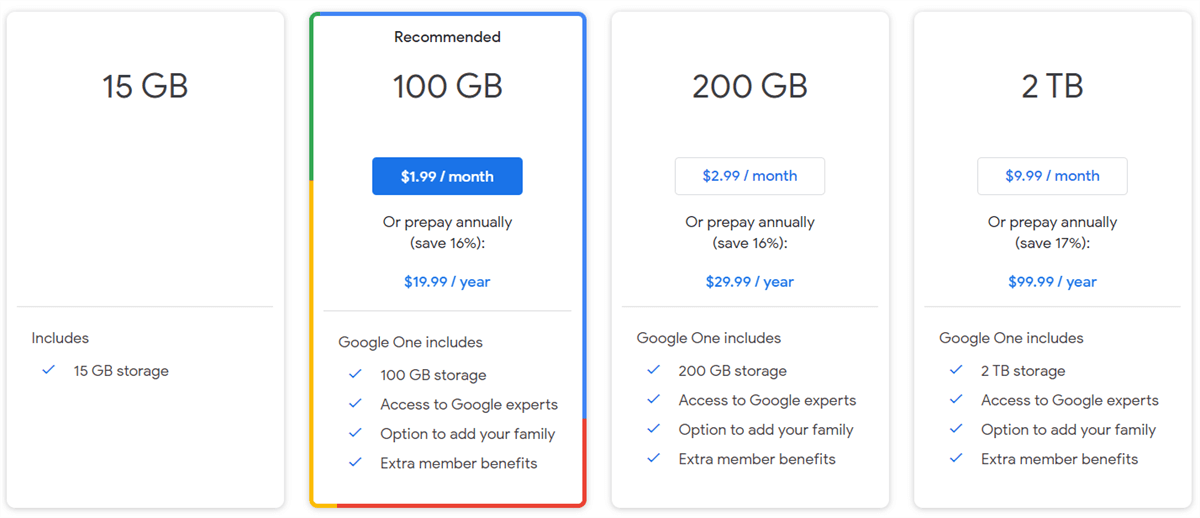
#5. Purchase Additional Storage to Upgrade Your Google Storage Space
Google provides 15 GB of free storage. If your Google account is running out of space, you can buy more storage by purchasing a paid storage package.
What to Do When Google Keeps Saying Out of Storage: Expert Solution
If you find the manual solutions are tedious and time-consuming then use the Advik Gmail Backup Tool to solve the Google says I am out of storage error. Witrh this tool, you can download Gmail emails to hard drive/pc/computer. It offers various saving options to save Gmail emails into multiple formats such as PST, PDF, MBOX, EML, etc. Once you save your Gmail emails locally then you can delete them from your Gmail account and increase storage space.
Click on the below linkto download it for FREE.

Follow the Steps to Solve Google Says I’m Out of Storage Issue
1. Run the tool and sign in with your Gmail credentials.

2. Choose the mailbox folders and subfolders.

3. Select a saving option from given list.

4. Browse target location and click Backup button.

The software will start downloading Gmail emails to your system. Once the process is complete, you can delete emails from the Gmail server and prevent Google from running out of space.
Conclusion
If you’re experiencing “Google says I am out of storage”, you can take several steps to free up space. By clearing Spam and Trash Folders, deleting large emails and attachments, removing unwanted files, videos, photos from Google Drive and Photos, ot upgrading your plan, you can quickly fix this issue. However, the most effective solution is to use the Advik Gmail Backup Tool, which allows you to save Gmail emails to flash drive to free storage space. It helps prevent uncertainties in the future by creating a local backup of your Gmail emails.