How to Backup Outlook Emails Without PST?
Jackson Strong | January 4th, 2026 | Data Backup, Outlook
“Is there a way to backup Outlook emails to hard drive without PST?” The data stored on Outlook holds significant value and make it necessary to backup to prevent data loss. Traditionally, PST file has been the primary file format to backing up Outlook data. However, many users seek alternative options to avoid Outlook dependency.
Here, we aim to explore the various possible methods to backup Outlook emails without using PST with complete step-by-step instructions.
Real-World User Problem (From Community Discussions)
Many Outlook users face issues while looking to take a backup of their Outlook profile, as PST can’t always be an ideal format that every organization or individual is comfortable to use it. A similar concern was recently highlighted in a Reddit forum, where a user was asking for an alternative to the PST file format to back up their Outlook emails.

This was a real user concern who is struggling to manage large Outlook mailboxes and needs a faster and more reliable way to save Outlook emails without PST. Queries like this clearly show why manual methods are not that practical, and users look for alternative options.
Don’t worry, we will discuss all the possible methods available to solve your query. Read each method one by one and choose as per your requirements.
How to Save Outlook Emails to Hard Drive Without PST Manually?
Outlook only provides a built-in feature to export Outlook emails to PST format. But still, there are a few methods to backup Outlook emails to hard drive without PST.
Let’s start learning these methods in more detail.
Method 1. Save Outlook Emails as MSG Files
- Launch the Outlook application.
- Click on the email you want to save.
- Go to File > Save As.
- choose the folder to save the email.
- Select Outlook Message Format (.msg) in save as type & click Save.
Method 2. Export Outlook Emails as PDFs
Follow the steps below to convert Outlook emails to PDF format.
- Open the email you want to save.
- Press Ctrl + P or go to File > Print.
- Choose Microsoft Print to PDF & click Print.
- Browse the location to save the PDF and click Save.
These methods will let you backup Outlook emails without PST. However, saving multiple Outlook emails isn’t possible with above explained solutions. It is only suitable for a few emails. Don’t worry! We have an alternate solution offering more than 25+ saving options.
In the next section, I will share the easy way to save Outlook emails to hard drive without PST file.
How to Backup Outlook Emails to Hard Drive in 20+ Formats
Take help from Advik Outlook PST Converter software. This software offers 30+ saving options to export Outlook emails to hard drive. Also, it will detect your Outlook profile and allow you to save emails to hard drive directly. You can also choose the Outlook email folders of your choice. Additionally, it will maintain and preserve the complete folder hierarchy of your Outlook emails throughout the process. Rest assured about the data safety and security.
Now, click on the FREE download button and give it a try to test its working procedure.


Steps to Backup Outlook Emails to Hard Drive Without PST
1. Run the software on your Windows PC.
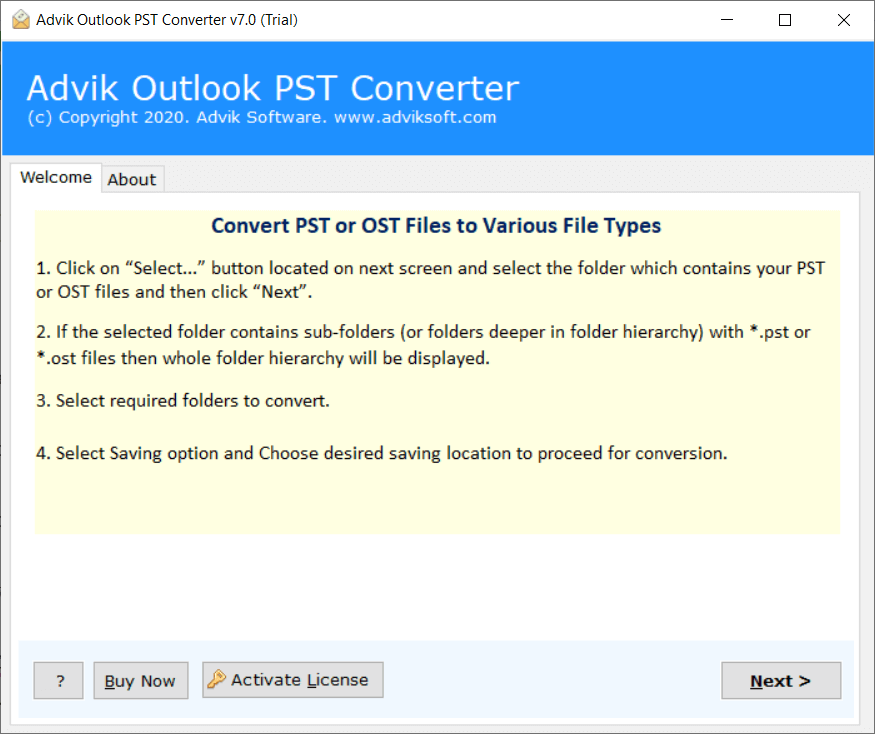
2. Once Software will detect your Outlook account, click Next.
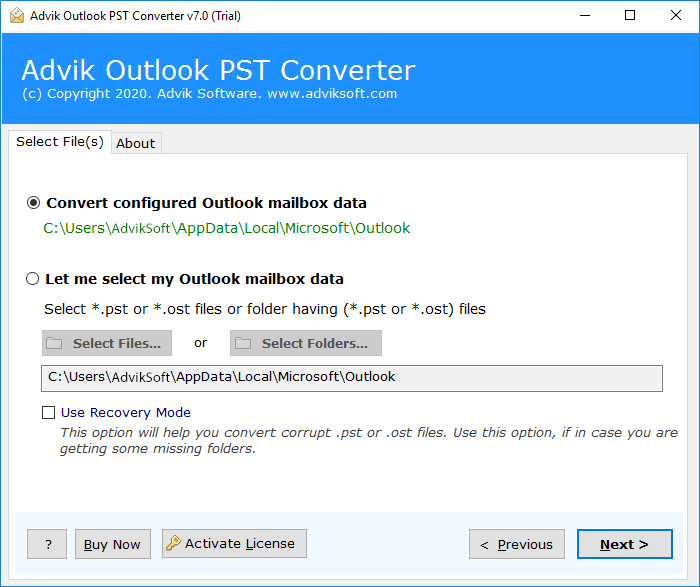
3. Choose mailbox folders and click Next button.
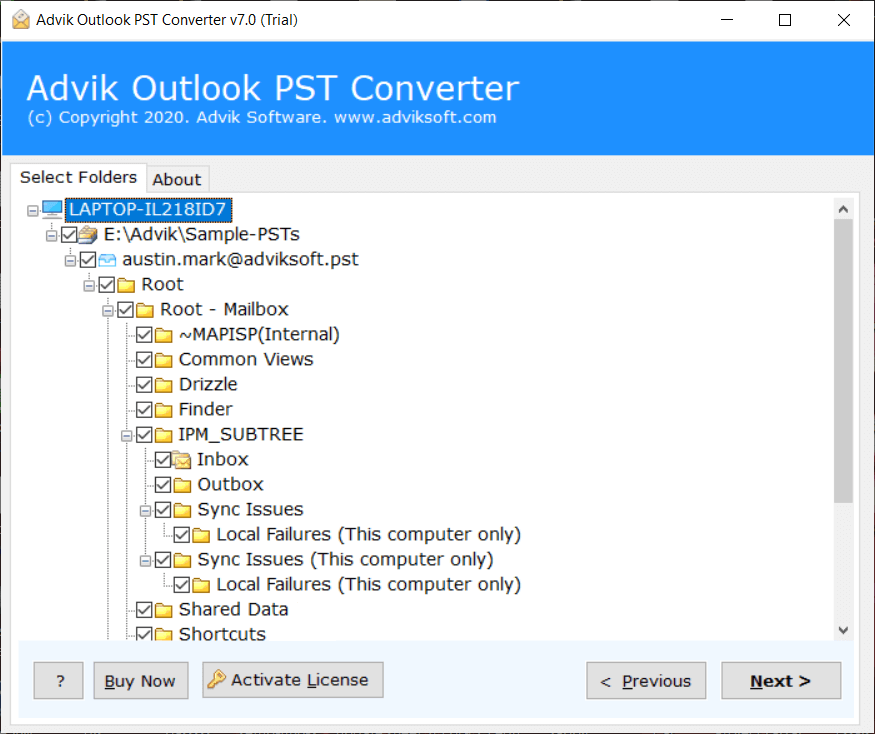
4. Choose any file format from the list.
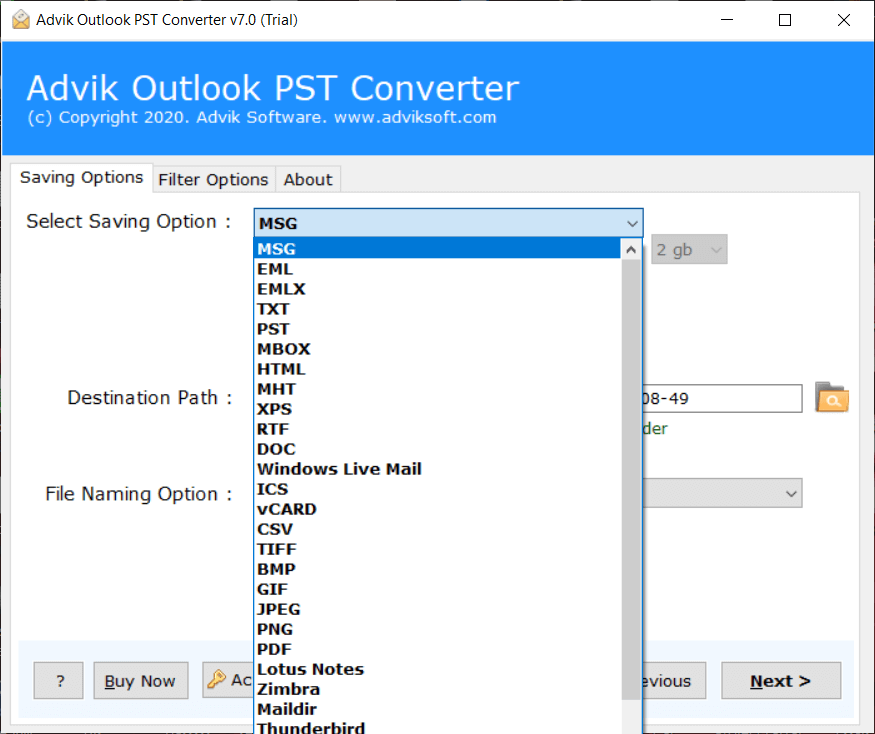
5. Select the hard drive as a target location and click the Next button to start.
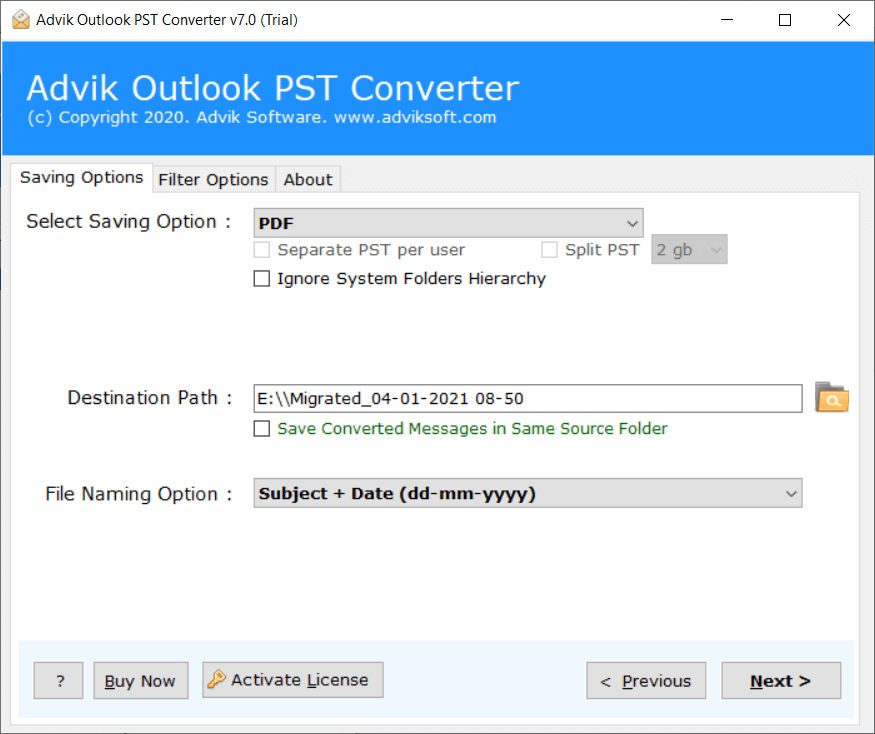
The software will start saving Outlook emails to hard drive in your desired format.
Once completed, you will be the destination path will automatically be opened on your screen.
Watch How to Save Outlook Emails to Hard Drive Without PST
Why Choose Advik Software?
This magical gem is widely used for multiple purposes. You can easily backup Outlook emails if PST is corrupted or not accessible. Also, the software has various advanced features that will ease your process.
- Easily Save Outlook Emails to Hard Drive without PST file
- Maintain folder hierarchy and key elements of emails
- Backup Outlook Emails to USB Drive automatically
- Import Outlook to Thunderbird, Gmail, Windows Live Mail, etc.
- Convert emails to 25+ file formats Like PDF, EML, MBOX, CSV, and many more.
- Bulk email backup without losing attachments or formatting
- Selective email backup using date & folder filters
- Save Outlook emails with attachments separately in a dedicated folder
- Supports Outlook 2021, 2019, 2016, and earlier versions
- User-friendly interface for quick and hassle-free backup
- Free download available for Windows users to try before purchase
Final Words
In this post, we have discussed how to save Outlook emails to hard Drive without PST. Here, we have mentioned three different methods to backup Outlook emails without PST. Minimize your efforts and valuable time by choosing the above solution. However, the manual solutions can export one email at a time. On the other hand, the software is capable enough to export Outlook emails to hard Drive without PST in one single attempt. You need to hire somebody for this process, as the software has a very simple user interface. Download the software now and try it for free.
Frequently Asked Questions
Q1. I have multiple emails in my Outlook account. Is there a way to save them without selecting each email?
Ans. Yes, to save all Outlook emails at once without PST, you need to use an automated solution only.
Q2. What if my Outlook PST file is corrupted or inaccessible?
Ans. You can use Microsoft’s in-built scanpst.exe to recover corrupted PST file, or also use a third-party tool.
Q3. Does Outlook provide any built-in option to backup emails without using PST?
Ans. No, Outlook does not provide any direct way to export its emails without PST. You can save Outlook emails as .msg file individually, but not for any large-scale backup.
