How to Transfer iCloud Mail to Gmail Account?
The article guides users to transfer iCloud email to Gmail account. Basically, there are two methods by which you can import emails from iCloud to Gmail. Both methods are explained in this blog. Read them and follow every step to execute the iCloud to Gmail migration process.
There are a lot of users who want to migrate their iCloud emails to Gmail if managing emails across different platforms has become difficult or if they need easier access to their messages from any device. Moving to Gmail allows users to keep all email data in one place while taking advantages of better organization, faster search and integration with Google applications. Whatever the reasons, it is crucial to find the correct way. There is no direct way to migrate from iCloud to Gmail but you can still transfer your emails easily. Automatic or manual, you have the option.
We will explain both methods so you may choose the one which fits your needs best.
Why Transfer iCloud Email to Gmail Account?
Here are some reasons why you might wish to migrate your iCloud Mail:
- Switching Providers: Moving your emails from iCloud to Gmail means you can keep all those important communications.
- Unified Inbox: If you’re currently using Gmail then you can combine your iCloud emails into one account to help you manage your emails in one location.
- Backup: Transferring iCloud email messages to Gmail will produce a backup copy of your important data.
- Advanced Features: Gmail has a powerful search feature, superior spam screening and connects seamlessly with Google products such as Drive, Calendar and Docs.
Having understood the potential reasons, let’s explore the steps to transfer iCloud Mail to Gmail account.
How to Import iCloud to Gmail for Free?
- Open your Gmail account and go to the Settings option.
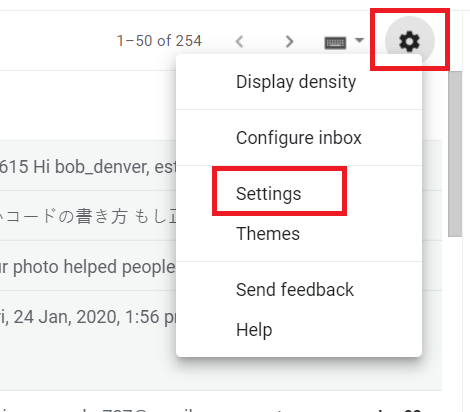
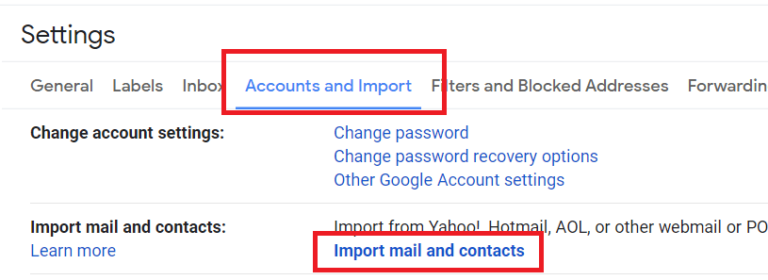
- Select the Account & Import option and choose Import Mail and Contacts.
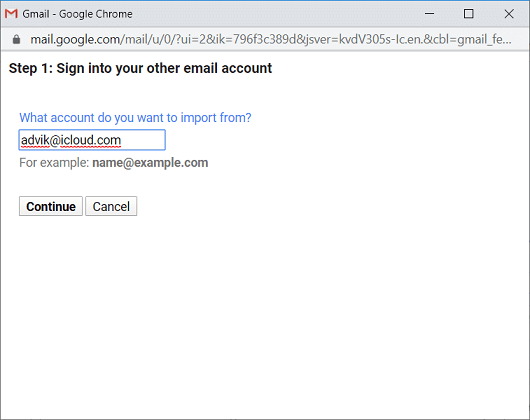
- Enter your iCloud Mail email address and click Continue.
- Type your iCloud IMAP Settings and click Next.
- Select the Import Mail option and then hit Import.
Finished! Now, Gmail will start importing emails from the iCloud account.
Why Is the Manual Solution Not Recommended?
Despite having a simplified and free way to add iCloud mail to Gmail, the method has a few limitations. Here are the drawbacks that you might face during migration.
- No Email Filter Option
- May take up to 2 Days to complete the migration
- No Mailbox Folder Selection Option
How to Transfer Emails from iCloud to Gmail Automatically?
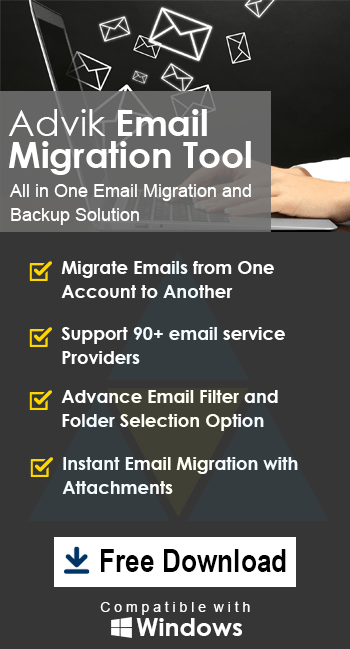
Try Advik iCloud Mail Backup Tool for Windows & Mac OS. This software is specially designed to transfer iCloud emails to Gmail flawlessly. It can move entire mailboxes and folders in one attempt. During the process, it will also maintain folder and sub folder hierarchy as well. While importing emails from iCloud to Gmail, you won’t have to worry about the attachments too. All the information and attached data will remain preserved.
Download the software for free and try it now.


Steps to Migrate iCloud Email to Gmail Account
- Run the tool and sign in to your iCloud email account.
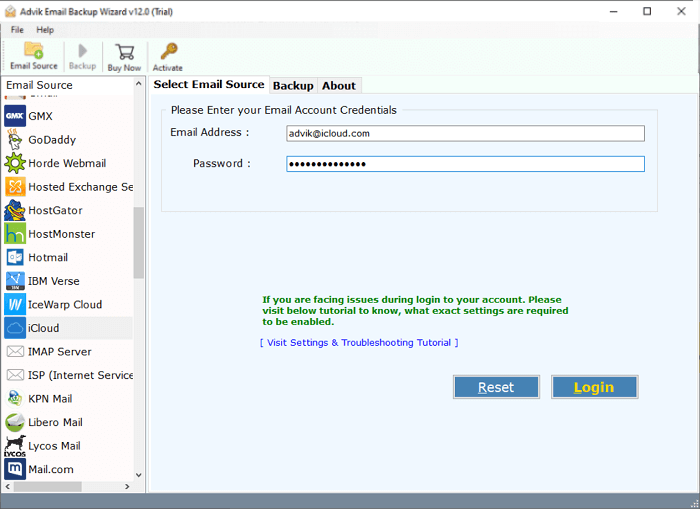
- Select the iCloud mailbox folders that you want to export.
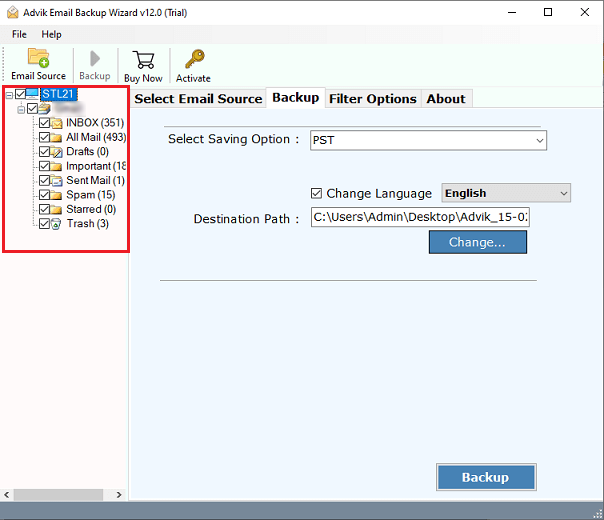
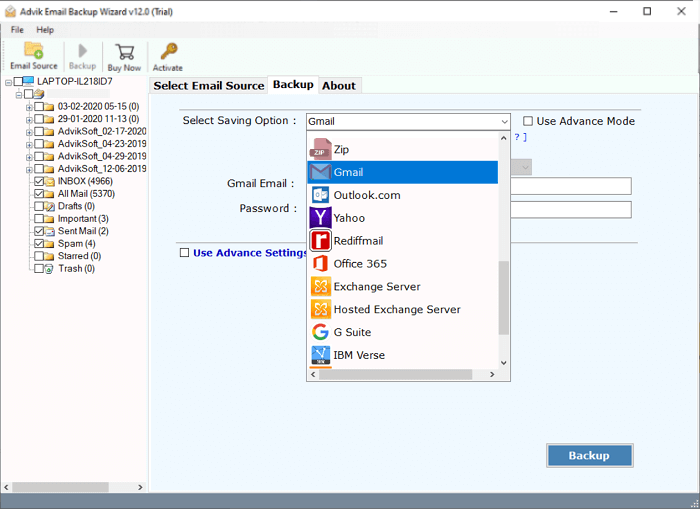
- From Select Saving Option, choose Gmail.
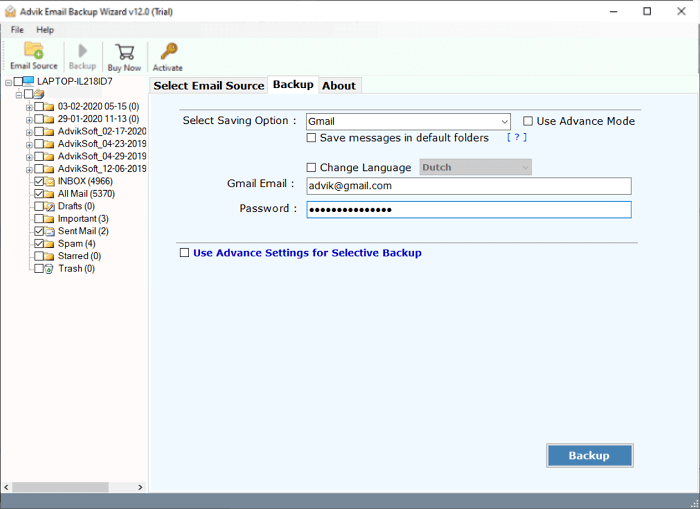
- Enter your Gmail account login credentials in the respective field.
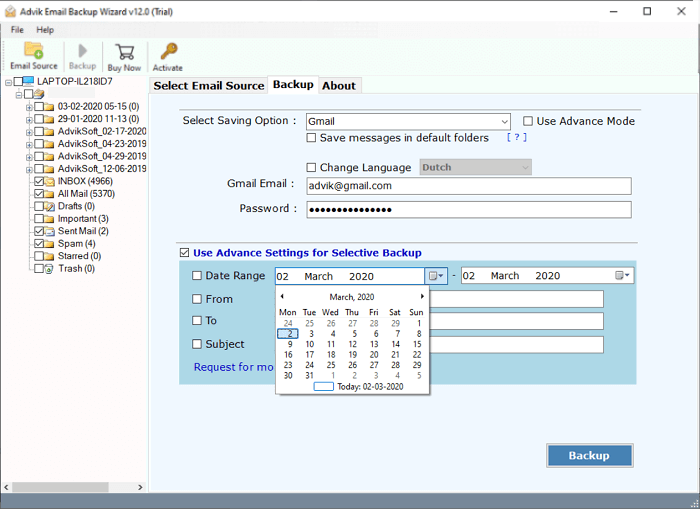
- Apply email filters if required and click Backup.
Finished! Now sit back and relax. This is how you can export iCloud emails to Gmail without facing any error or glitch.
These were the simple and easy steps to import emails from iCloud to Gmail. Now we will understand the whole process through a video tutorial.
Watch How to Transfer iCloud Mail to Gmail
Some Helpful Features of Automated Solution
Apart from performing the above function, the software is loaded with dozens of useful features.
- Transfer iCloud email to Gmail in bulk.
- Multiple email saving and migration options.
- Moves emails, attachments, and folders with just one click.
- Easy to use interface, no technical knowledge needed.
- You may also export iCloud to PST, PDF, EML, etc.
- Also, there is an option to pick individual emails & mailbox folders to migrate.
- Processes massive numbers of emails quickly and mistake free.
- Keeps your folder hierarchy, labels, and email metadata intact.
- Email filtration option that can be applied for specific email transfers.
- Also, backup iCloud emails to PC as well.
- Works smoothly with both iCloud and Gmail accounts.
Conclusion
To change iCloud email to Gmail, a lot of users search for a way to migrate efficiently. In this article, we have explained the two best ways to move email from iCloud to Gmail account. However, to easily and effortlessly transfer iCloud Mail to Gmail account, a professional solution is the most recommended. A FREE version is also available, which allows users to test the tool before upgrading to a licensed version for unlimited migration.

Frequently Asked Questions
Q 1. Can I transfer multiple iCloud email accounts to Gmail at once?
Ans. Yes, you can use professional solution to import emails from multiple iCloud Mail accounts to Gmail. The software has Batch Mode option which allows you to add a CSV file that contains the login details of all iCloud accounts.
Q 2. How do I move iCloud selective email folder to Gmail?
Ans. The software allows you to select and move desired iCloud folder to Gmail.
Q 3. Will the software store my accounts credentials?
Ans. No, the Advik iCloud Backup Tool does not save your login details. It supports OAuth 2.0 authentication. So during the migration it creates a secure connection with your email accounts using your credentials.
Q 4. Is it possible to migrate large mailbox from iCloud to Gmail?
Ans. Yes, with automated tool, you can easily move large mailbox without any size restrictions.
Q 5. Can I use this tool on my Mac based system?
Ans. Yes, the software is compatible with both Mac and Windows OS. You can run it on any version of both the operating systems.

Related Articles