How to Transfer GoDaddy to Gmail Account?
When people think about moving their GoDaddy emails to another platform, they often think of Gmail because it includes all the Google applications. But how do you transfer email from GoDaddy to Gmail if you need to? It seems like a tough question, right? Don’t panic, there are multiple ways to migrate GoDaddy email to Gmail.
Method 1. Use Gmail via IMAP/POP3 settings
Method 2. By configuring both email accounts with MS Outlook
Method 3. Professional GoDaddy to Gmail Migration Tool
As you all know, GoDaddy Business Email is a paid professional email service. It’s an email address that matches your domain and promotes your business during email conversations. Like Microsoft, GoDaddy also provides other mailing services like calendars, contacts, tasks, and a web portal. However, many users want to transfer email from GoDaddy to Gmail for its security, storage and easy access across devices. This post will walk you through 3 different ways to connect GoDaddy email to Gmail.
Before we proceed to the methods, let’s first examine why users are switching from GoDaddy Emails to Gmail.
Why Do Users Migrate From GoDaddy To Gmail?
There are certain benefits of moving GoDaddy emails to Gmail. Some of these are mentioned here:
- Access your emails anywhere with Gmail web interface and mobile apps.
- Powerful search functionality to search old email messages easily.
- Turn on security features such as two factor authentication and suspicious activity alerts.
- Gmal has spam filtration that help decrease spam and scam emails.
- More storage than basic GoDaddy email accounts.
- Integrate with other Google services like Drive, Meet, Docs, Sheets and Calendar.
Let’s get started!
How to Import Emails from GoDaddy to Gmail Free?
In this method, you need to set up a GoDaddy Business email account in Gmail. With this technique, you can transfer GoDaddy email to Gmail using IMAP/POP3 configuration.
Follow the steps to migrate email from GoDaddy to Gmail account:
- Open your Gmail account in web browser.
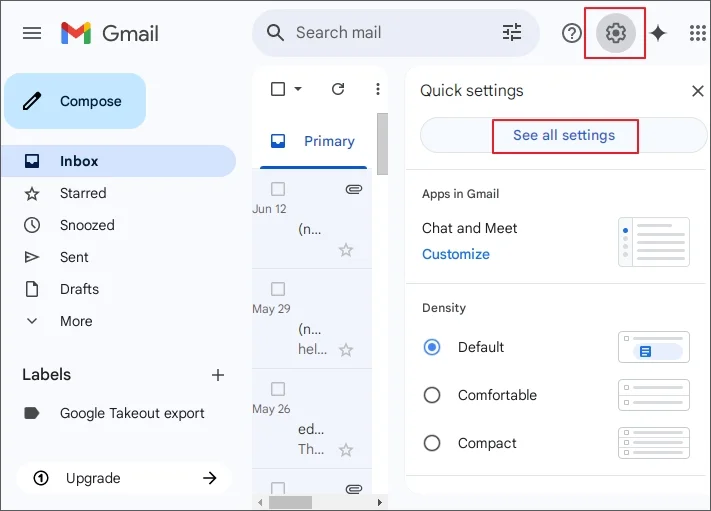
- Click on Gear icon and press See All Settings.
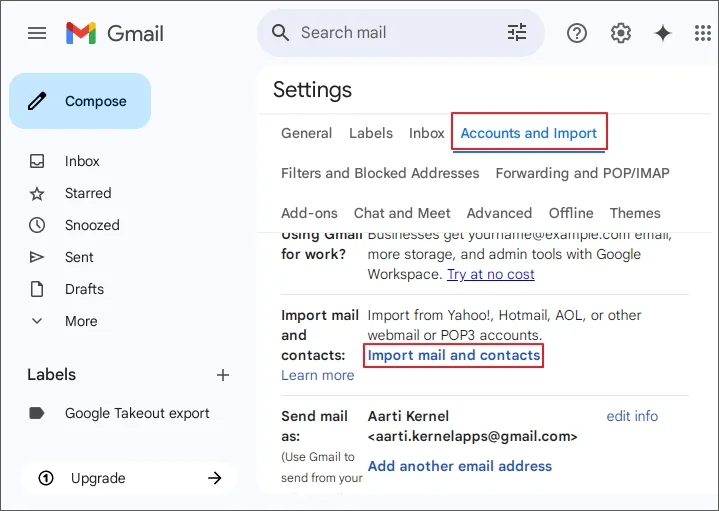
- Click on Account and Import and select Import Mail and Contacts option.
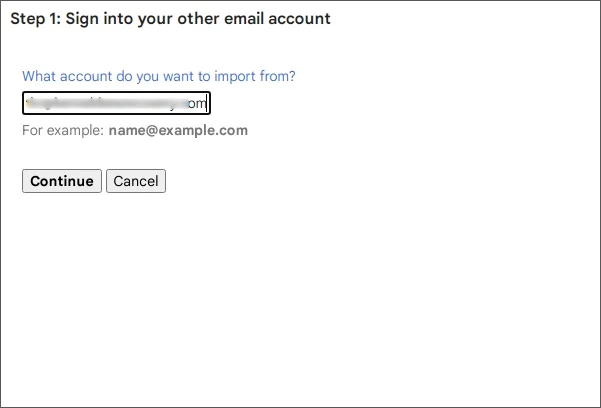
- Enter your GoDaddy Business email address and click Continue.
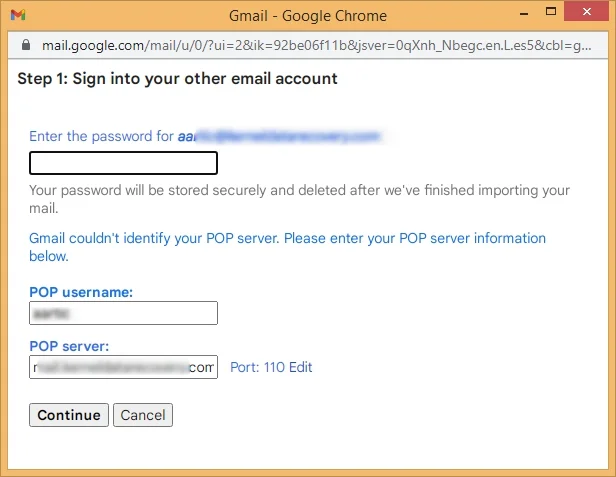
- Now enter your account password and POP details:
POP username: your username@company.com
POP Server: pop.secureserver.net
PORT 110
After submitting the details, click the Continue button.
- Choose the Import Mail checkbox and then click on Start Import button.
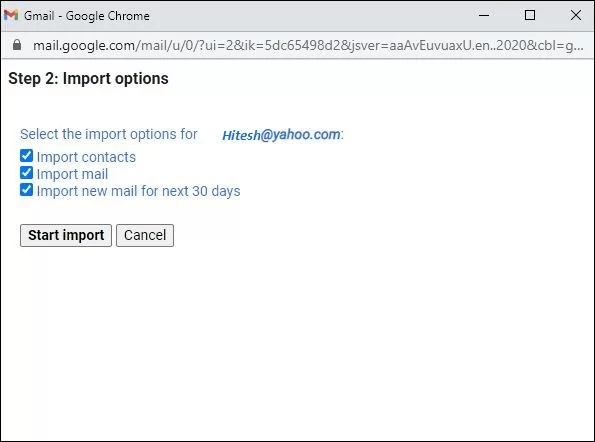
Gmail will sync GoDaddy email account and start to import emails. However this process can transfer only Inbox folder emails.
How to Transfer Emails from GoDaddy to Gmail via Outlook?
This is quite lengthy, but one of the successful formulas to migrate GoDaddy email to Gmail with attachments. First of all, you will require MS Outlook application installed on your PC.
- Open Outlook and click Add Account from the File menu.
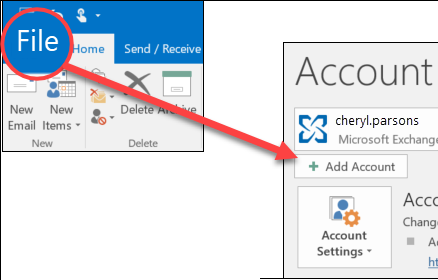
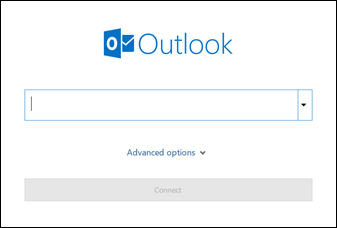
- Enter your GoDaddy email account credentials and click Finish.
- Once Outlook adds your GoDaddy business account, go to the Open/Export option.
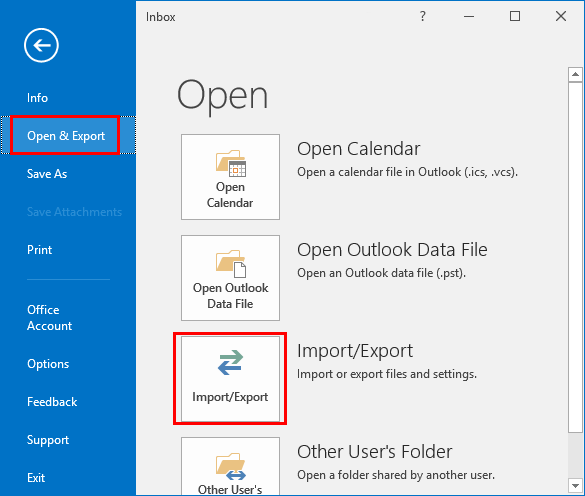
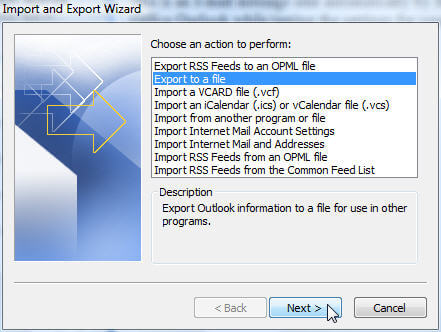
- Click Export to a file and hit Next button.
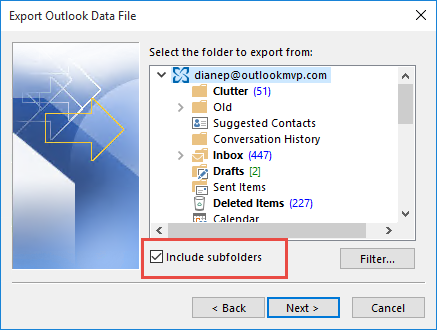
- Select the mailbox folders that you want to import from GoDaddy email to Gmail.
- Click the Finish button.
Now MS Outlook will backup GoDaddy emails to Outlook Data File (.pst). After converting GoDaddy mailbox to PST, you have to import PST file in Gmail. Follow the further steps.
- Again go to Outlook application and click Add Account.
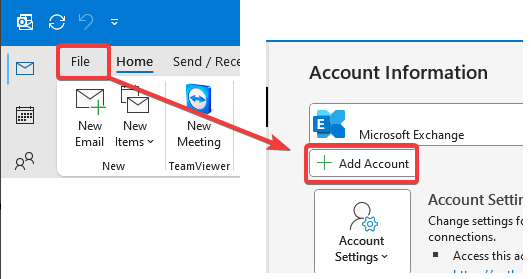
- Enter your Gmail account details and click Finish to setup an account.
- Click Open/Export option from File menu.
- Choose Import from another program or file option.
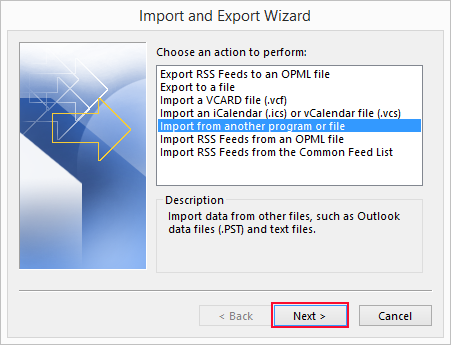
- Browse the Outlook PST file that you can export from GoDaddy account.
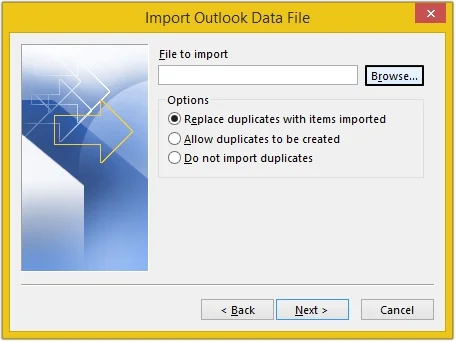
- Select added Gmail mailbox to import PST file and click Finish button.
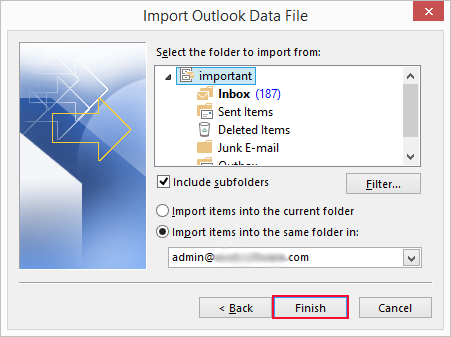
Finish! This is how you can transfer GoDaddy to Gmail with MS Outlook client. The process is 100% workable but non technical users can face difficulty in account configuration.
How to Migrate Emails from GoDaddy to Gmail Automatically?
Download and install Advik GoDaddy Email Backup Tool on your system. This email migration tool is specially developed and designed for GoDaddy Business users. Take the help of this wizard and move GoDaddy emails to Gmail account instantly. You do not need to go through any manual configuration.
Download the FREE fully-functional trial and check the performance and efficiency of this program.


Steps to Transfer GoDaddy to Gmail
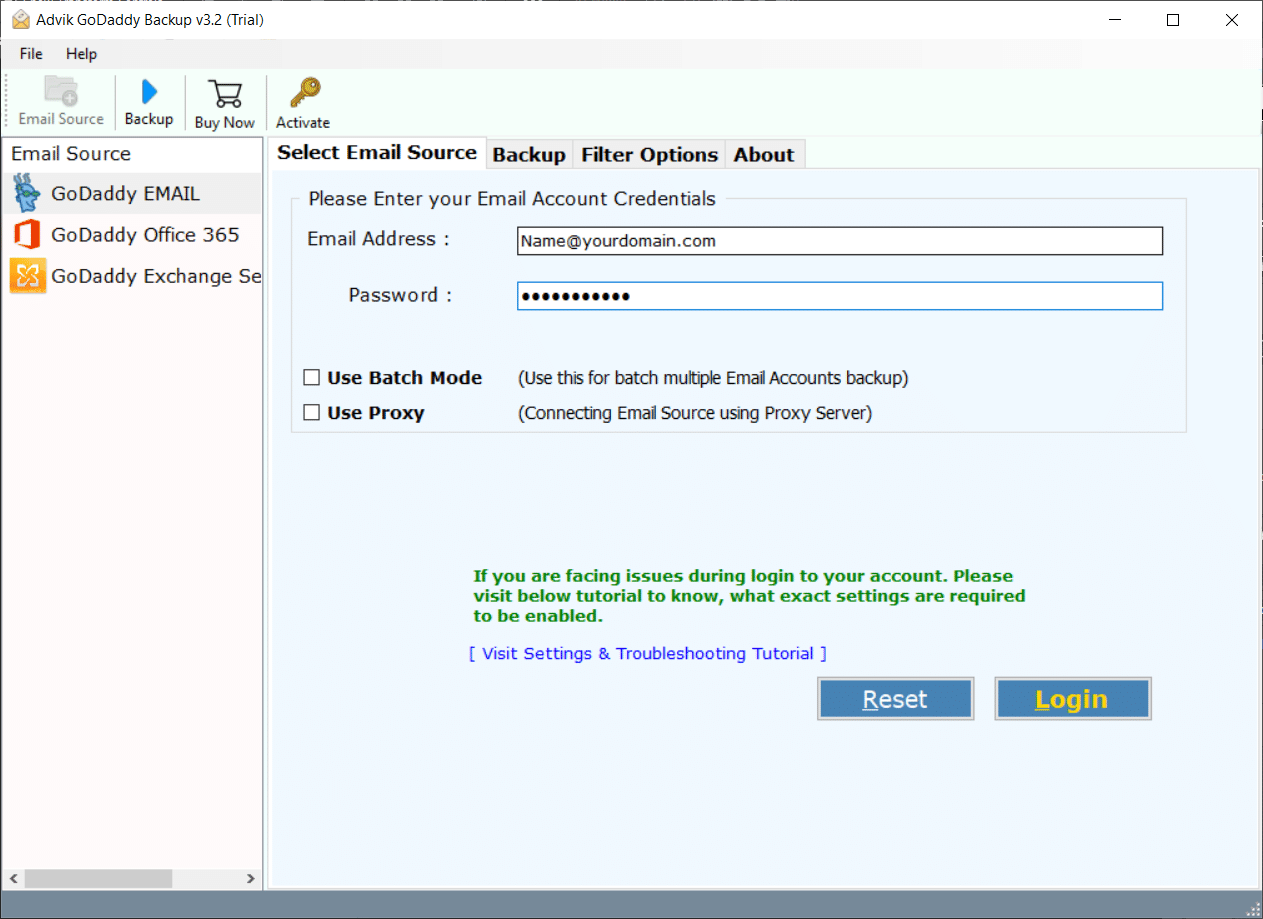
Step 1. Launch the software and enter your GoDaddy credentials.
Step 2. Choose needed mailbox folders to transfer and click Next.
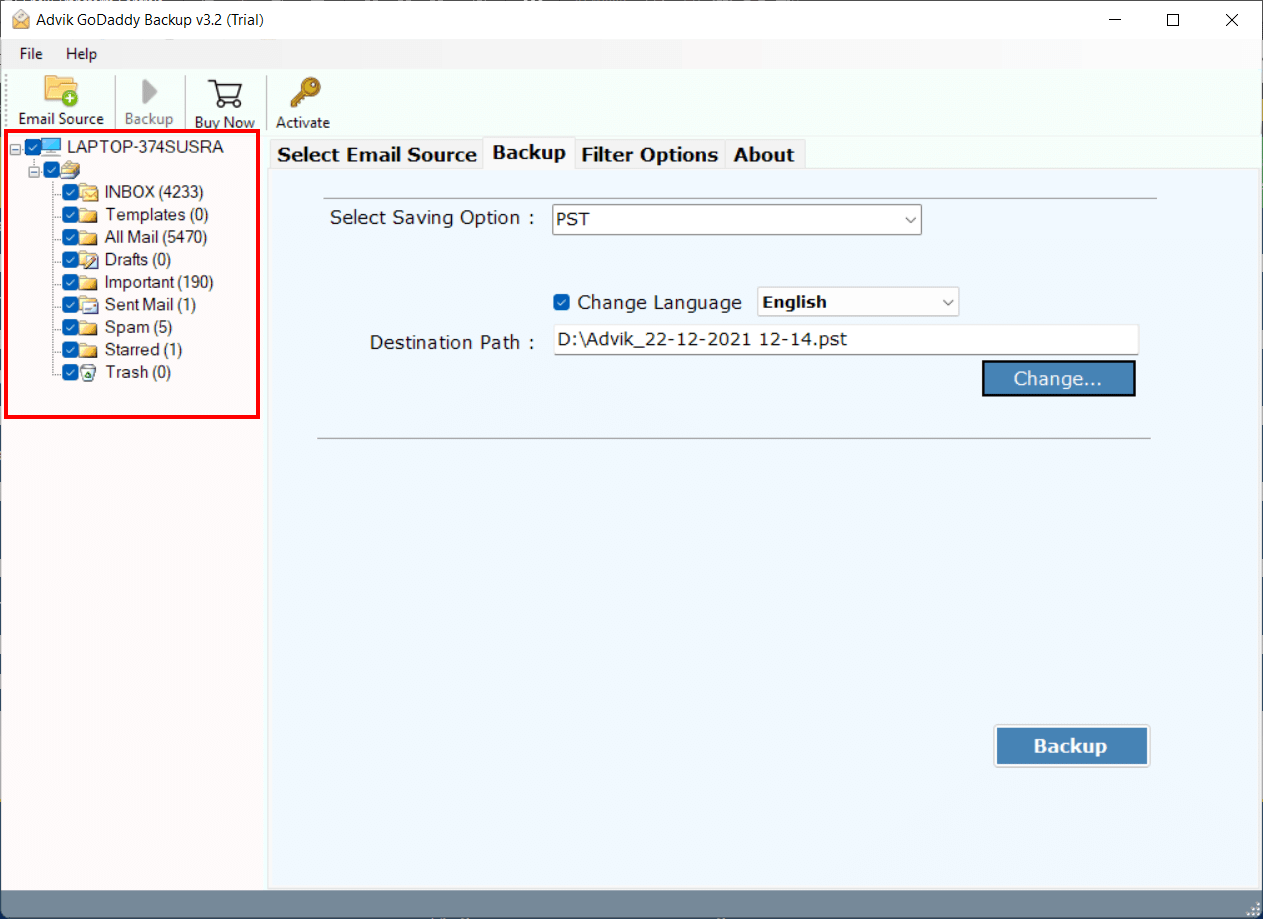
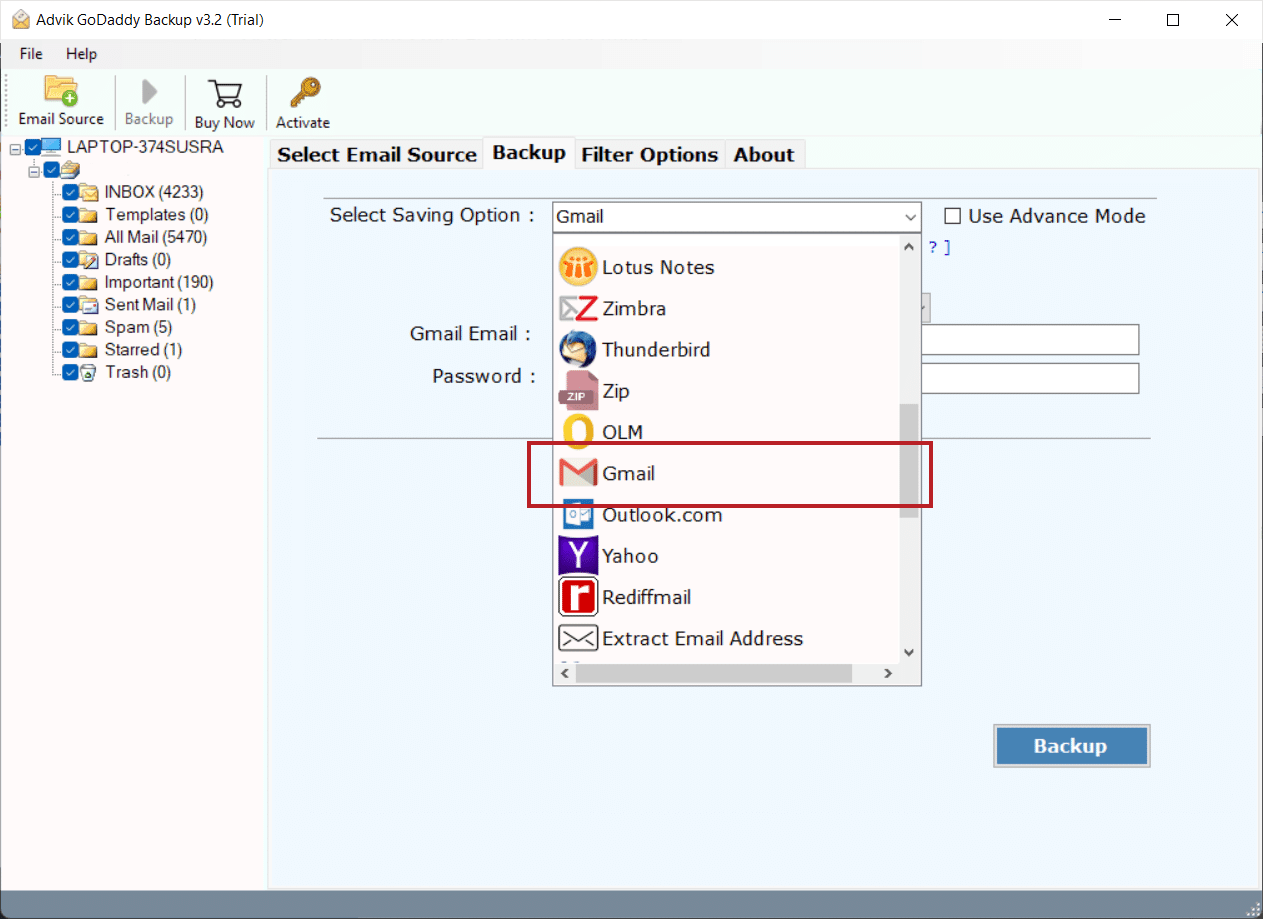
Step 3. Select Gmail as a saving option from the list.
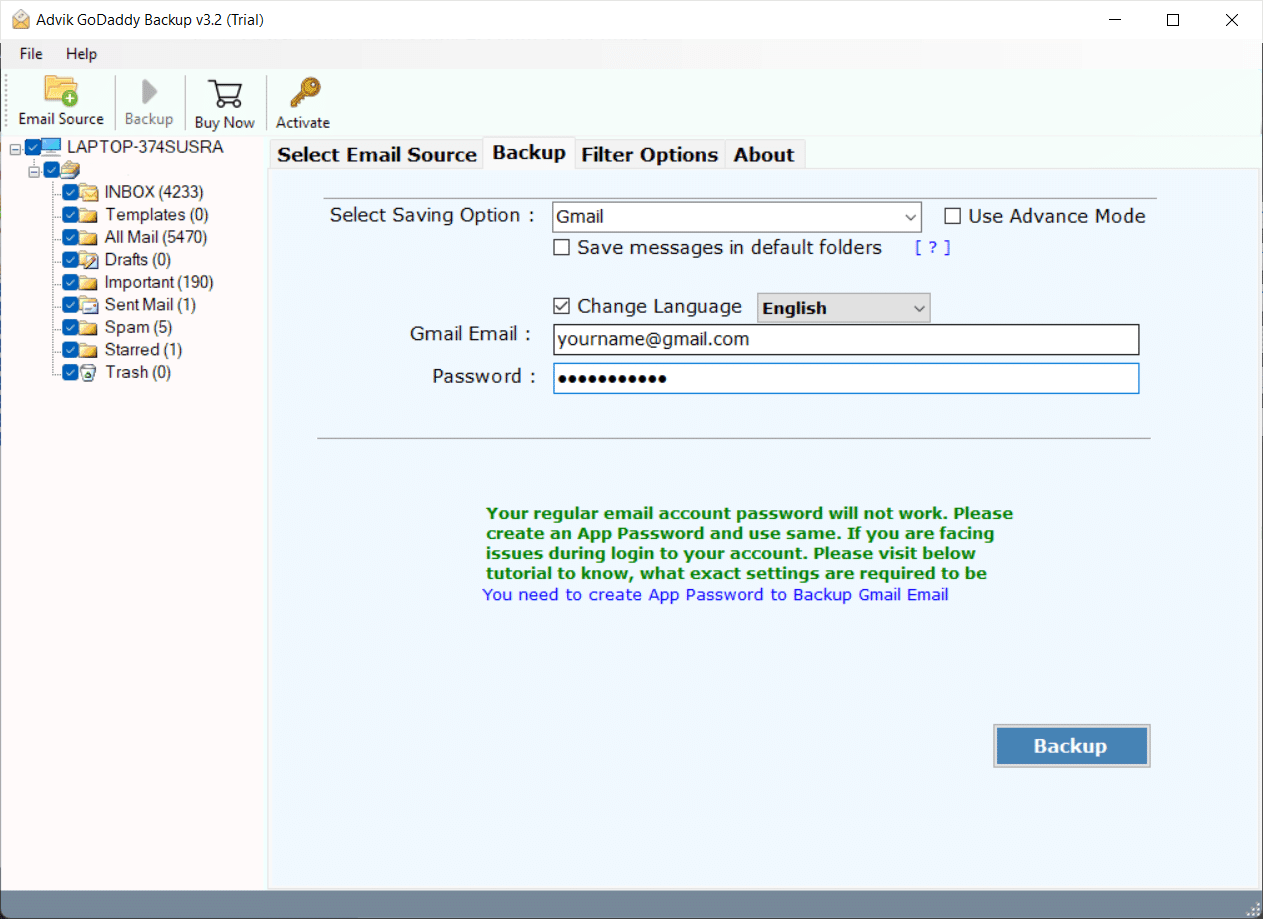
Step 4. Enter your Gmail login credentials and click Backup
 .
.
Now the software will start transferring emails from GoDaddy to Gmail account. Once it gets over, the software will generate a log report as well.
Watch How to Transfer Email from GoDaddy to Gmail
Advantages of Using GoDaddy to Gmail Migration Tool
- Directly transfer GoDaddy to Gmail without any configuration.
- Migrate emails from multiple GoDaddy email accounts at once.
- Migrate the entire GoDaddy mailbox in a single attempt.
- Advanced email filter options to transfer selected emails.
- Also, migrate GoDaddy to Office 365, Yahoo Mail, and more.
- Preserves data integrity and mailbox folder hierarchy intact.
- Simple and easy-to-use tool for all types of users.
- 24/7 customer support to solve user queries.
- Compatible with all versions of Windows OS.
- A free demo version to check the working procedure.
Conclusion
In this article, we have discussed how to transfer GoDaddy email to Gmail account. This post is best suited for both novice and experienced users. The manual methods are effective if you have less data for migration. However, if you have a large amount of data, we recommend you choose professional software to migrate GoDaddy email to Gmail mailbox.
FAQs – GoDaddy to Gmail Migration
Ques. 1. Can I import emails from multiple GoDaddy Email accounts to Gmail at once.
Answer. Yes, the software allows you to transfer emails from multiple GoDaddy accounts in one go. It has a batch mode feature which enables you to add a CSV file that contains the login details of several accounts.
Ques. 2. Does the tool maintain the folder structure while performing GoDaddy to Gmail Migration?
Answer. Yes, the tool remains the original structure of mailbox folders even after the process.
Ques. 3. Can I run this utility in Windows 11?
Answer. Yes, you can run this program in any version of Windows.