How to Transfer Windows Live Mail to Gmail?
Windows Live Mail has been discontinued, but many users still have important emails stored in it. When users switch to a modern and secure platform like Gmail, the biggest challenge is transferring old Windows Live Mail emails without losing data. In this guide, you’ll learn the best ways to transfer Windows Live Mail to Gmail while maintaining folder structure and data integrity.
Gmail is one of the most secure and fastest email services with the least downtime. On the other hand, Windows Live Mail is no longer available for new users. Thus, existing users are looking for the safest way to migrate from Windows Live Mail to Gmail.
In this article, we’ll explain both manual and automated solutions to copy emails from Windows Live Mail to Gmail. Both methods are explained below. Go through them one by one.
How to Transfer Windows Live Mail to Gmail for Free?
1. Open the Windows Live Mail application.
2. Go to Accounts >> Email >> type your Gmail credentials to set up Gmail in WLM.

3. Open the folder containing the emails you want to import.
4. Select the emails you want to copy.
5. Drag and drop the selected emails into the Gmail mailbox.
6. Choose the destination folder in Gmail (e.g., Inbox or Sent Mail).
Done!! This is how users can manually export emails from Windows Live Mail to Gmail Account.
However, exporting Windows Live Mail emails to Gmail manually is free, but it is a lengthy and time-consuming process if you have a large amount of data to transfer.
How to Import Windows Live Mail to Gmail Automatically?
Try the most recommended and effective Advik Windows Live Mail Converter in your system to migrate Windows Live Mail to Gmail directly. This tool is specially developed to transfer emails from Windows Live Mail to Gmail account with attachments. Also, the best part of this automated software is that it will detect your Windows Live Mail profile for migration automatically. With this tool, you can also transfer single or multiple email folders in a single attempt.
So, what are you waiting for? Just tap on the FREE download button and analyze the working process at no cost.

Steps to Export Windows Live Mail to Gmail
- Launch the software and select the account profile.
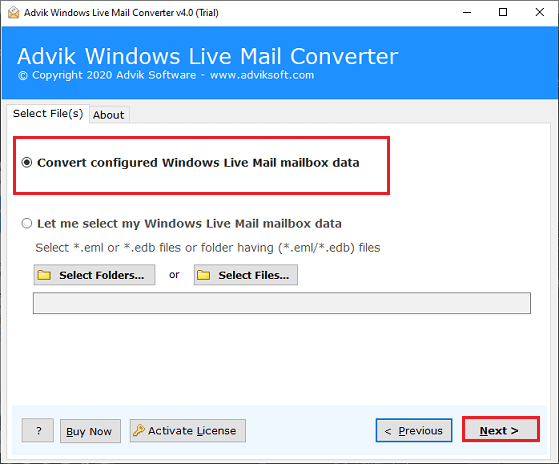
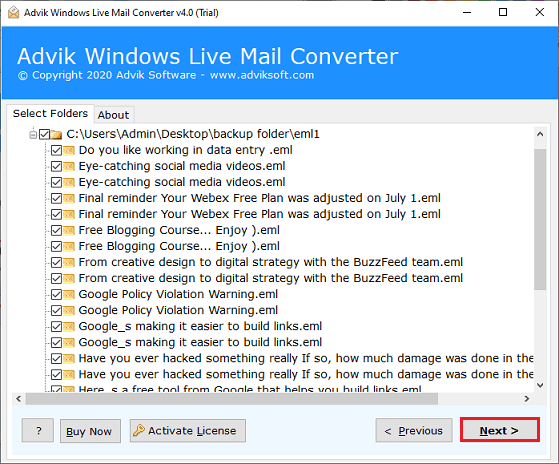
- Next, choose the required emails or email folders from preview mode.
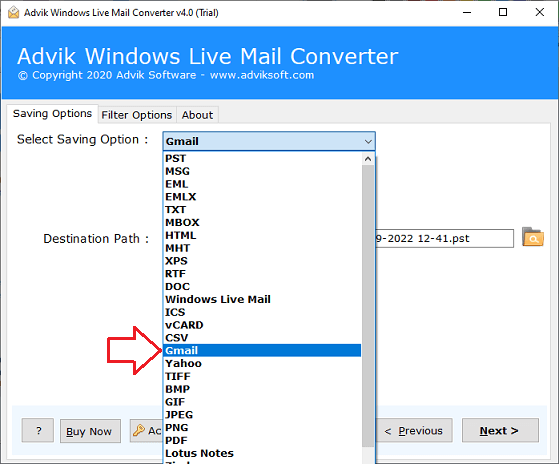
- After that, select Gmail as a saving option from the list.
- Enter your Gmail login credentials for migration & click the Next button to start.
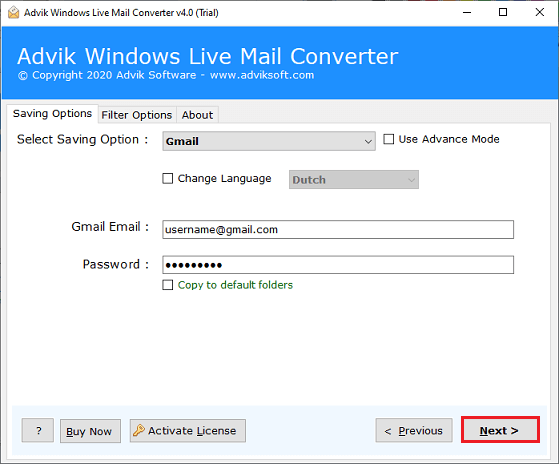
Finished! This is the ultimate form of moving email folders from Windows Live Mail to Gmail.
No manual efforts, let the application do its job. You can transfer Windows Live Mail to Gmail account with endless Email files. This is the only email migration utility that is not bound by any kind of limitations.
Watch How to Migrate Windows Live Mail to Gmail
Key Features of the Software
Below are a few highlights of this automated solution;
- Automatically detect and load Windows Live Mail profile data from its default location.
- Transfer emails from Windows Live Mail to Gmail in bulk with no file size limits.
- Allows migration of emails along with attachments and all email components like bcc, cc, to, from, etc.
- Provides dual ways to add Windows Live Mail files and folders.
- Supports migrating data from all Windows Live Mail folders, including Inbox, Sent, Trash, Drafts, etc.
- Advanced filters let users migrate emails within a specific date range, by email address and many more.
- Also convert Windows Live Mail mailbox to PST, PDF, MSG, EML, MBOX, and 20+ formats.
- Import Windows Live Mail to Thunderbird, Yahoo, Zimbra, IBM Notes, Entourage, Office 365 etc.
- Works with all the latest and previous versions of Windows OS, including 11, 10, 8. 8.1, 7, XP, etc.
Conclusion
Hope you find this blog informative and useful to transfer Windows Live Mail to Gmail. As Windows Live Mail is no longer seeking updates from Microsoft it’s better to migrate its emails to a web-based email service like Gmail. However, you can use both manual and professional methods, but manual is going to take both time and effort as well. Therefore, opt for a professional way to export multiple Windows Live Mail emails to Gmail at a time in just a few simple steps.
Frequently Asked Questions
Question 1. Can I use this program on Windows 10?
Answer. Yes, this tool was created specifically for Windows users and is compatible with all versions of Windows, including Windows 10.
Question 2. Is this tool allowed to transfer Windows Live Mail to Office 365?
Answer. Yes, this program offers various cloud-based and email client options to transfer Windows Live Mail emails. You can easily migrate Windows Live Mail to Office 365 with so much ease.
Question 3. I have to export Windows Live Mail files to Gmail with certain dates. Can this software do it?
Answer. Yes, users can utilize this handy tool’s date filtration feature to transfer Windows Live Mail data to Gmail according to date.
Question 4. Can this tool import Windows Live Mail files to Gmail in bulk?
Answer. Yes, this software allows importing Windows Live Mail to Gmail in a single processing step without causing any problems with data loss.

Related Articles