How to Import MBOX to Outlook: Practical Guide 2026
In this blog, we will discuss different methods to import MBOX to Outlook. If you have exported MBOX file from any email client and now want to access those emails in Microsoft Outlook, then this guide will help you complete the process.
Before moving ahead with the methods, it is important to understand a few things about MBOX to Outlook migration. MBOX is supported by many open-source and desktop-based email clients such as Mozilla Thunderbird, Apple Mail, Eudora, SeaMonkey and many more. Outlook works differently and does not support MBOX files directly. Because of this you need proper methods to open and import MBOX emails into Outlook email app.
Now, i will explain the whole issue in more detail, why Outlook cannot open MBOX file directly.
Why Can’t Outlook Open MBOX Files Directly?
It is important to know that importing MBOX to Outlook is difficult before we start the process.
MBOX is not supported by Outlook and it only supports OST and PST file formats which are totally different mailbox formats.
MBOX stores all mail in a single mailbox file in text format.
PST is the mailbox format of Outlook and it is proprietary.
Outlook can’t read MBOX files natively, it supports only PST, OST and few standard import formats. This is what users want:
- Thunderbird or any MBOX supported mail clients as Bridge Technique
- IMAP synchronisation
- Or any MBOX to PST Converter to complete the migration.
Real User Scenario of Importing MBOX Files into Outlook
While searching solutions for this topic, I came across a real user discussion on Github where a user was trying to transfer emails from Thunderbird to Outlook but was confused about the export settings and import process.
Actual User Query:

This is a very common scenario. Email clients like Thunderbird normally export their data in MBOX format. However, many users find it hard to open such files in Outlook. If you are also facing such a problem, then don’t worry. In the upcoming sections, i will explain several tried and tested solutions to import MBOX files to Outlook safely and stepwise.
Methods to Open & Read MBOX Files in Outlook
As Microsoft Outlook doesn’t support MBOX file format directly which insist us to look for an indirect way to use any medium to complete this task. You can import your MBOX data in Outlook using the following commonly used methods. I have tried all these by myself then presented it to you. I have explained all my findings related to these methods so have a look on it before proceeding to apply them.
1. Thunderbird Approach: One of the free and most popular manual way to open MBOX data in Outlook. This method is free of cost but it may take some time especially for large MBOX files.
2. IMAP sync method: This method uses an email server as a medium between MBOX and Outlook. It works great if you already have an IMAP account and can sync easily with email clients to download emails from IMAP server.
3. Automated Conversion: For most people, it is easiest and most reliable way as it provides an alternate way to transfer MBOX data into Outlook if the above method fails to satisfy some selective needs.
Now, let’s discuss these methods in more detail;
Method 1. Migrate MBOX Emails into Outlook Using Thunderbird Client
This process uses Thunderbird as a medium to convert MBOX files to a format that Outlook can read.
Steps:
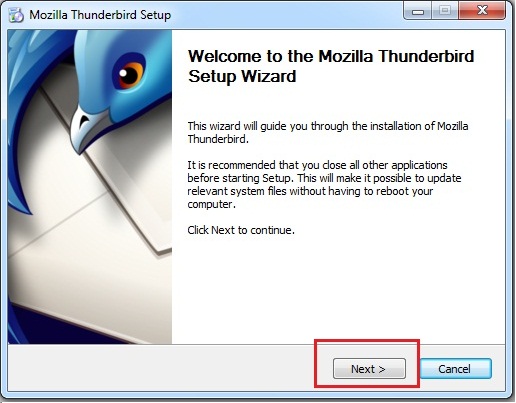
1. Download and install Mozilla Thunderbird on your computer.
2. In Thunderbird, make a new folder where you will save the emails you wish to import.
3. Drag your MBOX messages to the new folder.
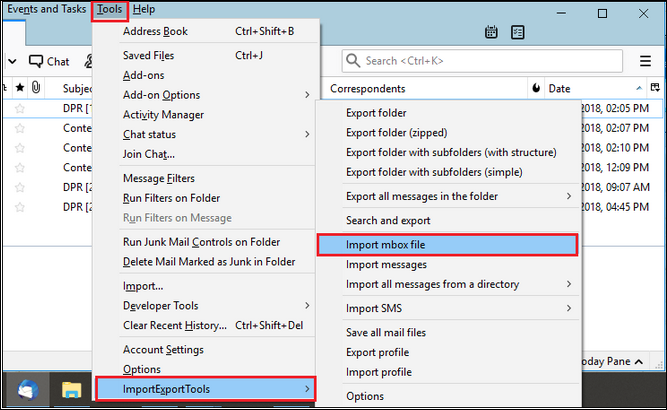
4. Naviagate to Tools >> ImportExportTools NG >> Import MBOX file and pick the MBOX files.
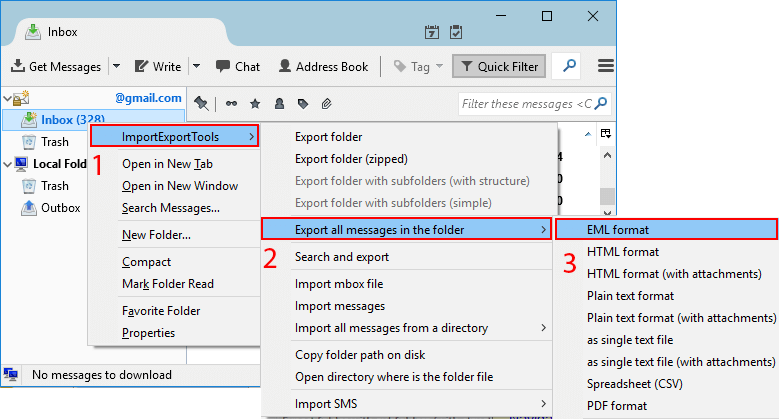
5. After import, right-click on the folder >> Export all messages to EML format.
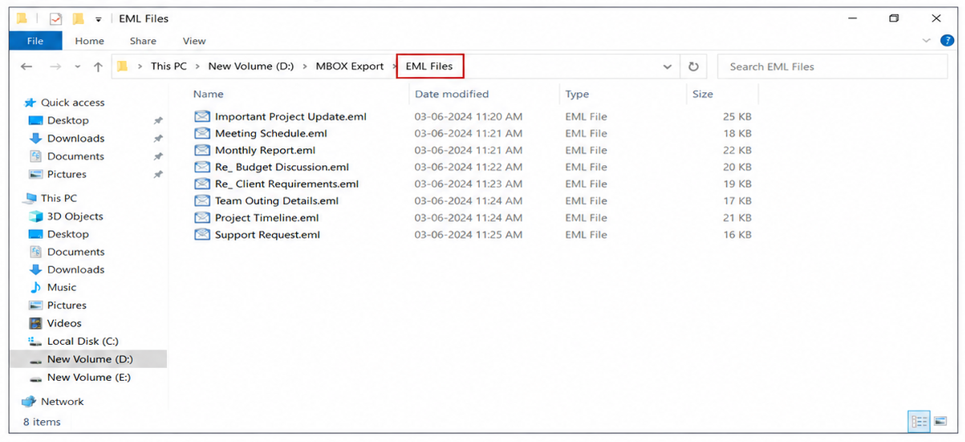
6. Save the EML files somewhere on your computer.
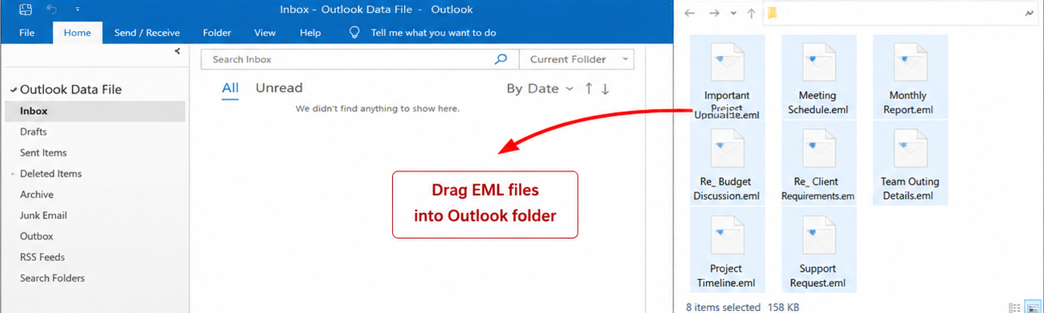
7. Open Outlook and drag those EML files into a folder.
Method 2. Import MBOX File to Outlook Using IMAP Account
The solution uses your IMAP email account to sync the emails and make the MBOX messages readable in Outlook.
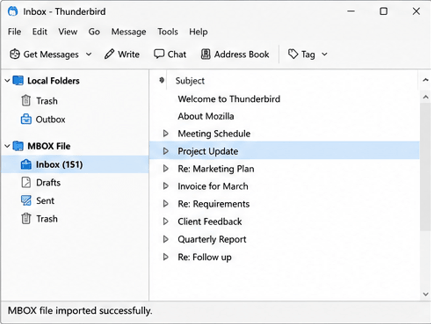
1. Before you move forward with this method, import MBOX to Thunderbird email client.
2. First make sure that you have IMAP email account or create one to sign in Thunderbird.
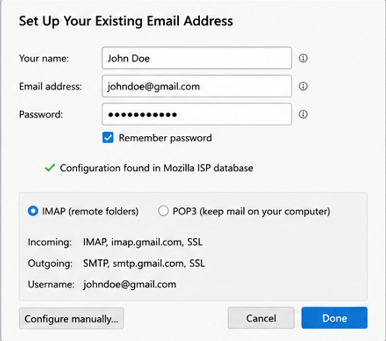
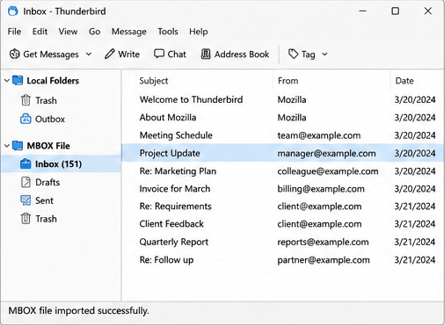
3. Just import your MBOX file into Thunderbird as described in the above method.
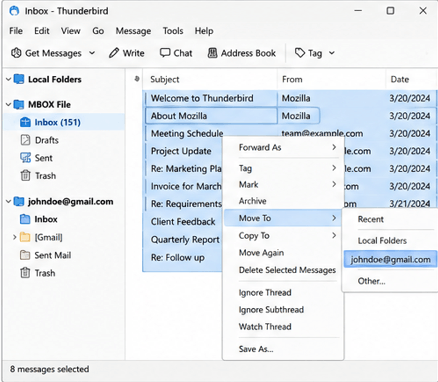
4. Right click the imported emails >> Move To >> Your IMAP email account.
5. Open Outlook and set up the same IMAP account (File >> Add Account).
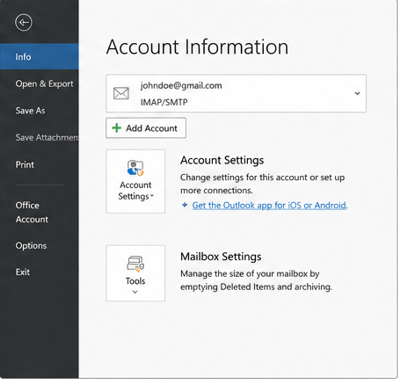
6. Let the Outlook sync with the IMAP server and your MBOX emails will be transferred into Outlook.
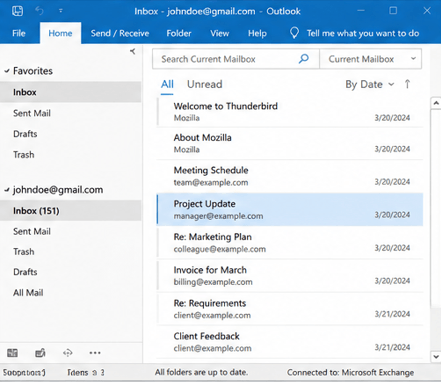
Both methods use intermediate syncing and manual steps and sometimes it becomes slow and unreliable for large MBOX files. If the process is interrupted, there is a higher chance that your email transfer will remain incomplete.
Method 3. Transfer MBOX Files to Outlook using Professional Method
If you find manual methods complicated or it don’t fulfil your needs, then you can try a professional tool available online; such as Advik MBOX Converter. Manual solutions are good & workable but for simple migration, but they can become difficult to deal when working with large MBOX files, multiple mailboxes or selective email migration.
It helps users convert MBOX files to Outlook supported PST format with many helpful features like it preserves attachments, folder structure, subject lines, sender details etc. Additionally it provides option to transfer emails in bulk and reduce the time for manual configuration.
If you have some emails to migrate then manual methods can still work fine. For larger or more complex migrations, however, an automated solution can make the process easier and more organized.
Free download the trial version to get an idea of how the software works before proceeding to get the licensed version.


Steps to Import MBOX Emails to Outlook Mail
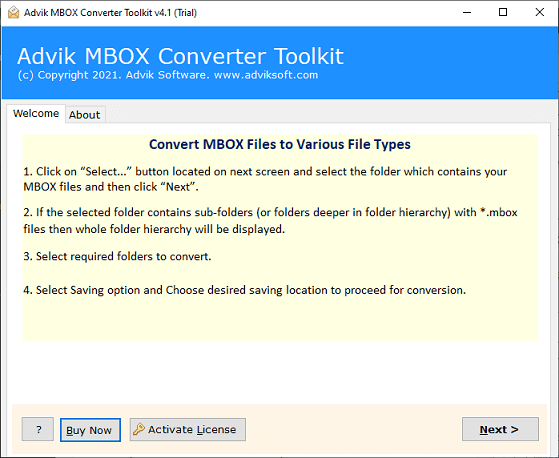
Step 1. Run the suggested software on your Windows PC and read the instructions.
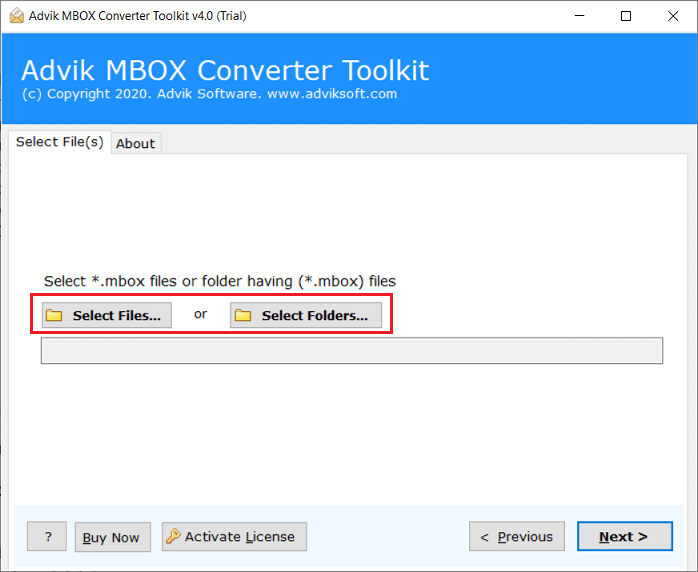
Step 2. Click Select Files or Select Folders to add MBOX files or folders .
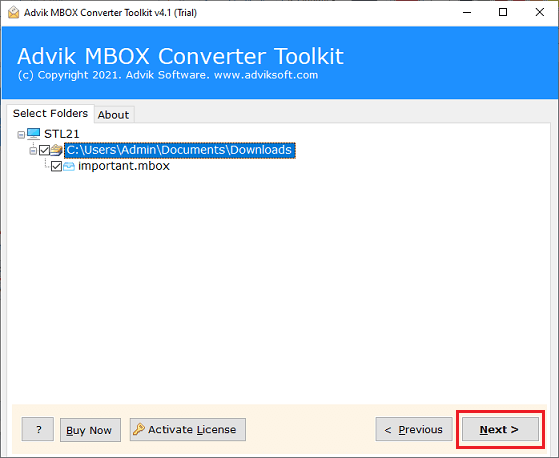
Step 3. Select the needed MBOX email folders from given preview and click Next.
Step 4. Now, choose PST as a saving option from the list.
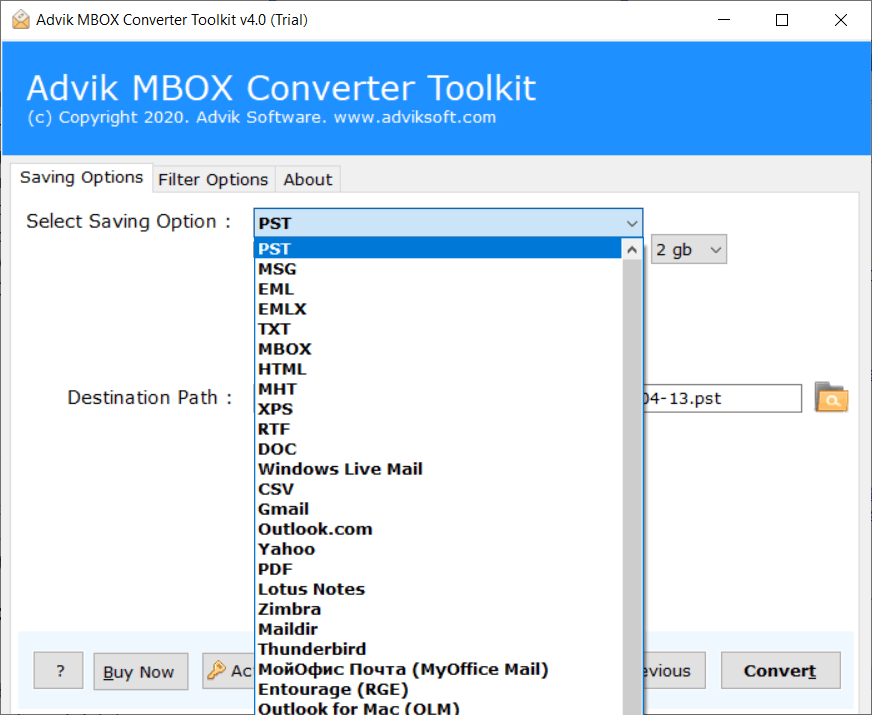
Step 5. Provide a desire destination path and press the Convert button to proceed further.
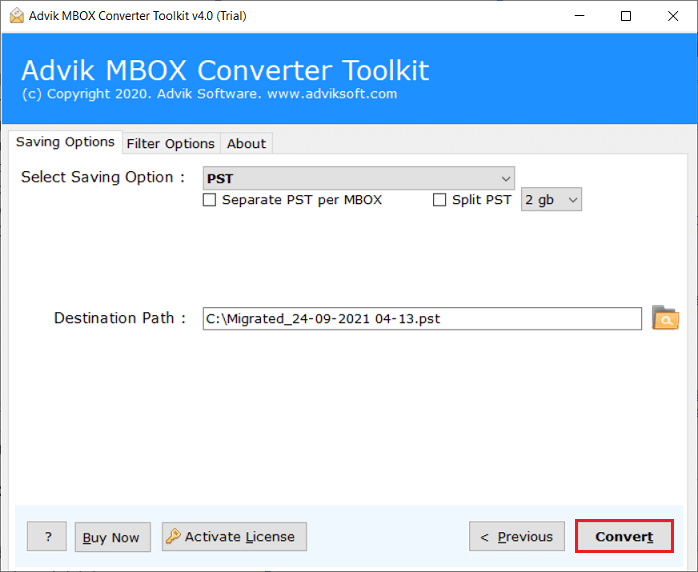
Done!! The transfer of email folders from MBOX file to Outlook supported PST file format has been started.
Withing a few minutes depending upon your MBOX file size, the software will notified you through a log report.
Click OK and you will be taken to the path that you have chosen in the above steps.
After completion, open Outlook app on your system, then click the File tab and choose Open & Export >> Import/Export, and select the PST file you have just created above.
Now, you can access your emails in Outlook mailbox pane.
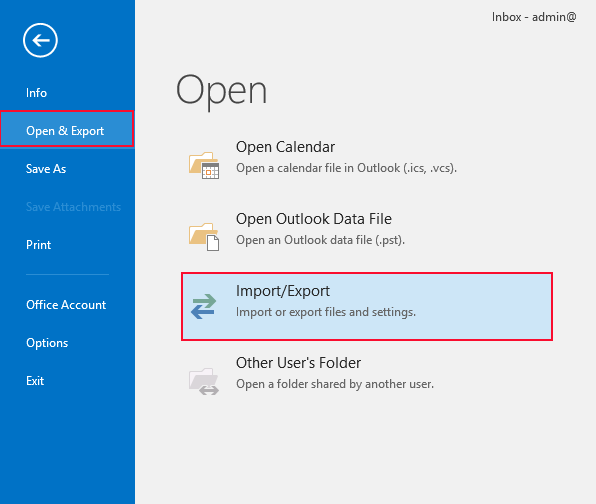
This is how you can import MBOX file to Outlook Windows by following the above steps.
Watch How to Open MBOX File in Outlook
Below is a simple video guide on how to access MBOX emails in Microsoft Outlook. You can watch the video to get a visual understanding of the step-by-step process. You can understand the steps clearly with the help of this and see how to transfer your MBOX emails to Outlook without any confusion.
Features and Benefits of Automated Software
An automated solution makes the email transfer from MBOX file to Outlook easy by adding a few helpful features. It is particularly useful if you have large or multiple MBOX files that you want to open in Outlook.
Import MBOX Files into Outlook: You can access your MBOX emails into Outlook with all the important data like subject, sender, recipient, attachments and other email properties as well.
Bulk Import Option: With this program, you can migrate multiple MBOX files to Outlook at once. Thus, no barrier to load limited emails at a time and it will also save and reduce your manual effort.
Preserves Email Format & Hierarchy: It retains the current folder hierarchy and email structure in the migration so you will not messed up with unarranged folder that will create confusion in accessing your emails.
Email Filtering: Allows you to choose what to migrate through filters such as date range, sender, subject or specific folders. It’s not available in other manual methods.
Wide Compatibility: Also, it is compatible with different versions of Windows operating systems. Such as that you can use and install any latest or previous versions of Windows operating systems. Just make sure that you have 4 GB memory and 500 MB of free space in your system.
Free Trial Version: It provides a demo version which you can try to check 25 number of emails per MBOX folder before purchasing the licensed version. It will give you access to first try and trust then proceed to buy for unlimited access.
Manual vs Software Method – MBOX to Outlook Conversion
| Featuret | Manual Method | Software Method |
|---|---|---|
| Ease of Use | Lengthy steps | Workable interface |
| Time Required | Takes a long time | Fast Email Transfer |
| Technical Knowledge | Required | Not required |
| Attachments Support | Sometimes incomplete or inconsistent | Fully preserves all attachments |
| Error Chances | High (sync failures, login issues) | Very low |
| Best For | Tech-savvy users with small data | Beginners and bulk migration needs |
Conclusion
As you can see, importing MBOX files into Outlook is an easy task with the right methods and guidance. Since there is no direct way exists to complete this task, we are left with using some possible methods. Each approach that is explained in this article is tested with data size, technical knowledge and accuracy results, so that anyone can understand the complete process without struggling much. For a better understanding of the methods, you must refer to the above comparison of manual and automated solutions and get a clear picture of what these methods offer and what will suit best as per your requirements.
Frequently Asked Questions with Answers
Q1. I only want to import few emails from MBOX file. Do I have to convert the whole mailbox?
Ans. Not at all. Adviksoftware explained in this tools allow selective import, which means that you can choose to import only certain emails or folders instead of the whole MBOX file. It’s not possible with manual methods.
Q2. My MBOX file is quite large. I want to know if Outlook can handle it or not?
Ans. Large mailbox files may sometimes slow down Outlook’s performance especially in older Outlook versions. You may need to split large PST files or import data in smaller chunks.
Q3. Is it possible to import MBOX email to an existing Outlook folder?
Ans. Yes. After MBOX to PST conversion, you can import data into existing Outlook folders or create a separate mailbox folder to organise data better.
Q4. My MBOX file is not opening in Thunderbird. What shall I do?
Ans. This may happen if the MBOX file is corrupted, incomplete or imported wrongly. You can try to repair MBOX file to convert it into healthy MBOX file format.
Q5. What happens if my conversion process stops in the middle?
Ans. It may create data loss situations as an incomplete conversion can lead to the partial transfer of data or corrupt PST files. After checking the files and the storage of the system for integrity, it is recommended to restart the process.

Related Articles