How to Save Gmail Emails to Flash Drive | 2026 Tutorial
You can save Gmail emails to a flash drive in several ways. For a single email, use Gmail’s Download Message option to save it as an EML file or use Print >> Save as PDF. For multiple emails or an entire mailbox, use Google Takeout, which exports Gmail mail in MBOX format inside a ZIP archive. If you need selective, bulk, or filtered backups, dedicated email backup software can provide additional control.
Table of Contents
- Quick Answer: How to Save Gmail Emails to Flash Drive
- Which Method Should You Choose?
- Why Save Gmail Emails to a Flash Drive?
- How to Save Gmail Emails Without Losing Attachments
- Things to Check Before Copying Gmail Emails to a Flash Drive
- Can I Save All Gmail Emails to a Flash Drive?
- Frequently Asked Questions
- Final Thoughts
Quick Answer: How to Save Gmail Emails to Flash Drive
The best method depends on how many emails you need to save and how you plan to use them:
- For one or a few emails: Open the Gmail message, select More → Download message, and save the resulting EML file. Then copy it to your flash drive.
- For a large Gmail mailbox: Use Google Takeout to export Gmail data. The mail is provided in MBOX format inside a ZIP archive, which you can copy to the flash drive.
- For readable document copies: Open the email, select Print, choose Save as PDF, and copy the PDF to the USB drive.
- For selective or bulk backups: Use dedicated email backup software when you need filtering, folder selection, or additional export options.
For most users, Download Message is best for individual emails, Google Takeout is best for a free bulk backup, and Print to PDF is best for readable document copies.
Why Save Gmail Emails to a Flash Drive?
Keeping an offline copy of important Gmail messages can be useful for personal, business, and archival purposes.
1. Create an Offline Backup
A flash drive gives you a physical copy of important emails outside your online Gmail account.
2. Preserve Important Correspondence
You may want to keep copies of financial records, invoices, business communication, receipts, project discussions, or other important messages.
3. Prepare for Email Migration
If you are planning to move from Gmail to another email service, keeping a local backup provides an additional layer of protection.
4. Access Data Offline
An offline copy can be useful when you do not have immediate access to your Gmail account or internet connection.
5. Maintain an Additional Backup
Important emails should ideally exist in more than one location. A flash drive can serve as one additional backup location.
However, a flash drive should not necessarily be your only backup. For critical data, keep another copy in a separate location.
Method 1: Save Gmail Emails to Flash Drive as EML
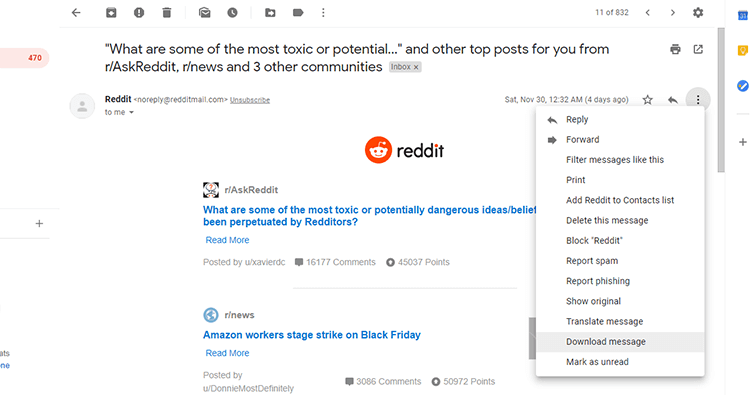
This method is very simple and easy. You don’t require any technical assistance to save an email. As Gmail has added a new feature “Download Message”. That will save Gmail email in .eml file format.
Follow the below steps for saving Gmail emails to flash drive.
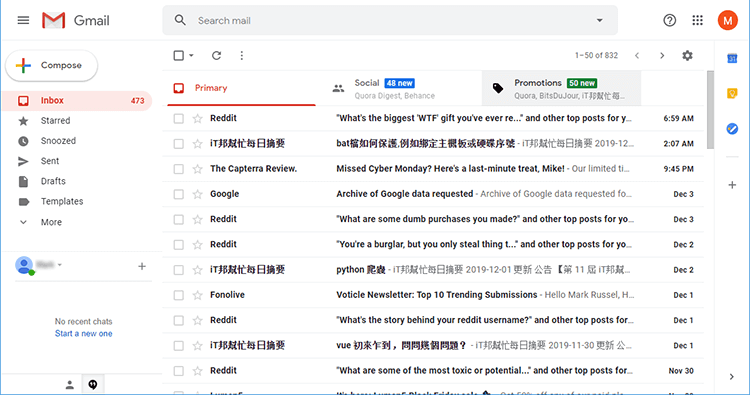
Step 1. Open the Gmail account in your system.
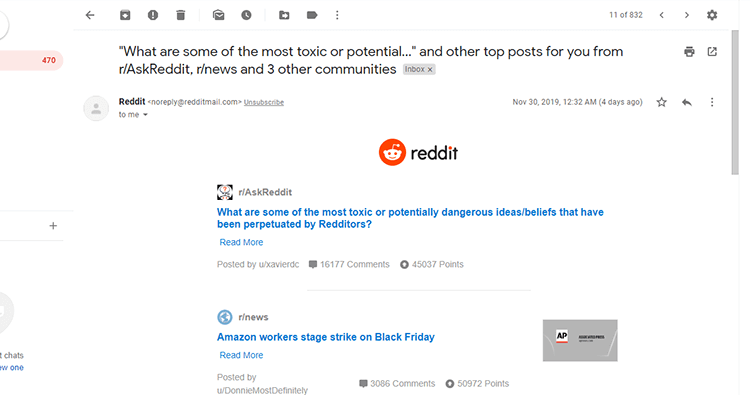
Step 2. Open an email that you want to save in a flash drive.
Step 3. Click on a three-dot icon and then select “Download Message”
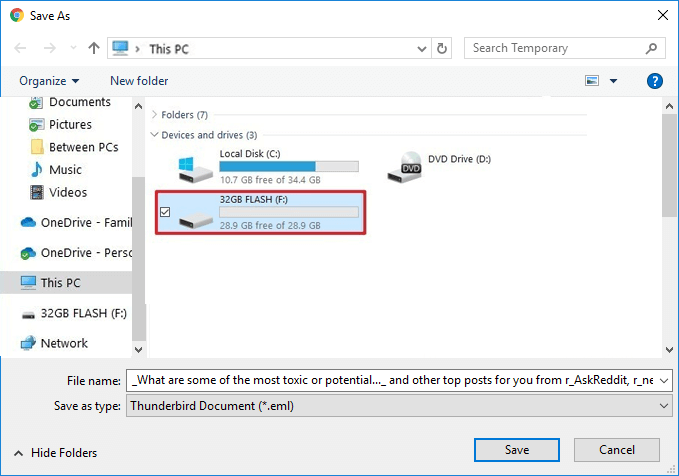
Step 4. Select the path of your flash drive and click the save button.
You can repeat the same task if you want to Copy more than one email into your Flash drive.
Drawbacks
-
-
-
-
-
- Repeat the steps to download the next message.
- Time-consuming for batch email download
-
-
-
-
Method 2: Save Gmail Emails to Flash Drive Using Google Takeout
Google has introduced a new way to save its data to your personal system using Google Takeout. With this service. you can save Gmail email folders to USB drive. Using this method, you can easily export complete mailbox data from Gmail to a Flash drive. You need to follow a few simple steps;
Step 1. Open Google takeout official website on your system i.e. https://takeout.google.com/
Step 2. Sign-in into your Google Account.
Step 3. First of all, click on Deselect all and then select Mail only.
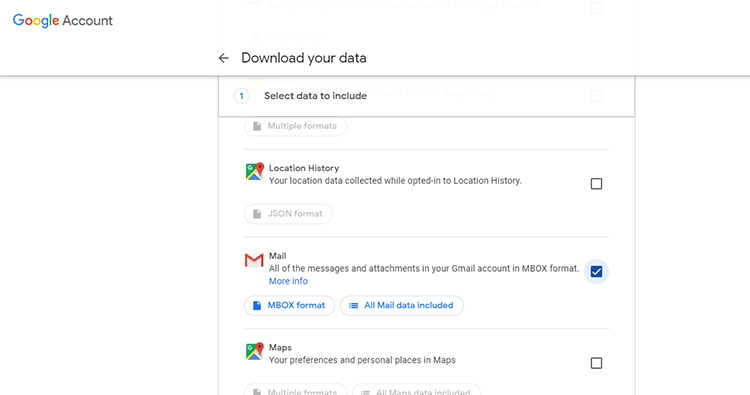
Step 4. After that click the Next Step button.
Step 5. Select One Time Archive and file type as Zip and file size of 2GB.
Step 6. Click on the Create archive button. After this, you have to wait for a while. It may take up to several days, depending on the size of your archive.
Drawbacks
-
-
-
-
-
- Save Only Inbox Folder
- No Email Filter Option
- Time-Consuming Process
-
-
-
-
Method 4: Save Multiple Gmail Emails to Flash Drive Using Email Backup Software
Check out the Advik Gmail Backup Tool. This special utility is designed to save Gmail emails to USB/Pen Drive/Thumb Drive or Flash Drive. With this tool, you can export emails from Gmail to flash drive in bulk. Also, you can choose emails or folders to copy specific emails. You can save Gmail messages in more than 20+ file formats. It will save emails directly to the flash drive from Gmail account. You can also download Gmail emails to hard drive with entire email folders with attachments.
Download and try the software for FREE!


Note: Enable IMAP and Generate App Password in Gmail to Sign into Advik Software.
Steps to Save Gmail Emails to Flash Drive
Step 1. Run the software and sign in using Gmail App Password. 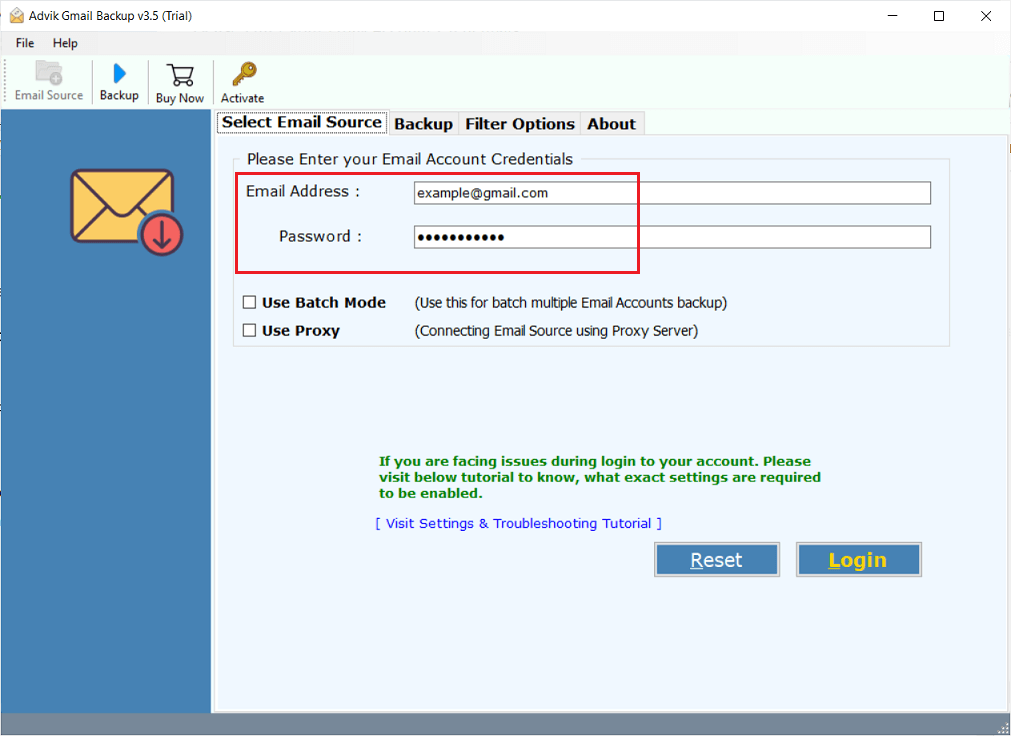
Step 2. Select mailbox folders to download.
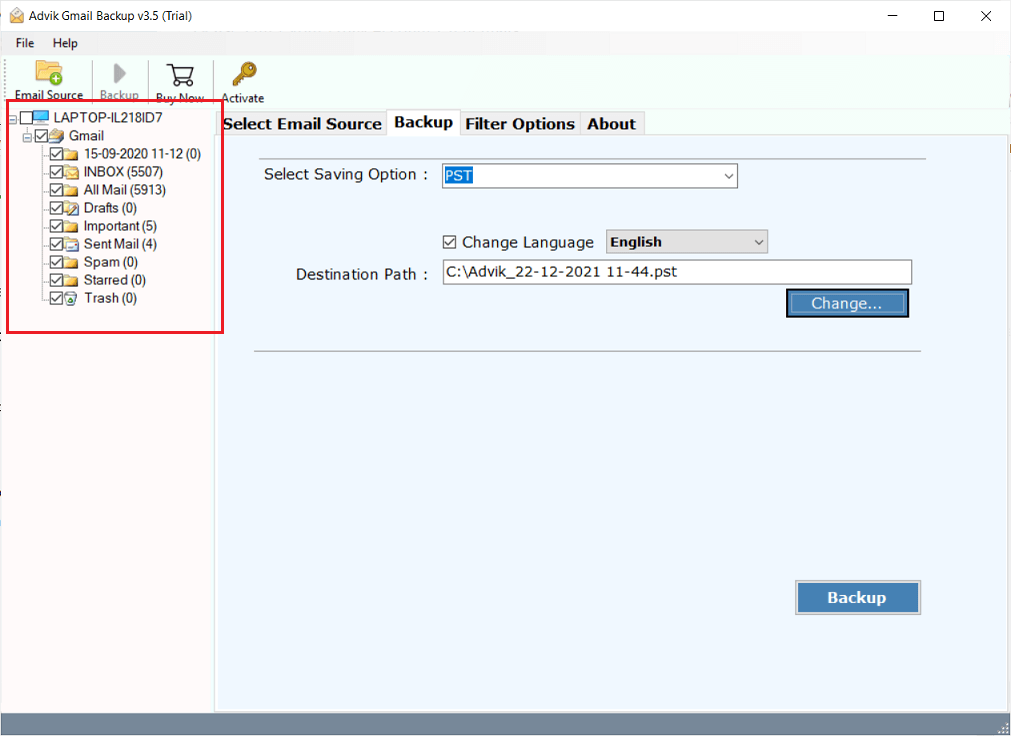
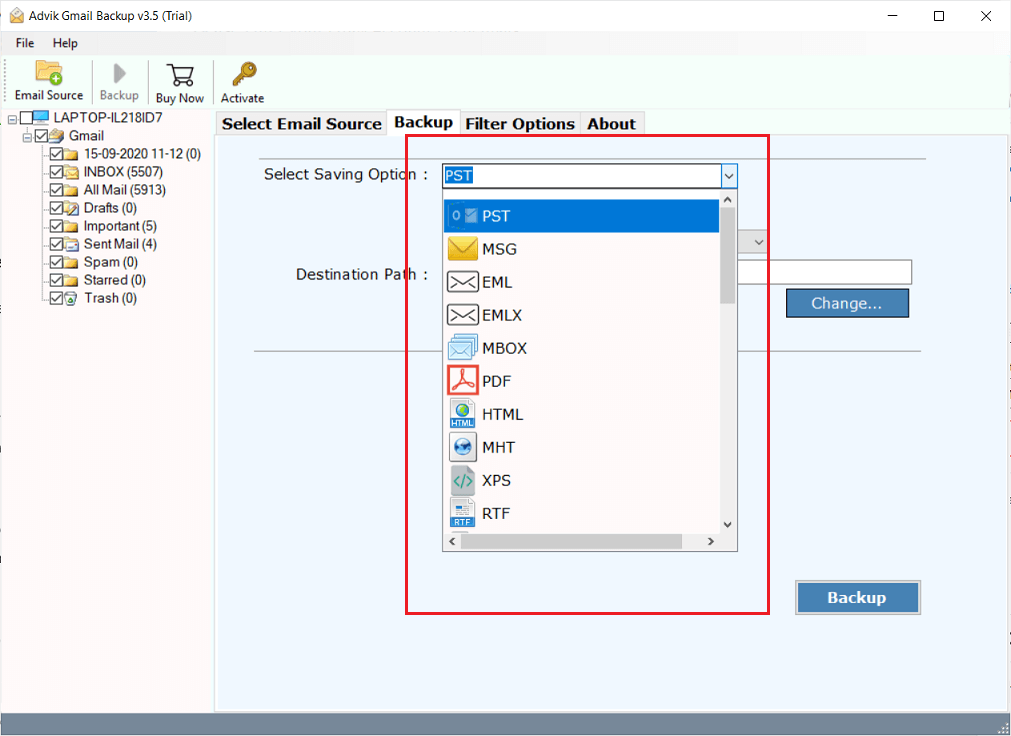
Step 3. Choose file format to save emails.
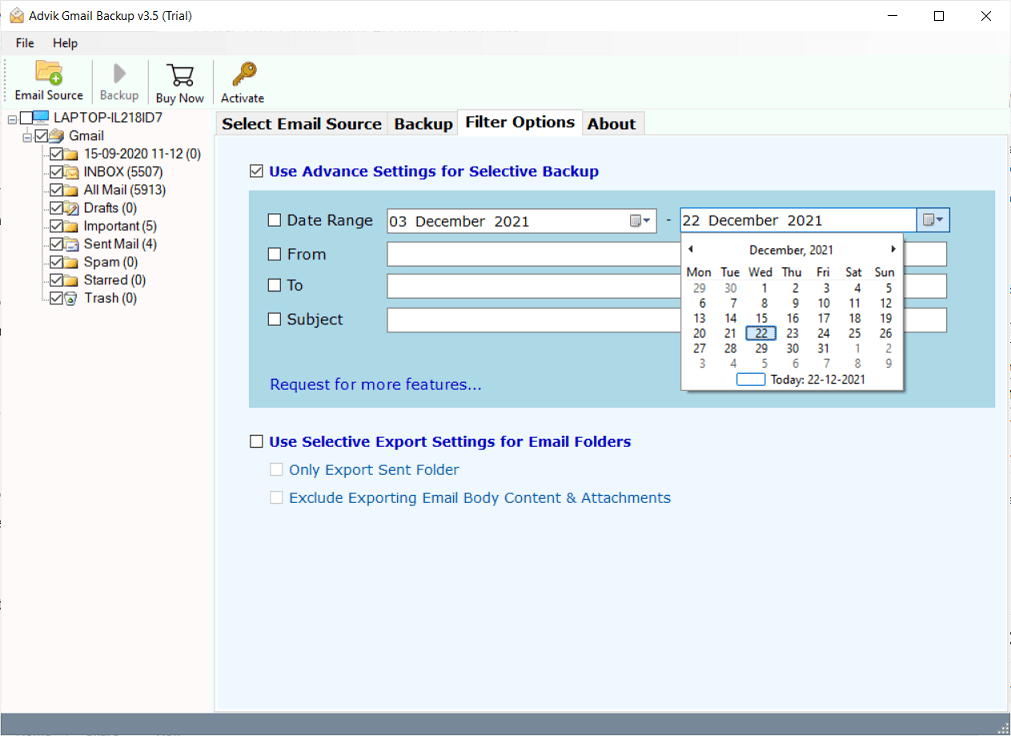
Step 4. Apply email filters if required.
Step 5. Select Destination Path to your flash drive and click Backup.
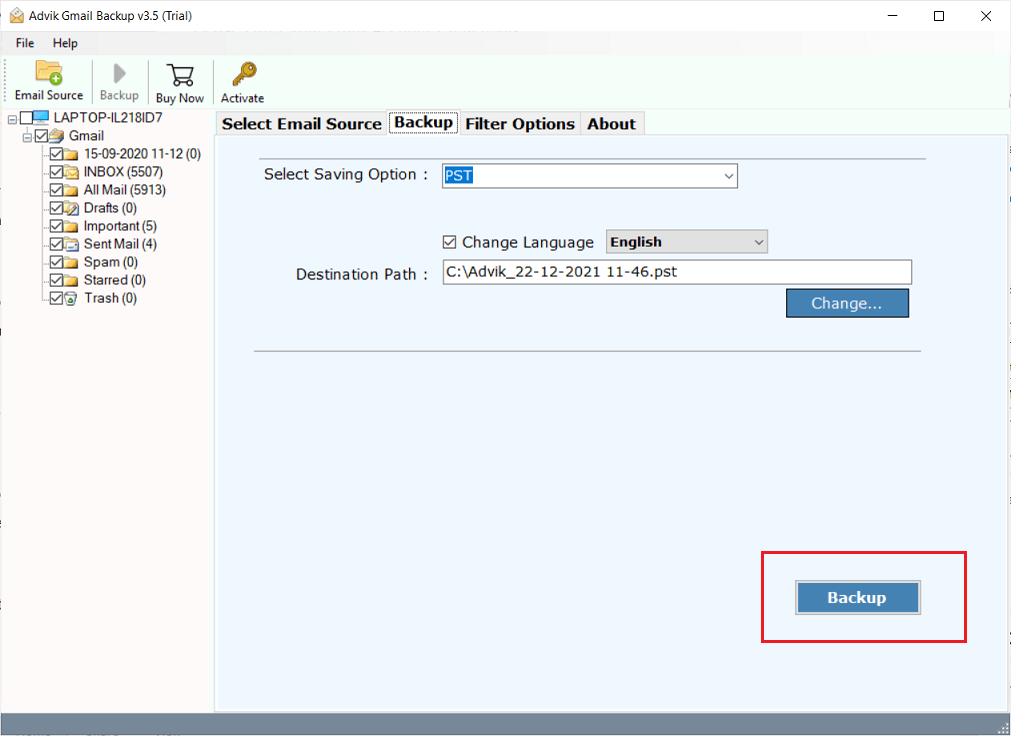
All Done! The program will start copying emails from Gmail to Flash Drive directly. You can see the conversion process along with the number of emails converted in the software panel.
Watch How to Export Emails from Gmail to a Flash Drive
Why Choose Automatic Solution?
There are various reasons for choosing the Advik Gmail backup tool. Some of them are as follows;
-
-
-
-
-
- Save Gmail emails to flash drive in bulk
- Folder Selection Option to Choose Email Folder(s) to Download
- Maintain Folder Hierarchy and Preserve Email Attachments
- Convert Gmail to PST, PDF, EML, MSG, MBOX, etc.
- Transfer Gmail folder to another Gmail, Yahoo Mail, Office 365, and many more
- Easily Workable in Windows 11 and older versions
- Easily backup multiple accounts in Gmail using Batch Mode
- Unlimited Email Backup with an advanced email filter option
- Faster, Quicker, and Safer than other utilities
-
-
-
-
Final Words
This is a complete guide on how to save emails to flash drive from Gmail. Here, we have explained three different ways to copy Gmail emails to thumb drive. You can choose one of the three methods that suit your needs. In case you are stuck somewhere while using Advik Software, you can contact our support using the live chat or email us at support@adviksoft.com
Frequently Asked User Queries
Q1. What is the best format to save Gmail emails on a flash drive?
Ans. The best formats to save emails are:
PDF: For easy readability and sharing.
MBOX: If you want to retain email structures and import them into other email clients later.
CSV: To save email addresses and metadata.
Q2. How long does it take to download Gmail emails using Google Takeout?
Ans. The time depends on the size of your mailbox. Google Takeout may take a few minutes to several hours to generate the export file, especially for large mailboxes.
Q3. How to save all Gmail emails to a flash drive at once?
Ans. You can use Advik software to quickly save Gmail emails to flash drive in bulk.
Q4. Is the manual method good for exporting Gmail emails to a flash drive?
Ans. Experts recommend avoiding manual methods for such tasks because they have many limitations. Using a reliable tool is the best way to transfer Gmail emails to a USB stick efficiently and without any hassle.
Q5. How do I copy emails from Gmail to a flash drive along with attachments?
Ans. The software will save the emails along with attachments.