How to Import MBOX to Gmail (With & Without Thunderbird)
Quick Answer: Gmail can’t import an MBOX file directly. The free ways are Thunderbird (add your Gmail account over IMAP, then copy the imported MBOX folders into it) or, for Google Workspace, Google’s own import-mailbox-to-gmail script. For large MBOX files or bulk importing, the Advik MBOX Converter tool is a fast and simple solution. In this guide, we will discuss all methods in detail with step-by-step instructions.
Table of Contents
- Which Method Should You Use?
- Can You Import MBOX into Gmail Directly?
- Before You Start Importing
- Method 1: Import MBOX to Gmail with Thunderbird
- Method 2: Google Workspace – Google’s import-mailbox-to-gmail Script
- Method 3: Import MBOX to Gmail Without Thunderbird
- Watch Video Tutorial
- Gmail Limits to Know
- Check Your Import After Migration
- Conclusion
- Frequently Asked Questions
Which Method Should You Choose?
The right method depends on the type of Gmail account you have, the number of MBOX files and how much technical work you want to perform.
| Feature | Thunderbird + IMAP | Google import-mailbox-to-gmail Script | Advik MBOX Converter |
|---|---|---|---|
| Best for | Personal Gmail users | Google Workspace administrators | Personal and business users |
| Direct Gmail Migration | Through IMAP | Through Gmail API | Yes |
| Import MBOX Files in Bulk | Yes but manually | Yes | Yes |
| Suitable for Large Mailboxes | No | Yes with proper setup | Yes |
| Technical Knowledge Required | Moderate | Advanced | Basic |
| Preserves Folder Hierarchy | No | No | Yes |
| Risk of Errors | Medium | Medium | Low |
For a single personal Gmail account, Thunderbird is a practical choice because it is free and lets you upload MBOX messages through IMAP. For Google Workspace bulk migration, Google’s script is more suitable because administrators can process MBOX files for multiple users, although it requires technical configuration. If you want to import MBOX to Gmail without Thunderbird or command-line setup, a dedicated MBOX-to-Gmail migration tool provides a more straightforward workflow.
Can You Import MBOX into Gmail Directly?
No, Gmail doesn’t allow you to directly import MBOX files from your computer. It does not have any option to accept a .mbox file as a local upload; it is meant to import messages from another email account. An MBOX file can contain hundreds or thousands of emails, along with message headers, attachments and folder information. Gmail needs these messages to be processed individually before they become normal Gmail messages. Therefore, you need an alternative solution to import MBOX to Gmail.
You can migrate MBOX data to Gmail using an email client, such as Thunderbird, Google’s own import-mailbox-to-gmail script for Google Workspace or using MBOX-specific conversion software.
Before You Start Importing
Before you begin the process, make sure you have everything that is required to import MBOX to Gmail account. A few preparations before starting the process will help you to avoid common issues such as failed synchronization, missing emails, authentication errors, etc.
Prepare the source mailbox and Gmail account. MBOX files can come from several applications and services, including Mozilla Thunderbird, Apple Mail and Google Takeout.
First, identify exactly which MBOX file or files you need to migrate. If the mailbox contains multiple folders, keep the files organised so that you can identify Inbox, Sent, Drafts and other folders during the migration.
Also check the size of your MBOX files and the available storage in the destination Google account. Large mailboxes can take considerably longer to upload, because every message has to be processed and transferred.
If preserving folder organisation is important, decide how you want those folders to appear in Gmail account. Gmail uses labels rather than traditional folders, so imported folders may appear as labels depending on the migration method. It is also recommended to test the process with a small MBOX file first. This helps you confirm that messages, attachments, dates and folder organisation are being transferred as expected.
Method 1: Import MBOX to Gmail With Thunderbird
Thunderbird is a free way to import MBOX files into Gmail using IMAP syncing feature. However, it involves various steps, such as that; first you need to set up your Gmail account in Thunderbird using IMAP, then you import the MBOX file into Thunderbird Local Folders using ImportExportTools NG and finally you can copy the imported messages to your Gmail mailboxes.
Step 1. First, download Thunderbird and install it on your computer and launch it.
Note: Thunderbird is available for Windows, macOS and Linux. The interface may look different depending on the version you are using.
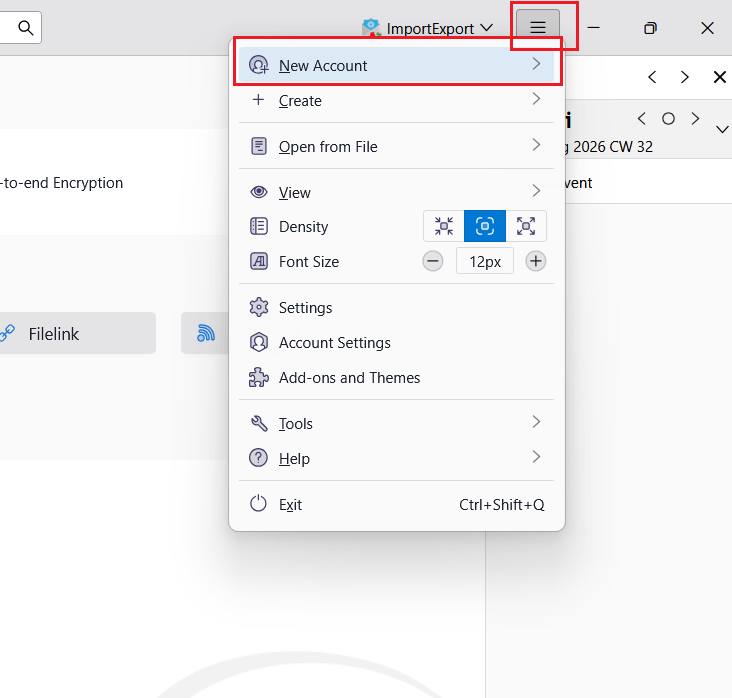
Step 2. Click the Menu tab and select New Account.
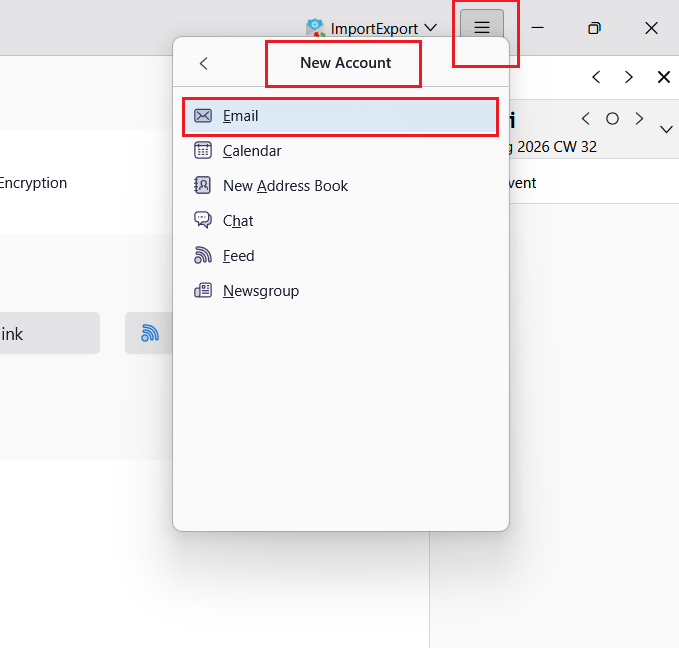
Step 3. Then in New Account, choose Email from the options.
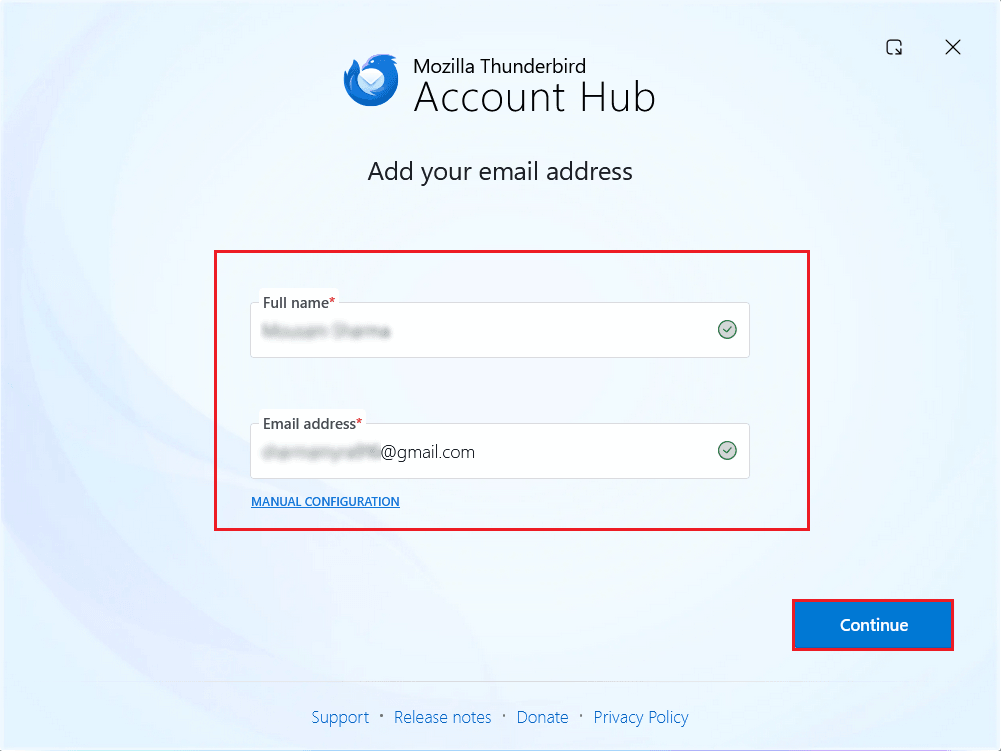
Step 4. In the Account Hub tab, provide your Full Name, email address and click the Continue button.
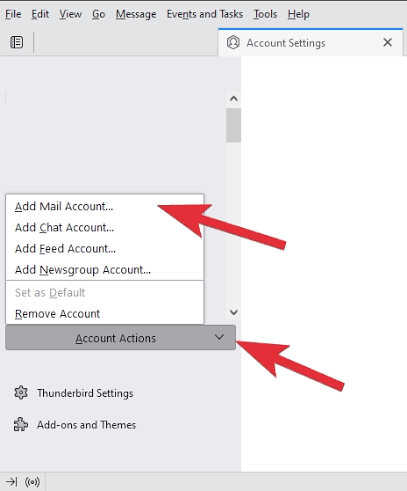
Step 5. In older versions of Thunderbird, you might find this option under:
Menu >> Account Settings >> Account Actions >> Add Mail Account.
Step 6. Thunderbird usually automatically detects server settings for Gmail. Keep IMAP selected because this allows Thunderbird to sync messages with your Gmail account. Click Continue.
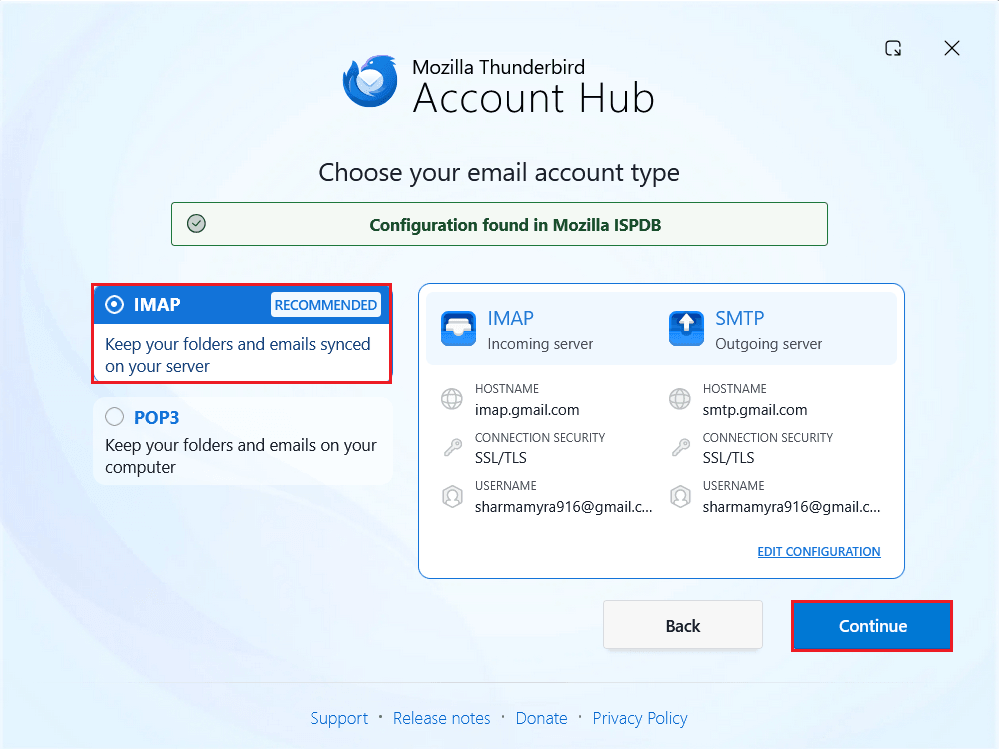
Step 7. Once you added Gmail account details, Thunderbird will open a window to sign in to Google.
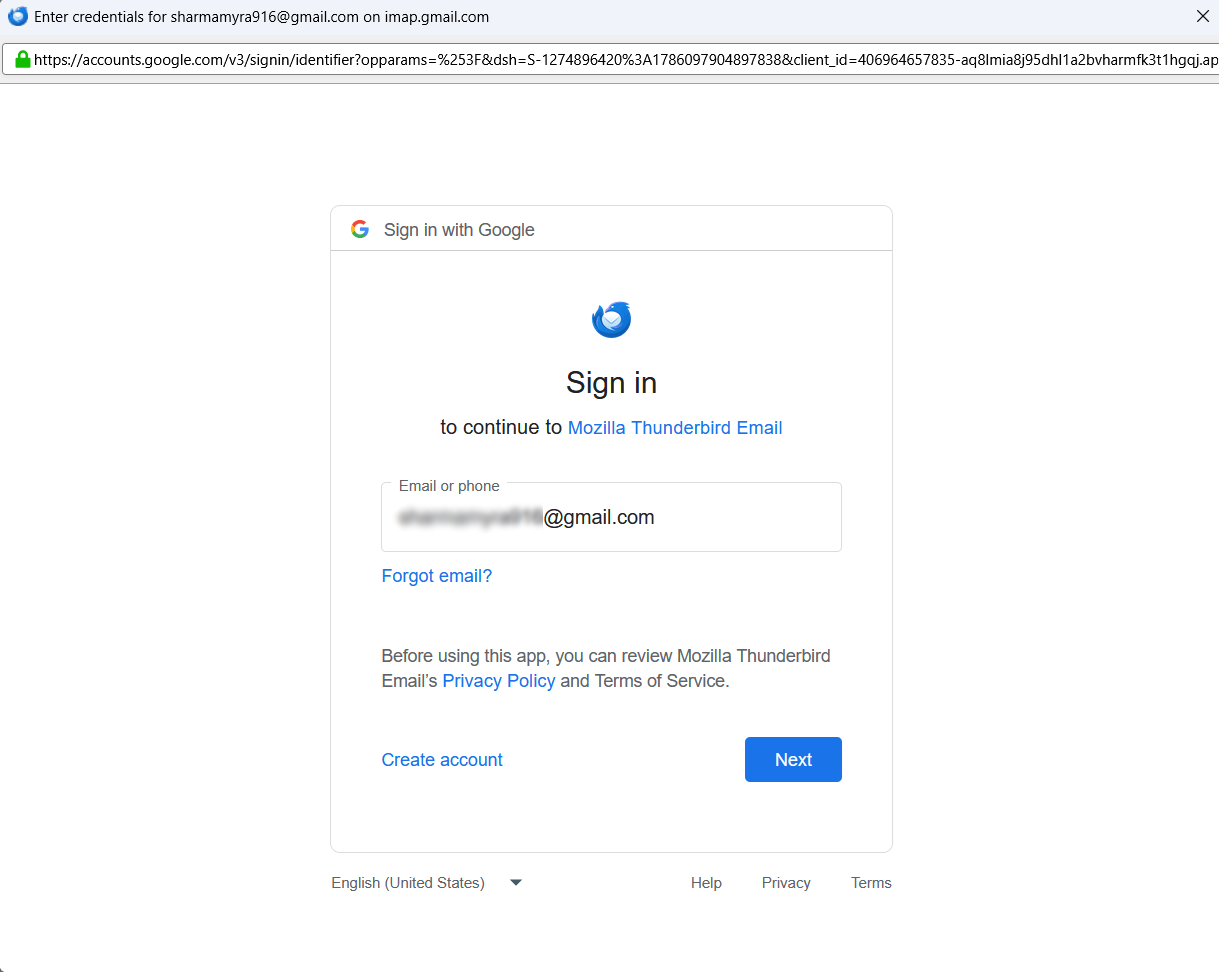
Step 8. Sign in to your Google Account and follow the instructions on your screen. When Google asks for permission to access your account, review the permissions it is requesting and click Allow if you want to continue.
This is the authentication flow for Google OAuth 2.0. Most modern Gmail accounts use OAuth, instead of letting applications connect with a normal Gmail username and password.
Step 9. When authentication is complete and your Gmail account is added, click Finish to continue.
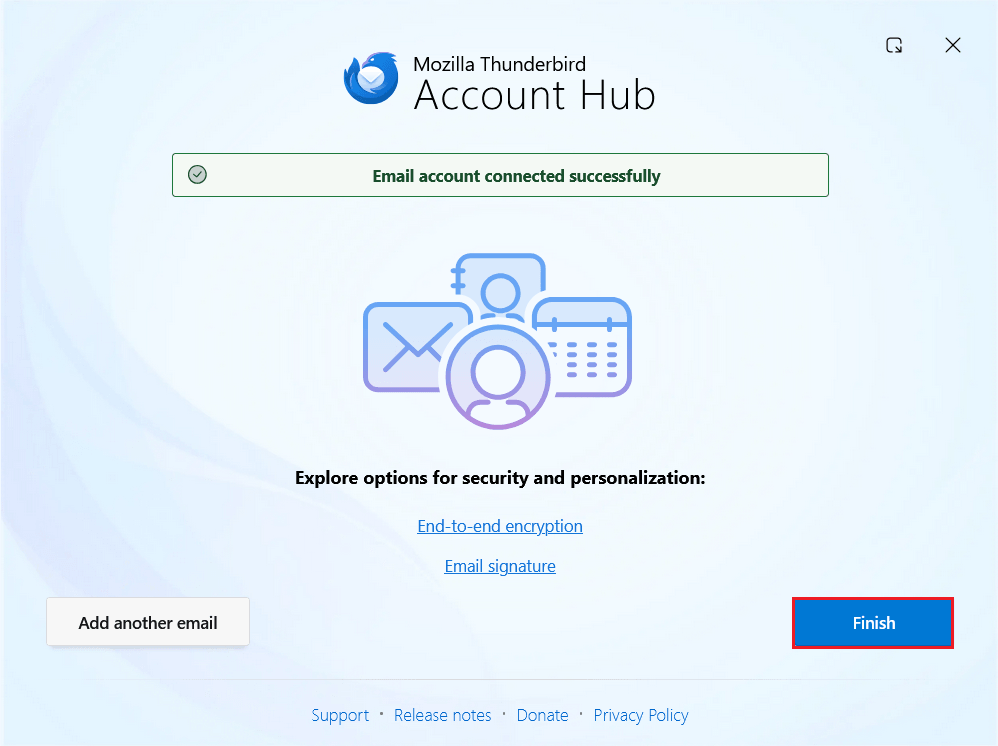
Step 10. Now, in Thunderbird’s left navigation panel, you will see your Gmail account and folders.
Step 11. Next, in Thunderbird Mail, click the menu bar and choose the Add-ons & Themes option and install the ImportExportTools NG add-on.
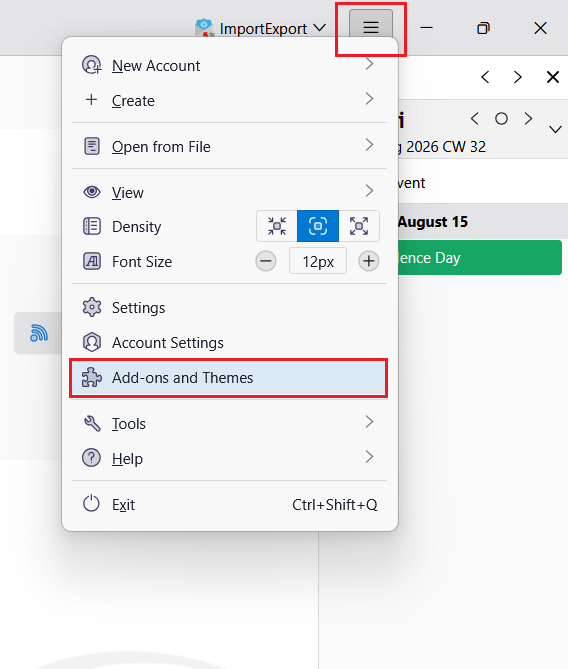
Note: Make sure that your are using the latest version of ImportExportTools NG compatible with your Thunderbird installation.
Step 12. Now, create a local folder in Thunderbird and right-click on it.
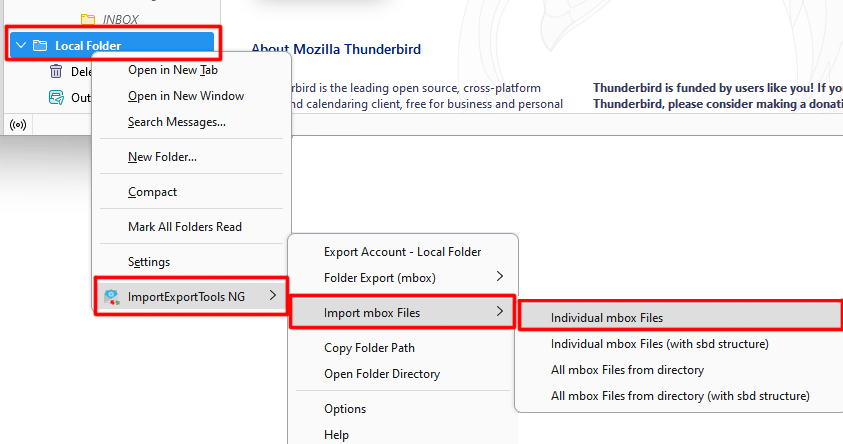
Step 13. Then, choose ImportExportTools NG >> Import mbox Files >> Individual mbox Files option.
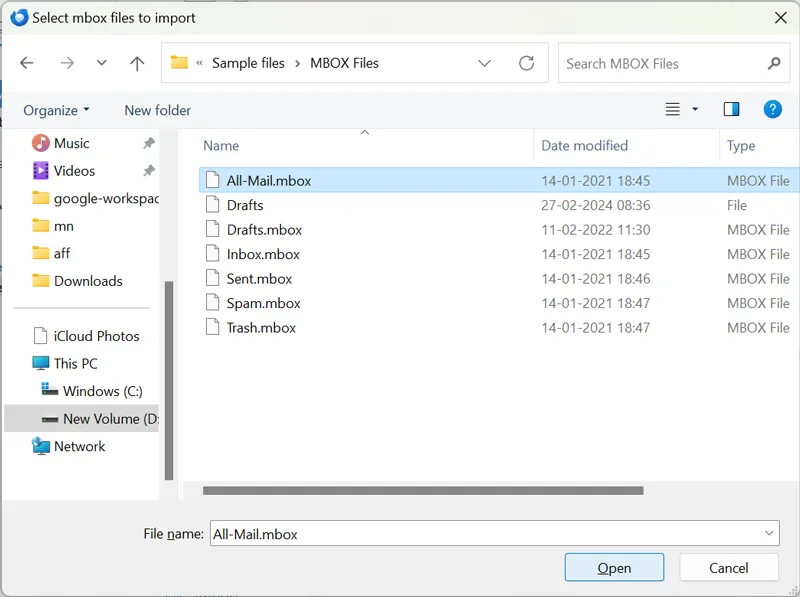
Step 14. Choose the MBOX file you need and click Open.
Step 15. Thunderbird will import the messages into the chosen local folder.
Step 16. Open the imported folder and check that the messages are displayed correctly.
Step 17. After that, press Ctrl+A (Windows) or Command+A (macOS) to select all messages.
Step 18. After selecting the messages, right-click and choose: Copy To >> Your Gmail account >> Folder destination.
Once the transfer is done, log in to Gmail in your browser and verify that the imported messages are present.
This completes the MBOX to Gmail import process. However, this is a lengthy and time-consuming process.
Method 2: Google Workspace – Google’s import-mailbox-to-gmail Script
Google maintains an open-source GitHub project called import-mailbox-to-gmail that allows Google Workspace administrators to import MBOX files in bulk into users mailboxes. It is particularly useful when an organisation needs to migrate MBOX files for multiple users.
The project uses the Gmail API and a service account with domain-wide delegation. Once the service account is authorised, the administrator can organise MBOX files by user and run the migration from the command line.
Steps to use the Google MBOX import script
- Download the import-mailbox-to-gmail script from the Google GitHub repository.
- Create a Google Cloud service account and enable the Gmail API.
- Download the service-account JSON credentials.
- Create a main directory and create a separate folder for each Google Workspace user. Organize your MBOX files in:
C:\mbox\user@example.com\
- Open Command Prompt.
- Run the scripts with the service account JSON file and MBOX directory:
python import-mailbox-to-gmail.py --json Credentials.json --dir C:\mbox The scripts import the MBOX files into the specified user mailboxes. Check Gmail and the generated log file for the import status.
This is how you can upload MBOX files using the import-mailbox-to-gmail scripts.
Note: Google project documentation recommends testing the migration with the test user before importing mail into actual user account. This helps identify authentication formatting or mailbox-related problems before a large migration. This approach is useful for administrators, but requires more setup.
Method 3: Import MBOX to Gmail Without Thunderbird
If you do not want to install Thunderbird or command line scripts, try Advik MBOX Converter for Windows PC. With this tool, you can migrate MBOX to Gmail in just a few simple clicks. Just run the tool, add .mbox files, choose Gmail as a saving option, enter Gmail account login credentials and press Convert to begin the importing process.
The software can import MBOX files to Gmail in bulk. Also, it offers advanced email filter options to upload selected emails from MBOX file based on date range, to, from, subject, etc. It preserves data integrity and folder structure while importing.
A free trial is also available to migrate 25 emails per folder. Download the tool today and try it for FREE.
Click the link button and download the free version to check its working steps.


Steps to Upload MBOX to Gmail
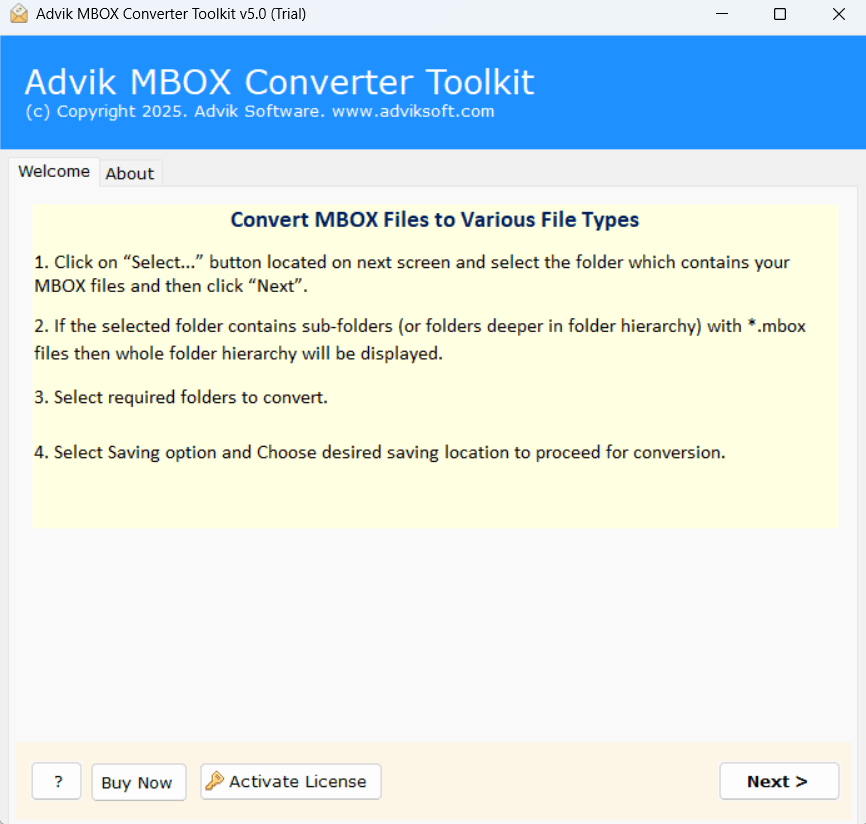
Step 1. Run the software on your Windows PC.
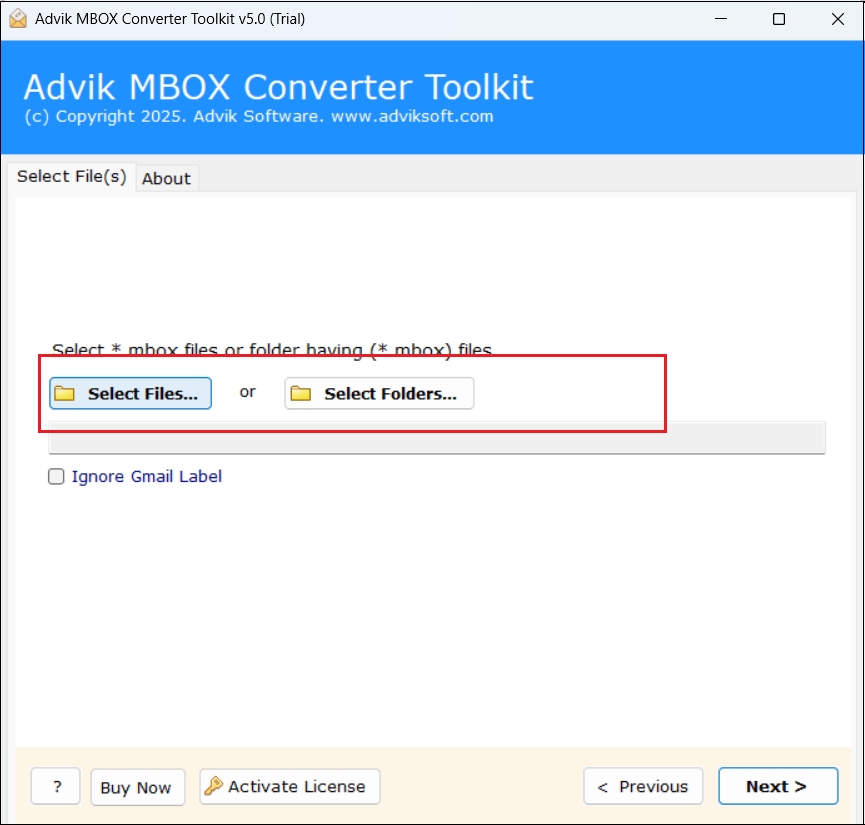
Step 2. Click the Select Files or Select Folders option to add .mbox files.
Step 3. Select the email folder you want to import.
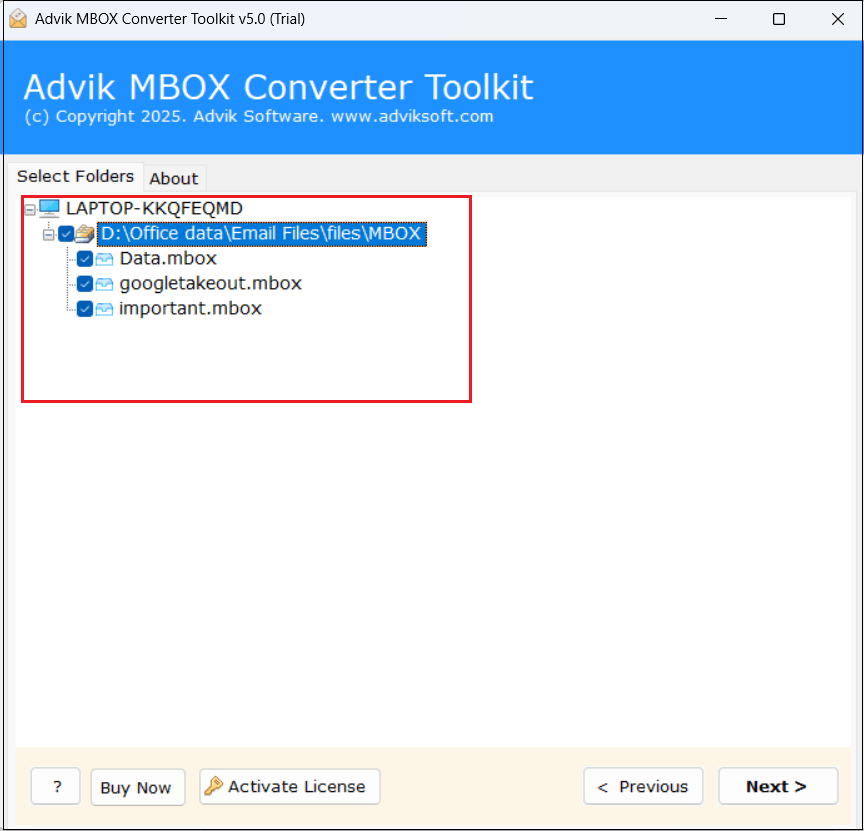
Step 4. Choose Gmail as the target source from the list of various options.
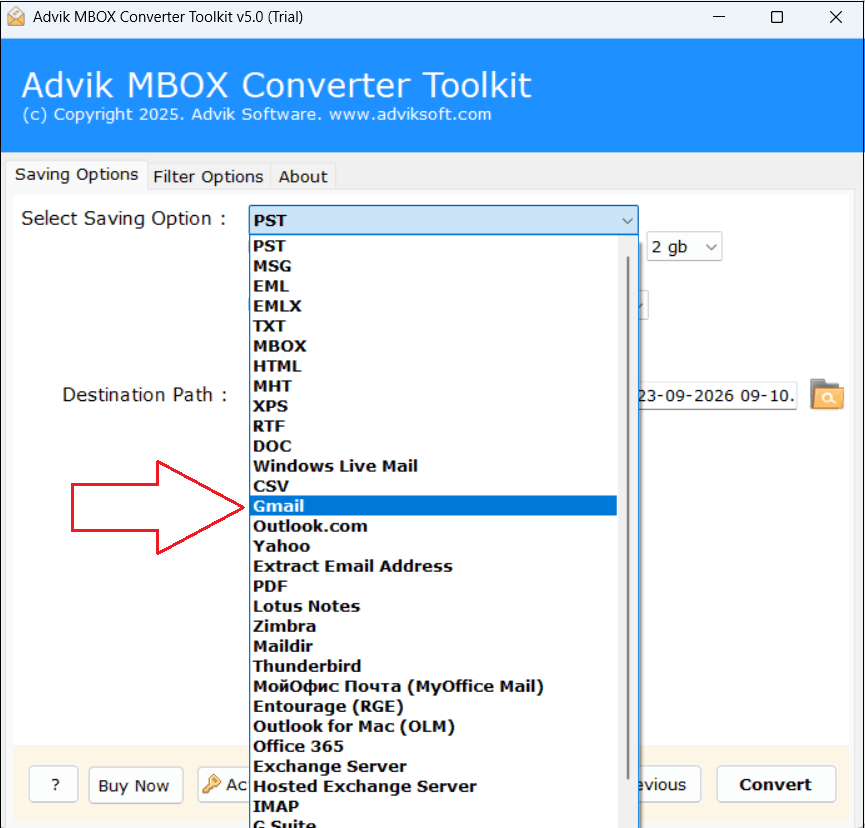
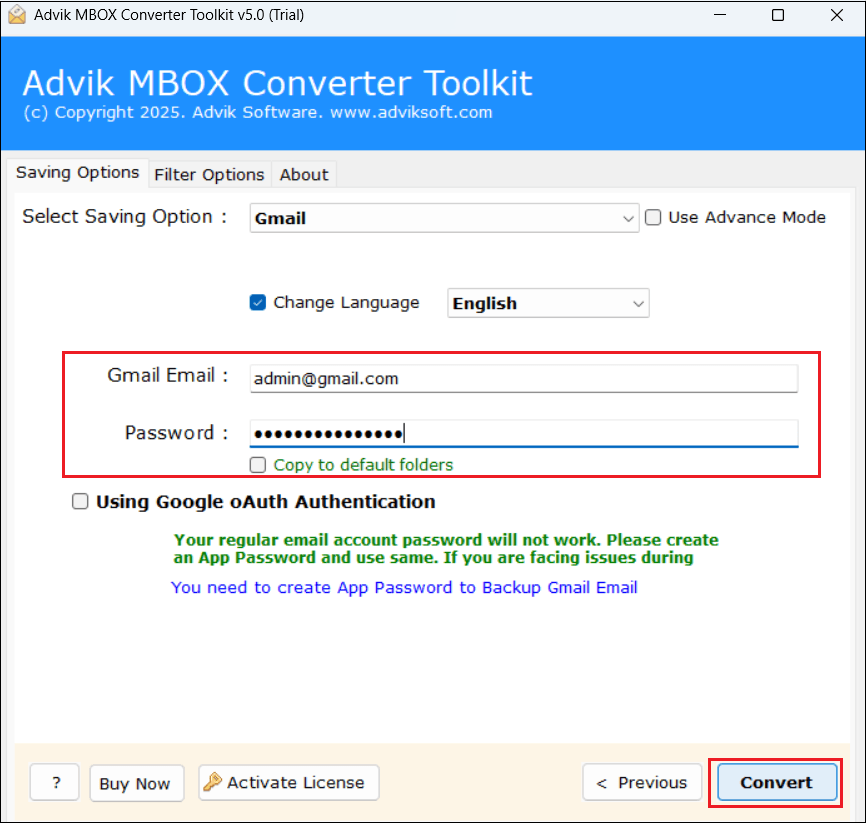
Step 5. Enter your Gmail account login details and click Convert.
Step 6. The software will start uploading MBOX emails into Gmail account.
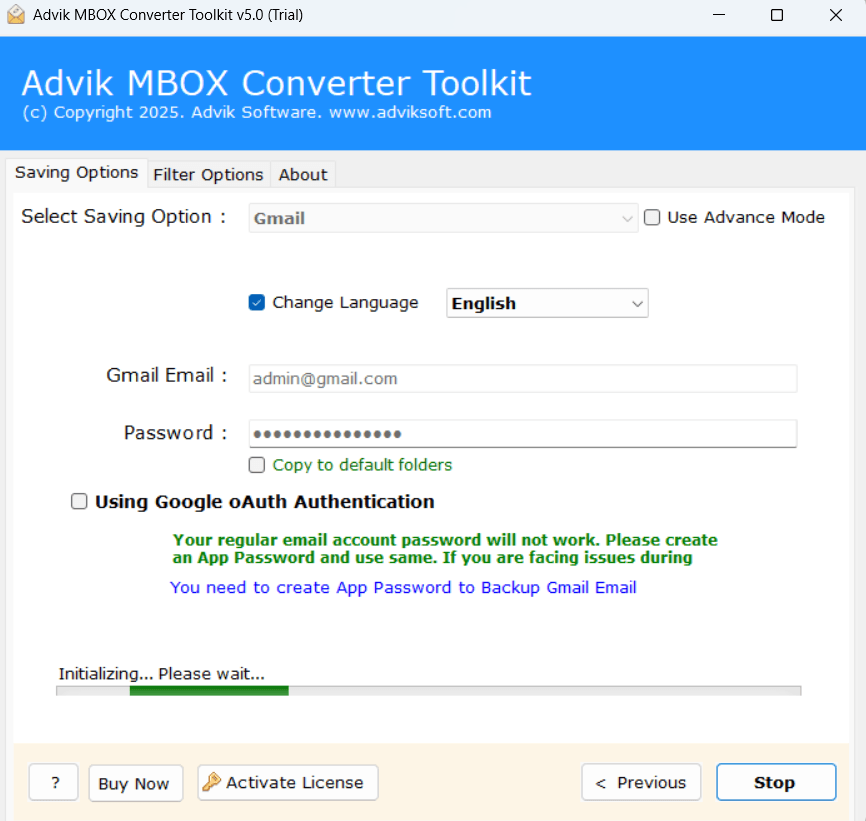
Once the process is completed, open your Gmail account and check the mailbox list. You will see a new folder with your .mbox file emails.
Watch How to Import MBOX File to Gmail Without Thunderbird
Gmail Limits to Know
Before starting a large MBOX migration, keep a few Gmail-related limitations in mind.
1. Gmail Storage
Your Gmail mailbox uses your Gmail account storage. A large MBOX migration can consume considerable space, especially when the source contains years of emails and attachments. Check available storage before starting the import.
2. Attachment Size
For personnel Gmail account, Google currently lists a 25MB attachment limit for messages. Google Workspace limits can differ because administrators control sending and receiving attachment limits.
This does not mean an MBOX file itself must be smaller than 25MB. The limit applies to email attachments, while an MBOX file is a mailbox container that can hold many messages.
3. Gmail Labels Instead of Traditional Folders
Gmail organizes messages using labels, rather than the traditional folder model. As a result, Thunderbird or MBOX folder may appear as a Gmail labels after migration.
Check Your Import After Migration
Do not assume the import is complete just because the tool reports that the process has finished. Open Gmail and check the imported data carefully. Start by comparing the approximate number of messages in the source MBOX with the number available in the corresponding Gmail label or folder. A small difference may require further investigation.
So, open several emails from different dates and folder. Check the From, To, CC, Subject, date, message body and attachments. Also verify that important folder, such as Inbox and Sent, have been transferred correctly.
For Google Workspace migrations performed with the script, review the generated import-mailbox-to-Gmail.log file for error or skipped messages. The script also supports resuming and upload from a particular message if a migration is interrupted.
Conclusion
Gmail does not provide a direct MBOX upload feature, so users search for alternative approaches to do it. In this guide, we have explained how to import MBOX to Gmail using three different ways. Thunderbird is useful for personal or smaller migration, while Google import-mailbox-to-Gmail script is designed for Google Workspace administer handling multiple users. If you want to avoid email client configuration or command line script, a dedicated MBOX to Gmail migration tool provides another approach.
Before starting create a backup of the original MBOX files, verify the available Gmail storage and test the importing process with a small mailbox. This reduces the risk of losing track of message and make its Easy to identify import issues before processing a large archive.
Frequently Asked Questions
Q1. Can I open an MBOX file in Gmail?
Ans. No. Gmail does not provide a feature to open MBOX file directly from your computer. To import the inbox data, you can use the Thunderbird through IMAP, Google workspace migration script or a dedicated MBOX to Gmail import tool.
Q2. How long will it take to transfer 5GB of MBOX file into Gmail?
Ans. The time to migrate emails from a 5GB MBOX file to Gmail depends on several factors like internet speed, system performance and the method used. So, analyse your needs and choose method accordingly.
If you use Thunderbird, then it will not support transferring MBOX file of more than 4 GB using a importexportToolsNG while a professional tool can complete the process faster and more efficiently.
Q3. Will MBOX folders become Gmail folders?
Ans. Not exactly. Gmail uses labels instead of the traditional folder structure. Depending on the migration method source, MBOX folder can therefore appear as Gmail label.
Q4. How do I import MBOX file to Gmail without losing attachments?
Ans. The safest way is to use a dedicated MBOX to Gmail import tool which preserves attachments, formatting and folder structure automatically during MBOX to Gmail migration.
Q5. Is it possible to transfer multiple MBOX files to Gmail at once?
Ans. Yes, with import-mailbox-to-gmail or MBOX to Gmail converter, you can import multiple MBOX emails into your Gmail account in a sinlge attempt.
Q5. Can I import Apple MBOX file to Gmail?
Ans. Yes, you can transfer Apple MBOX file into Gmail without any hassle.